
Last Updated: October 23, 2026
Configuring data ingestion is a prerequisite for automating workflows that use external data. This guide outlines the steps for configuring data ingestion with the Schedule method (D3 pulls data in) and the Webhook method (the external system pushes data into D3).
Accessing Data Ingestion Settings
-
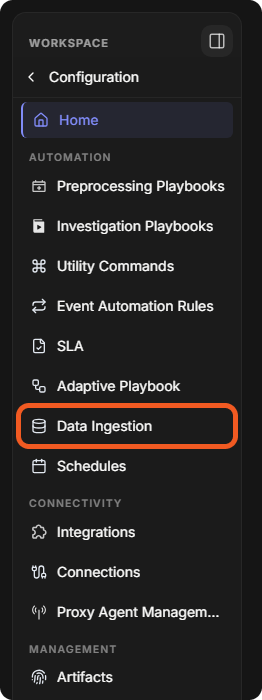
Go to Configuration > Data Ingestion (in the AUTOMATION group of the sidebar).
-
On the Event Intake tab (or Incident Intake for data that should create incidents), select New.

Two options appear:
-
Schedule: data is ingested from a third-party integration automatically, at a set interval.
-
Webhook: the external system sends data into D3 through an HTTP API, for example from an API testing tool such as Postman.
Configuring Data Ingestion
Scheduled Ingestion
-
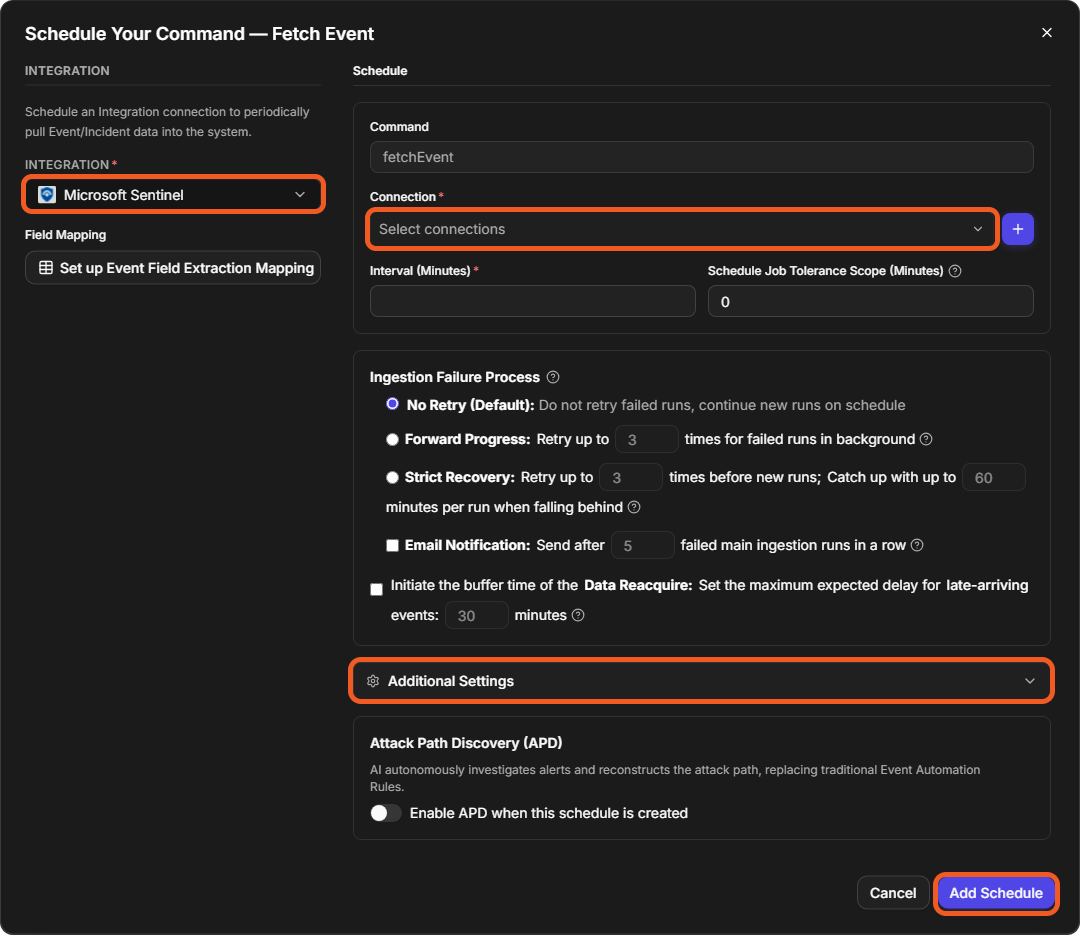
Select Schedule. The Schedule Your Command window opens.
-
Choose the INTEGRATION (for example Microsoft Sentinel). Its fetch command appears under Command.
-
Choose the Connection configured beforehand, or add one with the + button.
READER NOTE
This connection is what retrieves data from the selected integration. For Microsoft Sentinel, see Configuring Microsoft Sentinel to Work with D3 and Configuring D3 to Work with Microsoft Sentinel.
-
Enter the Interval (Minutes), and optionally the Schedule Job Tolerance Scope (Minutes) and the Ingestion Failure Process.
-
Expand Additional Settings and choose the PREPROCESSING PLAYBOOK to run after the data is ingested (see My First Playbook).
-
Under Command Details, set the Start Time (in UTC) for the data ingestion, and fill in the integration-specific inputs. For Microsoft Sentinel, these include a Search Condition (Kusto Query Language), for example:
SecurityIncident | where Status == "New" -
Select Add Schedule.
Reviewing Ingestions
-
Go to Configuration > Data Ingestion and expand the integration.
-
Select the schedule card. Its runs are listed in the All Runs log; filter them with FROM and TO.
-
Select a run to see its details on the right.
Webhook Ingestion
If you selected Webhook instead of Schedule:
-
In the New Webhook Data Source window, choose the Integration.
-
Set up the webhook's API Keys, and use them to configure the API client that pushes data into D3.
For webhook authentication and request formats, see the Webhook Configuration Guide. For every option of a data source, see Data Ingestion.