
Last updated: April 15, 2025
-20250415-220633.png?cb=3b90b1f9dea982c78665c6a6d19c5b64)
-
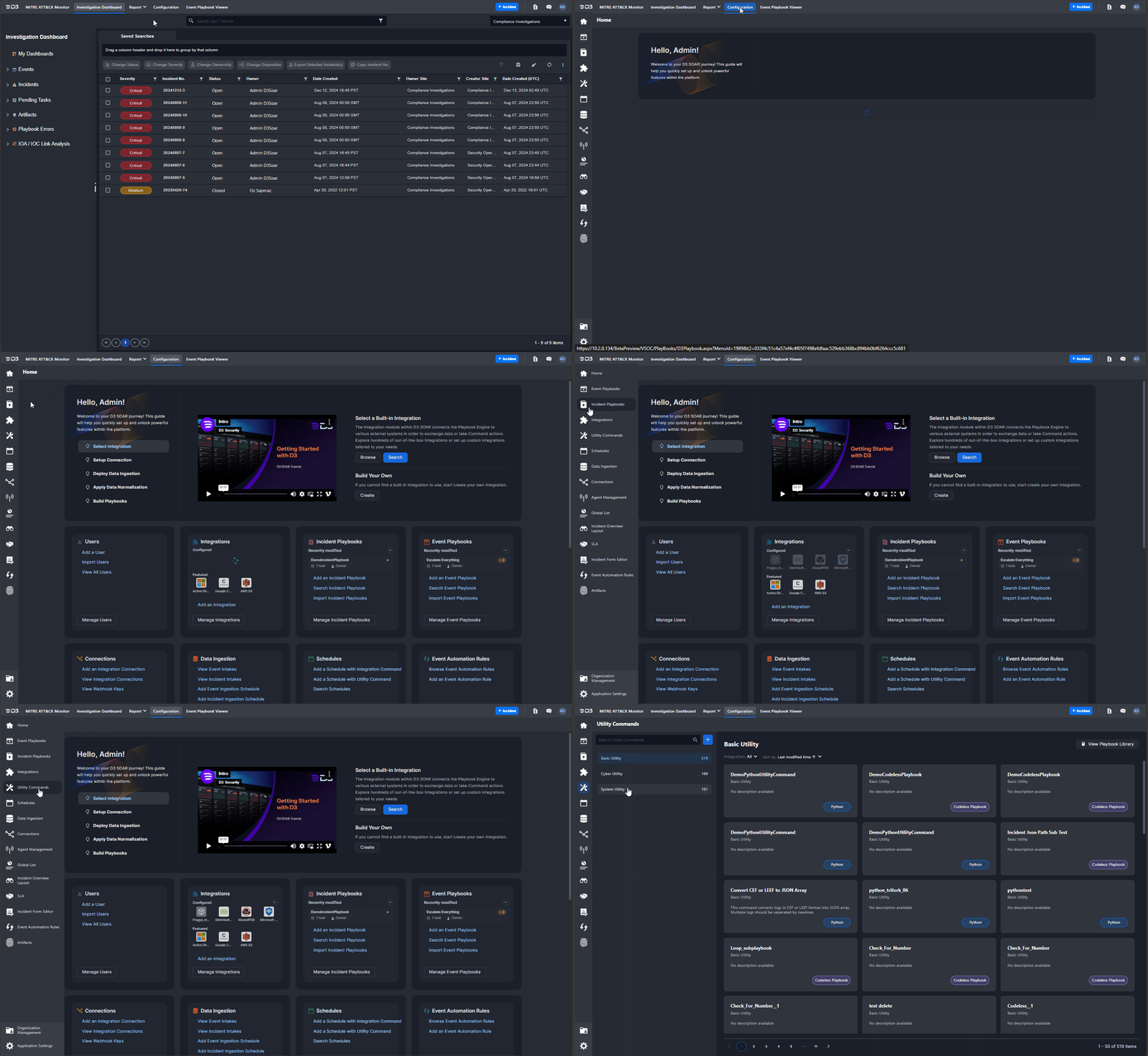
Navigate to the Utility Commands module.
-
Click on the Configuration navigation link.
-
Click on the

-
-
Click on the + button.
-20241213-163346.png?cb=fffae664e1042604946ed1e7d8be2053)
-
Add a Replace Spaces with Underscores in Top Level JSON Keys command.
-20241213-175122.png?cb=d8061773bd2fe0a87f9ad27f5831a796)
-
Enter Replace Spaces with Underscores in Top Level JSON Keys in the first field.
-
Click on the + Add button.
-
READER NOTE *
The text below the command display name is its internal name, automatically generated from the user's input. This internal name is used as the command's Python function name.
-
Replace the auto-generated custom command stub function with the following code:
Pythondef ReplaceSpacesWithUnderscoresInTopLevelJsonKeys(*args): """ Replaces spaces with underscores in the top-level keys of JSON objects within a JSON array. """ modified_array = [] # Initializes an empty list to store modified JSON objects json_array = args[0] # Retrieves the JSON array from the first argument resultData = "Successful" # Sets the initial result status to "Successful" returnData = "" # Initializes variables to store return data and error information error = "" try: for item in json_array: # Iterates over each JSON object in the input JSON array modified_item = {} # Creates an empty dictionary to store the modified JSON object for key, value in item.items(): # Iterates over each key-value pair in the JSON object modified_key = key.replace(" ", "_") # Replaces spaces with underscores in the key modified_item[modified_key] = value # Add the modified key and original value to the new JSON object modified_array.append(modified_item) # Append the modified JSON object to the result array returnData = modified_array # Set the return data to the modified array except Exception as e: error = e # Captures the error resultData = "Failed" # Updates the result status to Failed return pb.returnOutputModel(resultData, returnData, '', '', '', error) # Returns the output model with all the gathered information.
-20241213-175315.png?cb=4e3079f378588a60ca0a70f705985b18)
-
Add an Input JSON Array input parameter.
-20241213-181419.png?cb=bfbc6f62ae16e015e1e14e058ccf5dc3)
-
Navigate to the Overview tab.
-
Click on the Inputs tab.
-
Click on the + New Input Parameter button.
-
Input the parameter details, then click on the + Add button.
-
Set the Parameter Name to Inputjsonarray
-
Set the Display Name to Input JSON Array
-
Set the Parameter Type to JSON Array
-
Set the Is Required? field to Yes
-
Set the Description to A JSON array containing objects with key-value pairs. Keys may include spaces, which will be replaced with underscores.
-
Set the Sample Data to
JSON[ { "Employee ID": "CST-1001", "First Name": "Alex", "Last Name": "Johnson", "Job Title": "Cybersecurity Analyst", "Department": "Threat Intelligence", "Email": "alex.johnson@cybercorp.com", "Phone": "+1-555-0100" }, { "Employee ID": "CST-1002", "First Name": "Taylor", "Last Name": "Morgan", "Job Title": "Incident Response Manager", "Department": "Security Operations", "Email": "taylor.morgan@cybercorp.com", "Phone": "+1-555-0200" } ]
-
-
-
Verify that the Input JSON Array parameter has been added, then click on the copy button.
-20241213-181835.png?cb=c20fcdeef7271c8a241b11bebb78e760)
-
Test the command.
-20241213-184544.png?cb=aa6daaeeb3902eb91d0912bcfc579e63)
-
Click on the Test tab.
-
Ensure that a site is selected.
-
Paste in the JSON array from the sample data from step 6.
-
Click on the Test Command button.
-
Click on the Return Data tab in the popup to observe the modified keys.
-
RELATED ARTICLES