
last updated: march 24, 2025
Overview
Integration command tasks in incident playbooks require an API connection to communicate with third-party platforms. Connections must be created before use and can be configured under Configuration > Integrations > [Select Integration] > Connections. When configuring integration commands, users can select connections by Connection Name, Site, or Category.
Select Connection by Name/Site
The By Connection Name option selects one specific connection based on the configured connection name set up for the third-party integration tool. On the other hand, the By Site option selects one specific connection configured and shared to different sites (e.g. Shared to Internal Sites and Shared to Client Sites).
Dynamically Select Connection (By Connection Name)
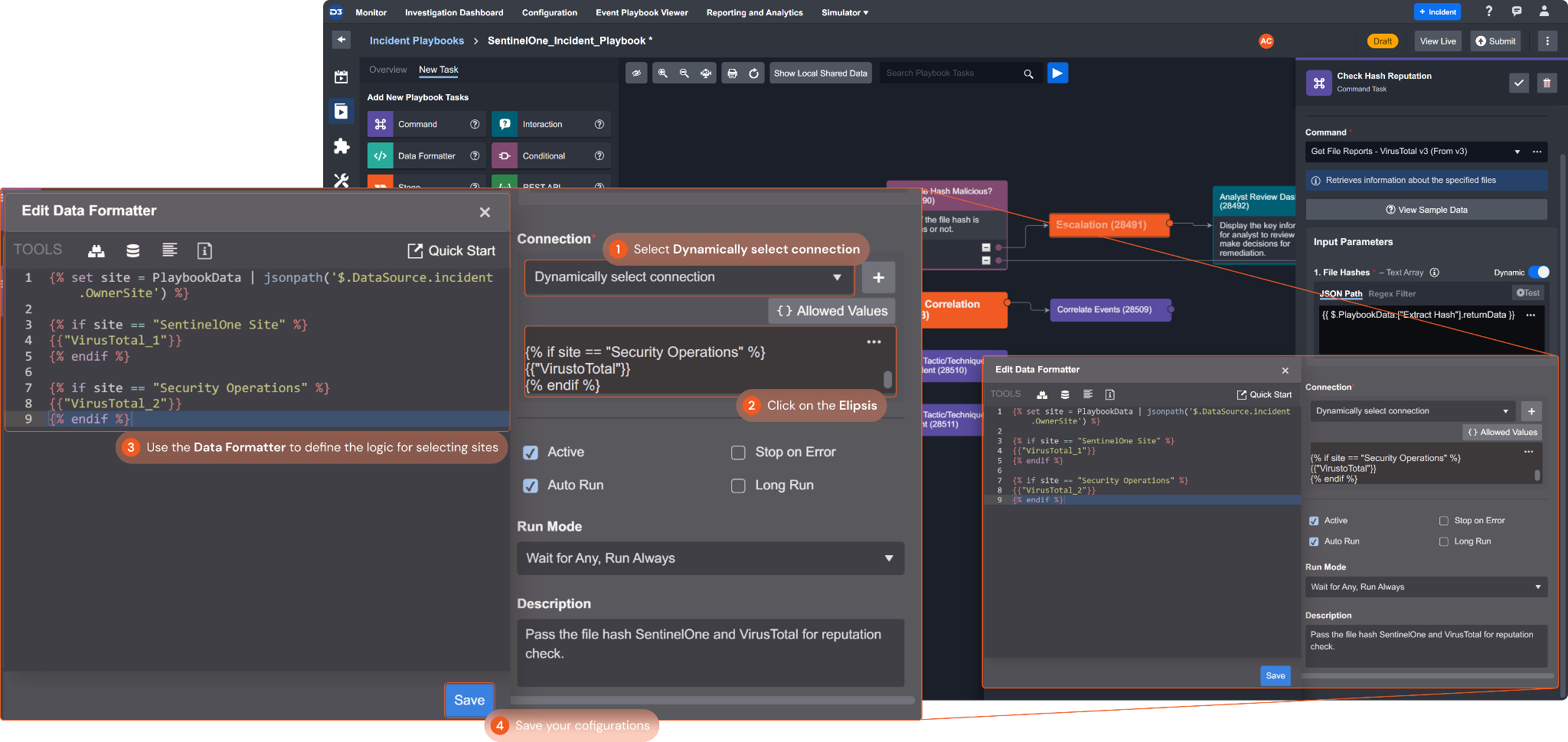
This option dynamically selects the connection based on defined Jinja2 logic. To enable it, select Dynamically Select Connection from the drop-down menu. In the field that appears, click the ellipsis in the upper-right corner to open the built-in Data Formatter, then enter the logic for selecting the connection. For example, the logic can select a connection based on the site where the incident playbook runs.
Sample Jinja2 Script for Dynamically Selecting Connections
The Python script defines the following logic and steps for the command task to dynamically select connections:
-
Find the Site that the previous command in the Incident Playbook ran on.
-
If the name of the Site identified is "SentinelOne Site" use the connection "VirusTotal_1". Likewise, If the name of the Site is "Security Operations" use the connection "VirusTotal_2"
-
If the connection name is found, the command will use the corresponding connection. Otherwise, the command will return the "Invalid connector name. A valid connector name should be one from the connection dropdown list" error message.
{% set site = PlaybookData | jsonpath('$.DataSource.incident.OwnerSite') %}

{% if site == "SentinelOne Site" %}
{{"VirusTotal_1"}}
{% endif %}

{% if site == "Security Operations" %}
{{"VirusTotal_2"}}
{% endif %}
READER NOTE
The Allowed Values button shows a list of the connection values that are valid.
Select Connection by Category
This option is primarily intended for Managed Security Service Provider (MSSP) playbooks and D3's out-of-the-box playbooks. These often include a codeless playbook nested within them that contains parallel command tasks of different integrations from the same category, such as "Check IP Reputation".
This feature allows the playbook to run only parallel tasks that share a common connection name when the related integration has a valid connection with that name in the D3 environment. Tasks without valid connections remain in the N/A state and do not generate errors. This improves playbook adaptability when some connections are unavailable.
Dynamically Select Connection (By Category)
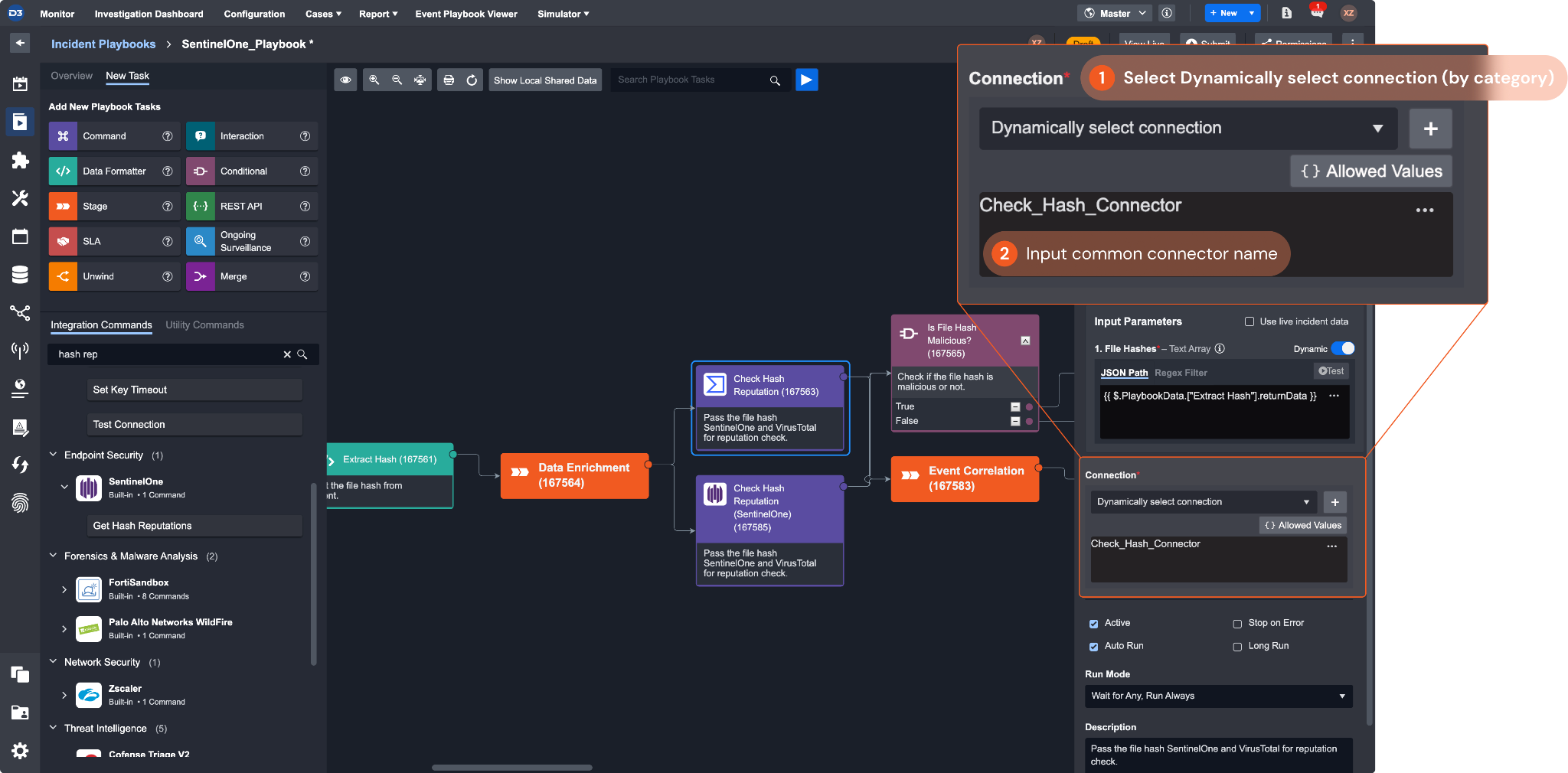
Similar to Select Connection by Category, the Dynamically Select Connection option allows the insertion of additional Jinja logic to accommodate a variety of use cases. One typical example is the mapping of different client sites to distinct connection names (see example in the Dynamically Select Connection (By Name) section above).
READER NOTE
If no functional connection is found for any of the integration commands using the specified common connection name, the task will not generate an error; instead, it will remain in a N/A state.