
AWS S3
LAST UPDATED: FEBRUARY 27, 2026
Overview
Amazon Simple Storage Service (Amazon S3) is an object storage service that offers industry-leading scalability, data availability, security, and performance. Customers of all sizes and industries can use it to store and protect any amount of data for a range of use cases including data lakes, websites, mobile applications, backup and restore, archive, enterprise applications, IoT devices, and big data analytics.
D3 SOAR is providing REST operations to function with AWS S3.
AWS S3 is available for use in:
Known Limitations
After a bucket is created, its owner, name, and region in AWS S3 or D3 cannot be modified.
By default, each AWS account supports up to 100 buckets.
If additional buckets are required, the limit can be increased to a maximum of 1,000 by requesting a service limit increase in AWS S3.
The performance remains the same regardless of the number of buckets used.
Refer to Amazon Bucket restrictions and limitations for detailed information.
Connection
To connect to AWS S3 from D3 SOAR, follow this part to collect the required information below:
Parameter | Description | Example |
Default Region Name | The AWS region name. | US East (N. Virginia): us-east-1 |
Access Key | The access key used for authentication. | ***** |
Secret Key | The secret key used for authentication. | ***** |
Default Role ARN | The Amazon Resource Name (ARN) of the IAM role to assume. Ensure the assumed role has the required permissions and is trusted by the account used for the connection. | arn:aws:iam::*****:role/awsflows3 |
Default Role Session Name | A unique identifier for the assumed role session. Use it to distinguish sessions when the same role is assumed by different principals or for different purposes. Only include upper- and lower-case alphanumeric characters and the symbols =,.@-. If this parameter is not provided while the Default Role ARN parameter is defined, D3 automatically generates a role session name. | awsflows3_Session1 |
Default Session Duration Time | The duration of the assumed role session, in seconds. Valid values range from 900 (15 minutes) up to the maximum session duration for the role (typically 1 hour). By default, the Default Session Duration Time is set to 3600 seconds. | 1800 |

READER NOTE
The values for Default Region Name, Default Role ARN, Default Role Session Name, and Default Session Duration Time can be overridden at the command level. Refer to x for details.
Permission Requirements
Each endpoint in the AWS S3 API requires a certain permission scope. The following are required scopes for the commands in this integration:
Command | Policy | |
Service | Access level (Actions) | |
Create Buckets | S3 | CreateBucket |
Delete Bucket Objects | DeleteBucket | |
Delete Buckets | DeleteObject + ListBucket | |
Download Files | GetObject + ListBucket | |
Get Bucket Policy | GetBucketPolicy | |
Get Bucket Public Access Block | GetBucketPublicAccessBlock | |
List Bucket Objects | ListBucket | |
List Buckets | ListAllMyBuckets | |
Move Files | DeleteObject + DeleteObjectVersion + GetObject | |
Put Bucket Policy | PutBucketPolicy | |
Put Bucket Public Access Block | PutBucketPublicAccessBlock | |
Update Bucket Object | PutObject + GetBucketLocation (required to ensure the returned object URL includes the region name) | |
Upload Files | PutObject | |
Test Connection | ListAllMyBuckets | |
Configuring AWS S3 to Work with D3 SOAR
D3 can connect to AWS S3 using one of two methods:
IAM User (Access Key and Secret Key Only)
IAM Role (Assumed Role with Access Key, Secret Key, and Role ARN)
The role-based method allows defining a session duration so the assumed role expires after a specified period. The appropriate connection method depends on the use case and organizational policy.
Regardless of the selected connection method, users must have access to the AWS Management Console or request assistance from an administrator to create credentials and assign permissions.
Option 1: IAM User (Access Key and Secret Key Only)
READER NOTE
This section explains how to create a policy, user group, and user to assign permissions defining allowed actions and resources for IAM users.
Users who already have those configured can create their own access key and secret key by performing the following steps.
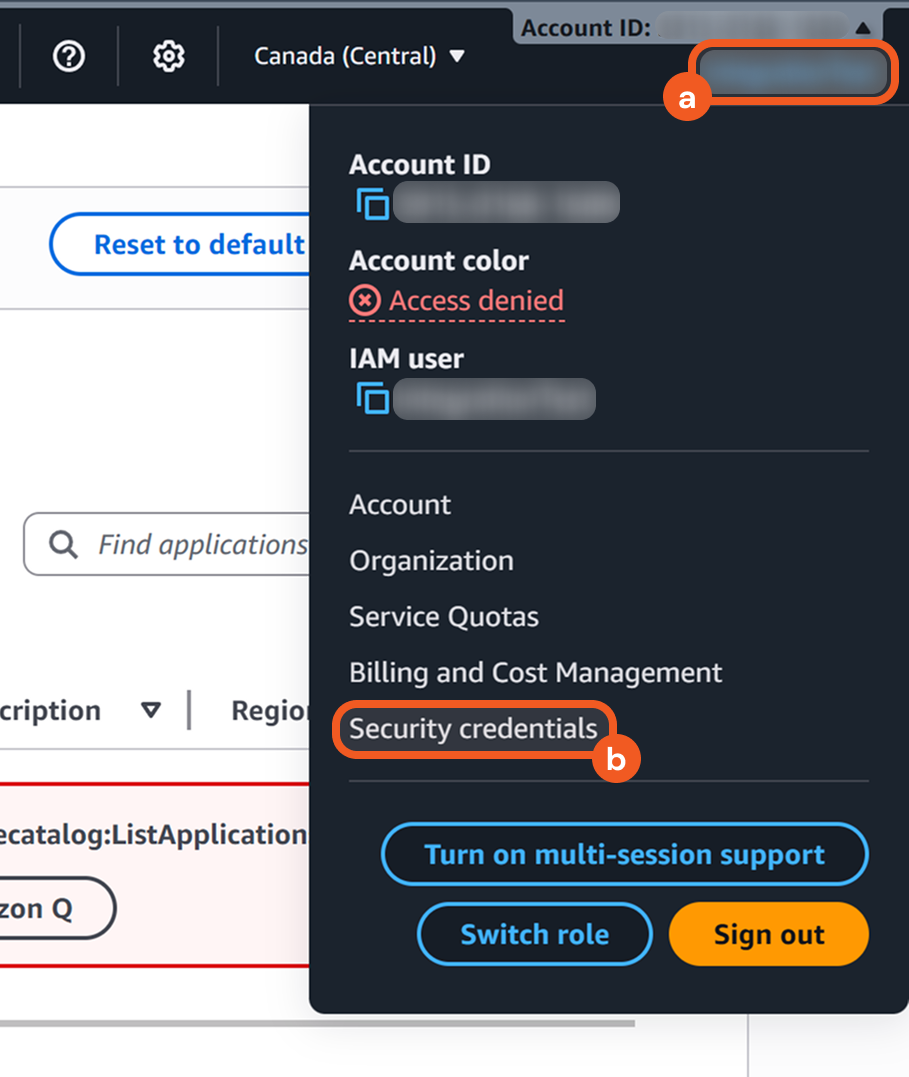
Click the account icon at the upper-right corner of the AWS Management Console, then select the Security credentials option.
Proceed to step 2 of Obtaining the Access Key and Secret Key to create the access key and secret key.
Creating a Policy
Create a policy in IAM.
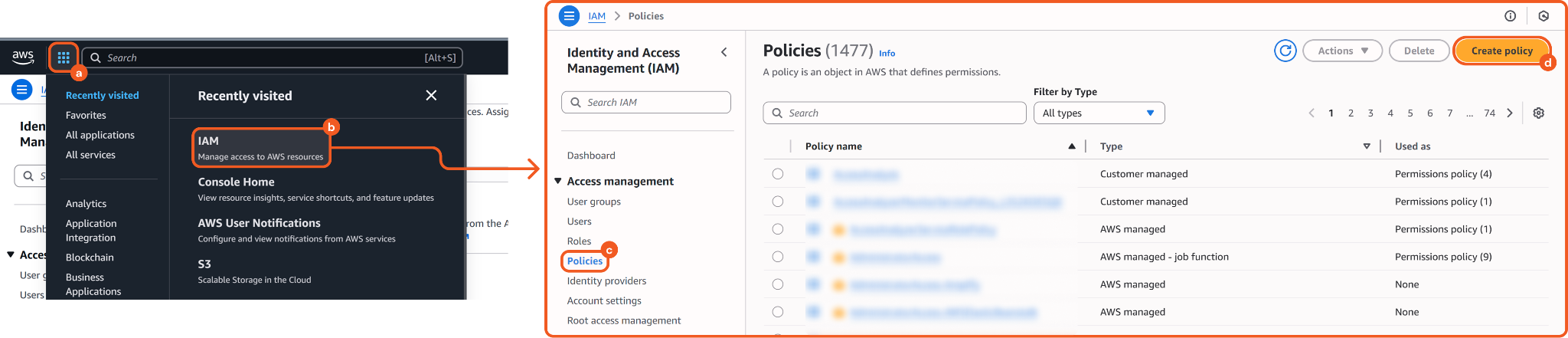
Click the
 (Services) button.
Select the IAM option.
Click the Policies menu item.
Click the Create policy button.
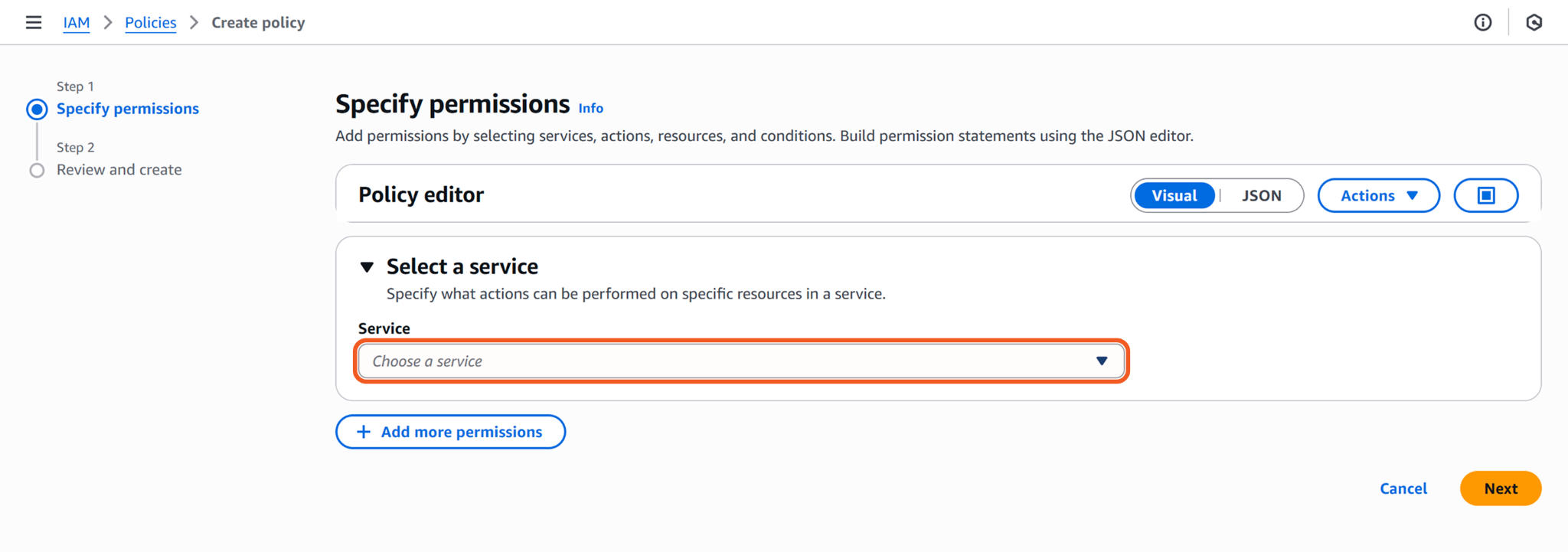
Click the Choose a service dropdown and select the S3 option.
Search for and select the allowed actions according to the Permission Requirements table.
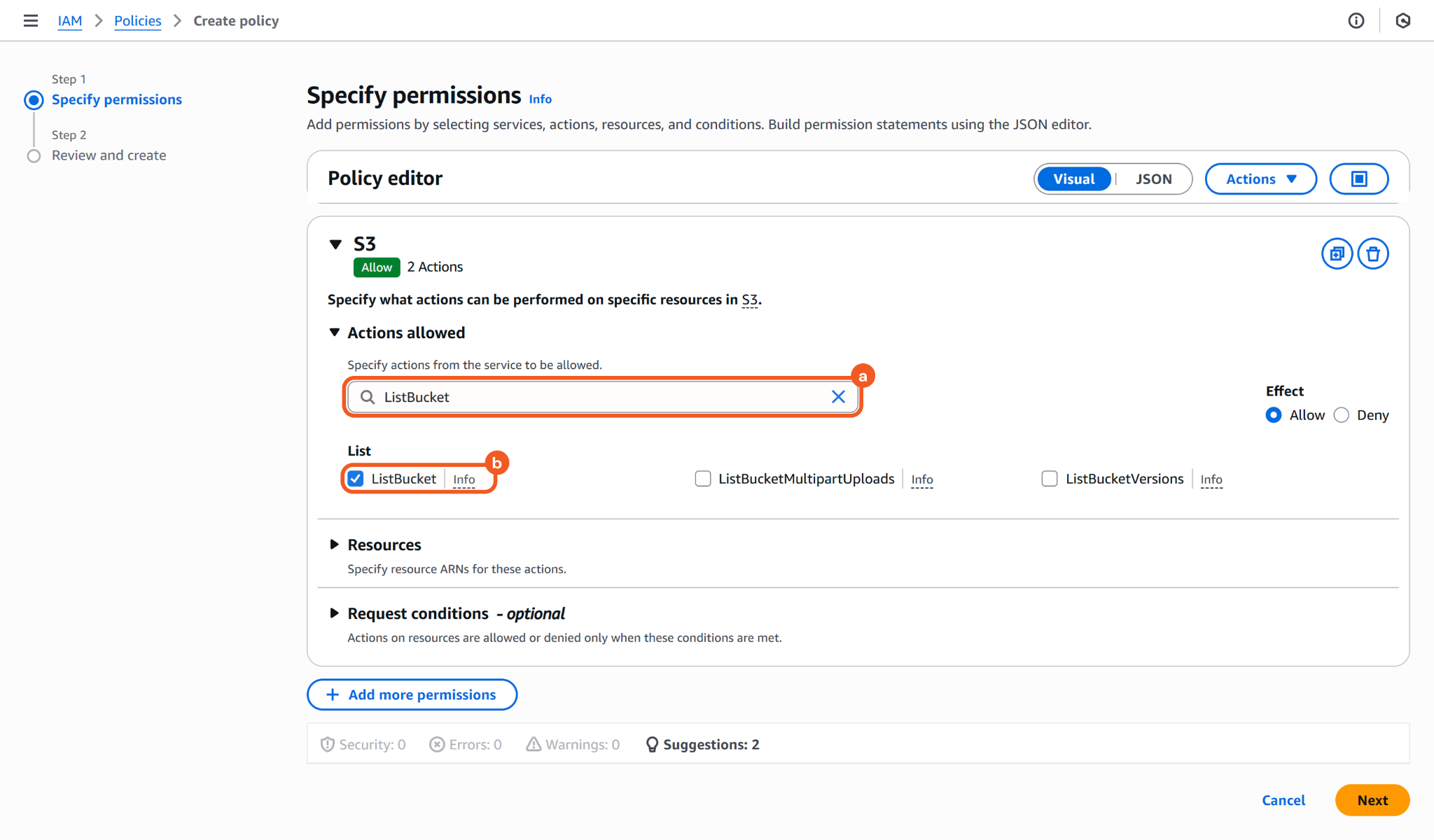
For example, search for and enable the DeleteObject and ListBucket actions to run the Delete Buckets command
Select the resource ARNs for the specified permissions.
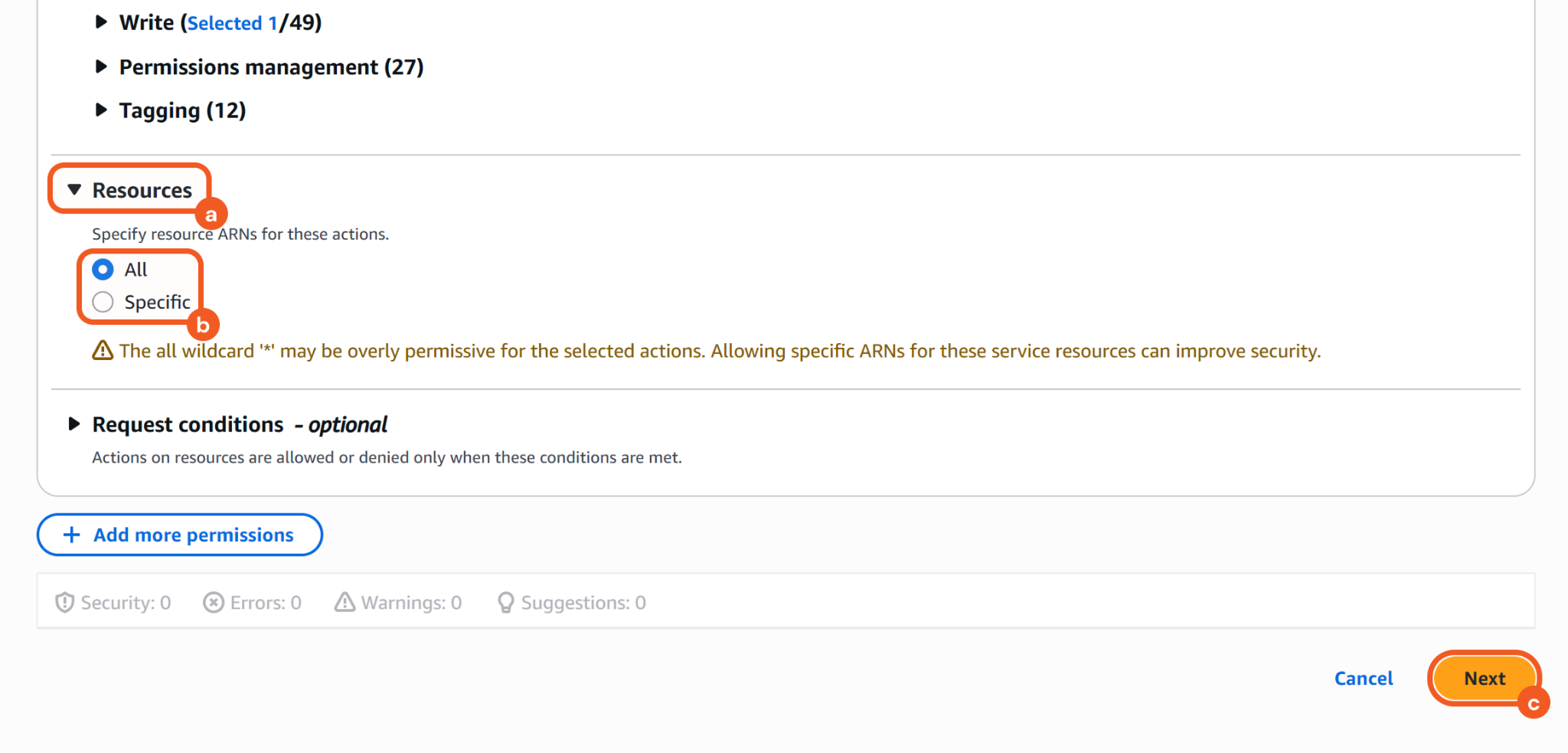
Expand the Resources section.
Select either the All option or the specific AWS resources to which the permissions apply.
Click the Next button.
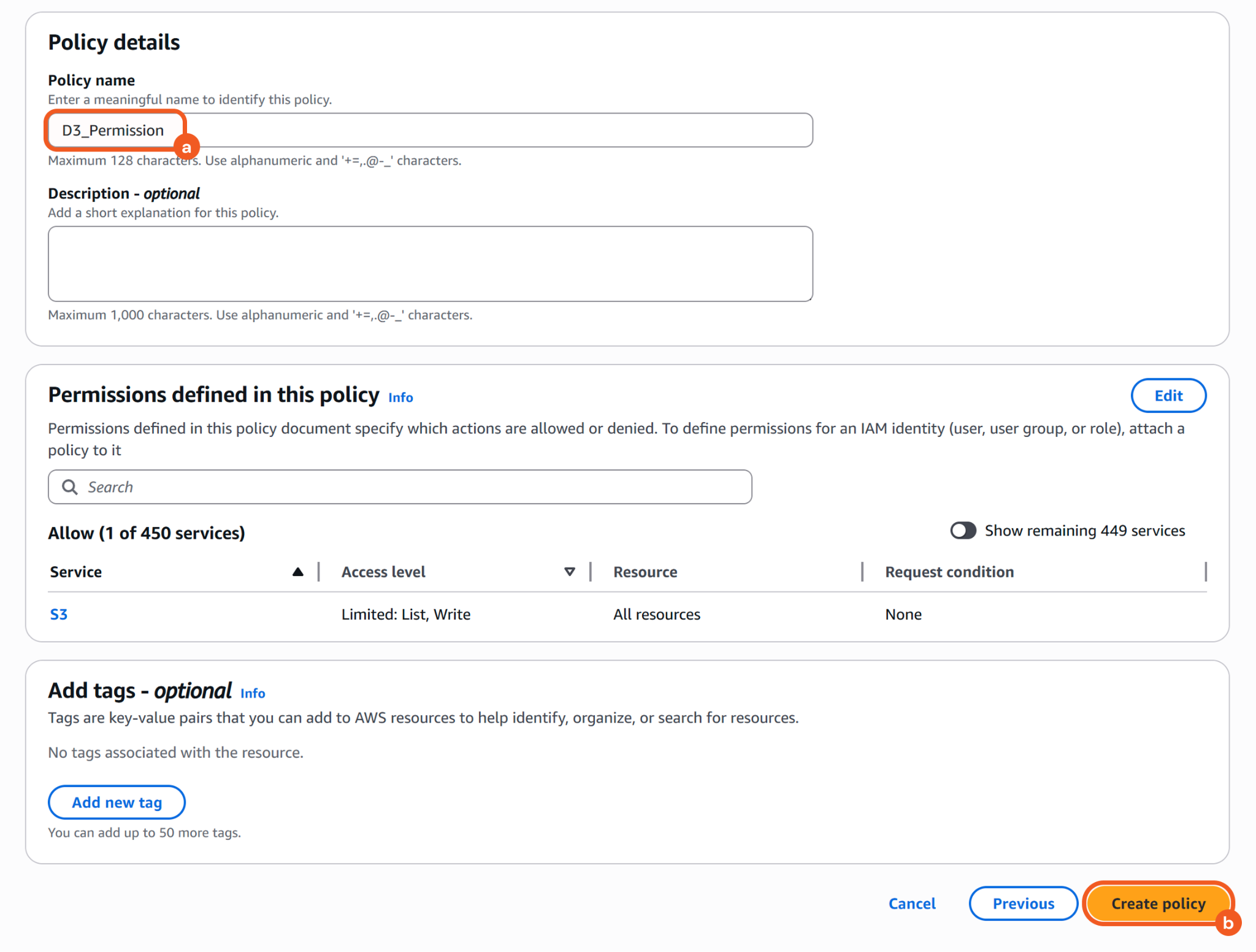
Enter a name for the policy, then click the Create policy button to finalize.
Creating a User Group
READER NOTE
Using a user group is one approach to managing identity-based policies. Administrators can choose the method that best aligns with their structure and operational needs.
Navigate to the User groups menu item, then click the Create group button.
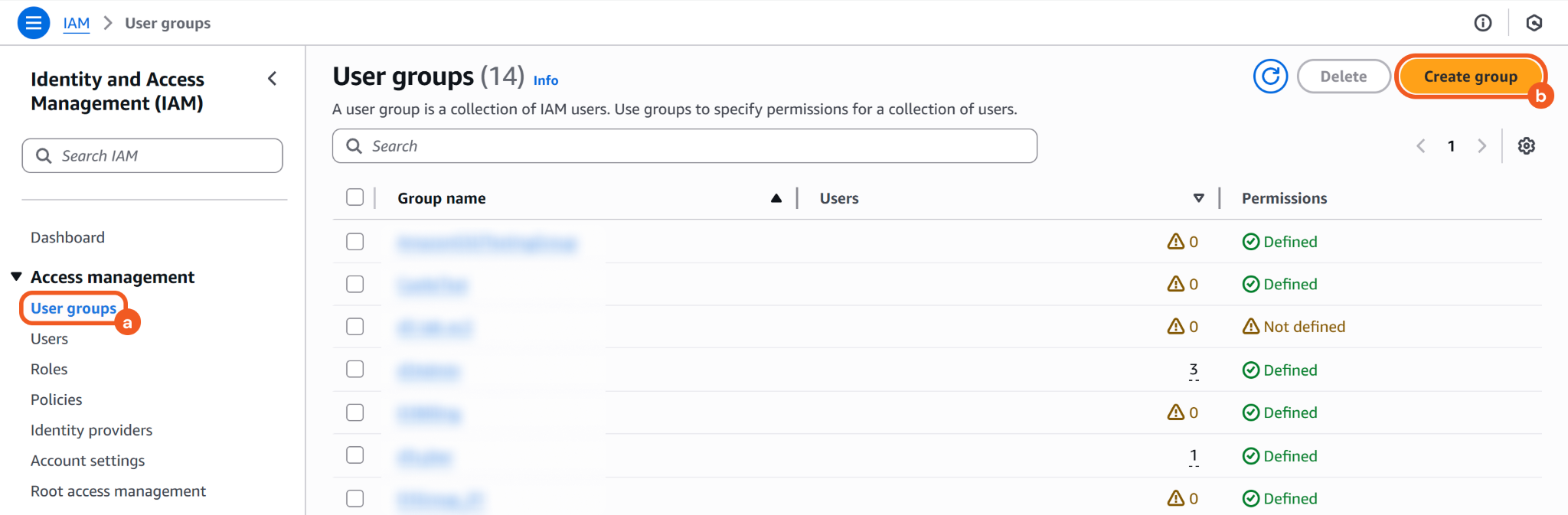
Name the group.
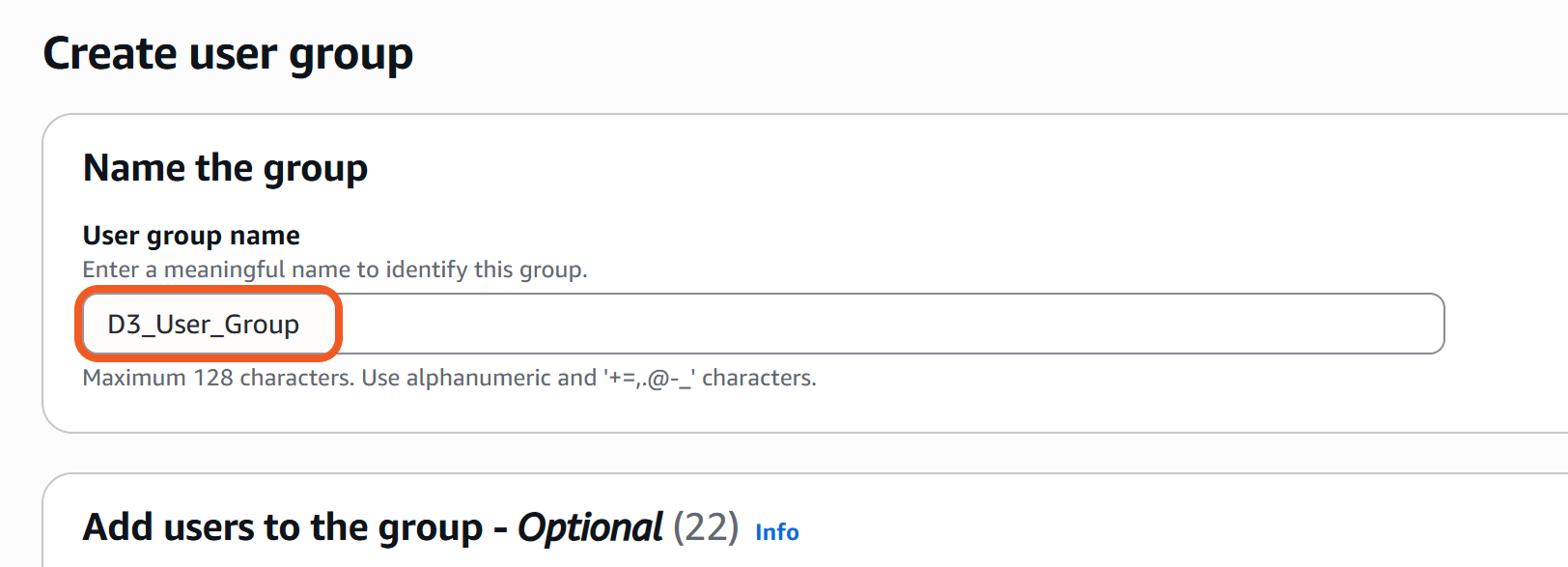
Attach the previously created policy to the group.
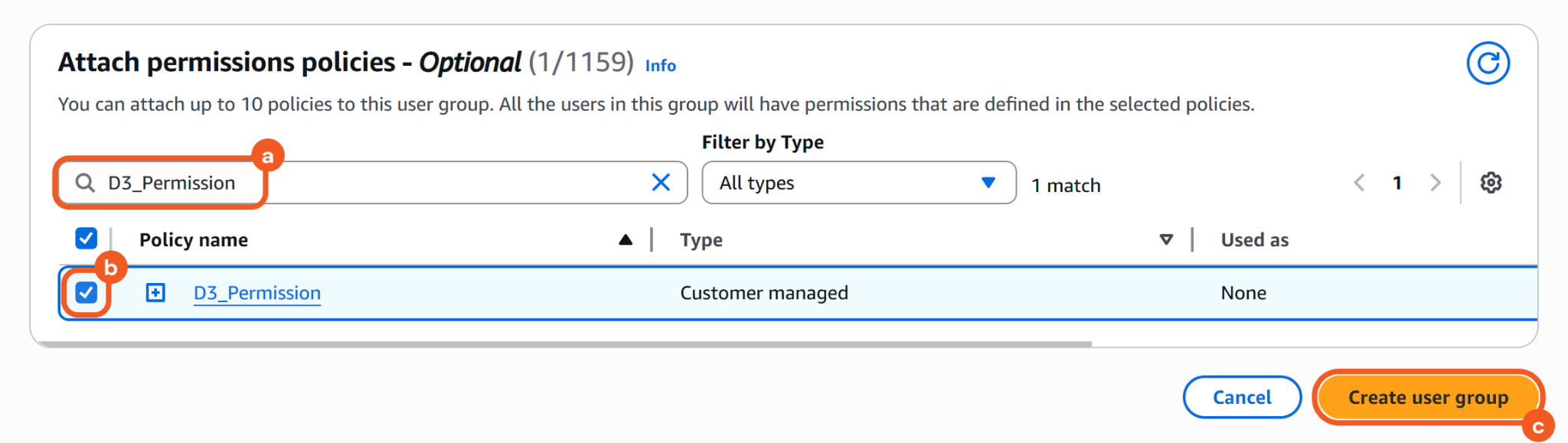
Search for the policy in the Attach permissions policies - Optional section.
Select it.
Click the Create user group button to finalize.
Creating a User
Navigate to the Users menu item, then click the Create user button.
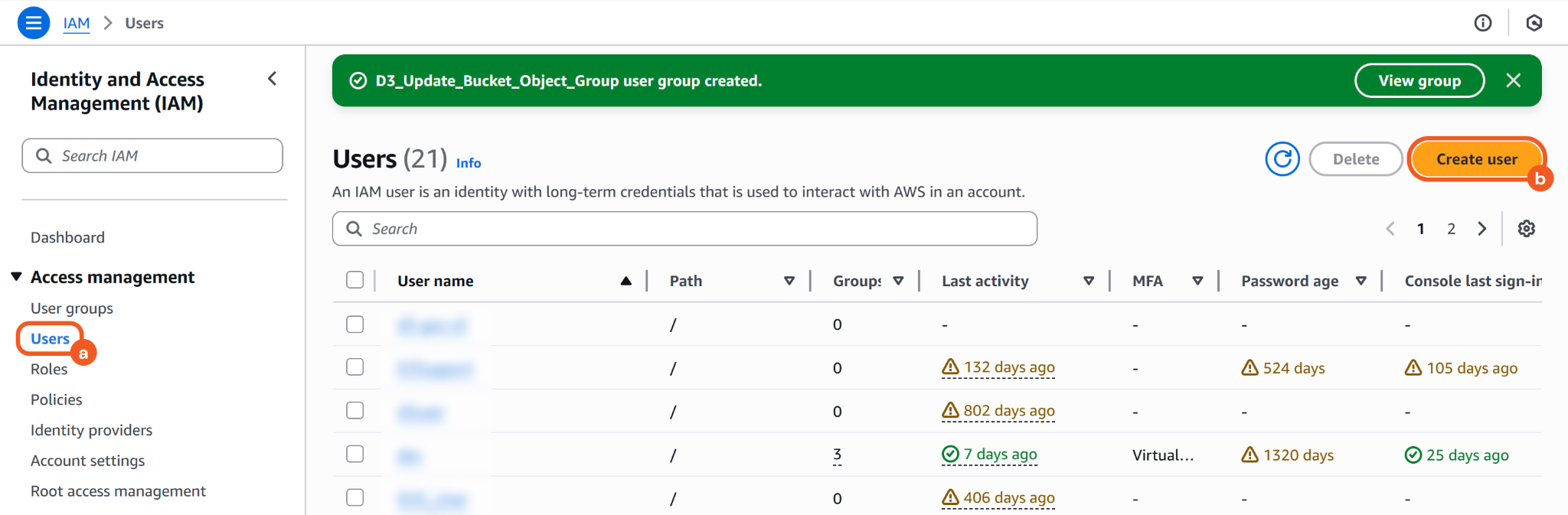
Create a username, then click the Next button.
Add the user to the previously configured user group.
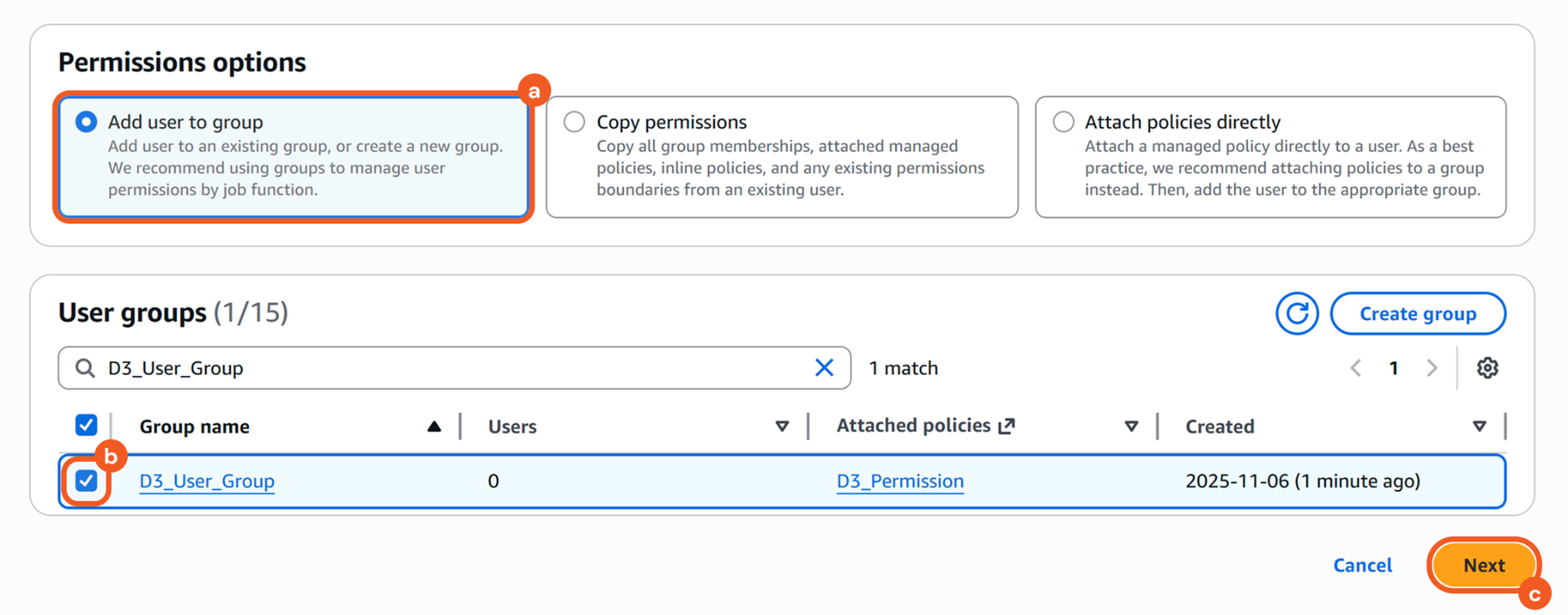
Ensure that the Add user to group option is checked.
Select the user group.
Click the Next button.
Click the
 button to finalize.
The user will automatically inherit the permissions defined in the policy assigned to the user group.
Obtaining the Access Key and Secret Key
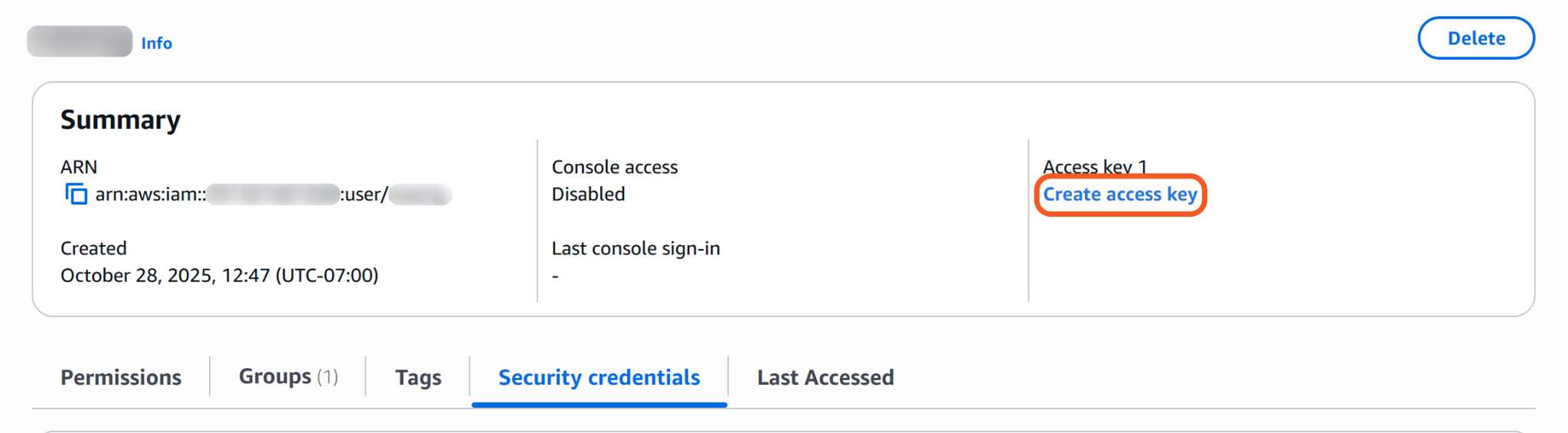
Navigate to Users > [user-name] to open the user details and create the access key and secret key.
.png?inst-v=a9107af0-b04c-4e31-bb5a-938372783868)
Click the Create access key link.
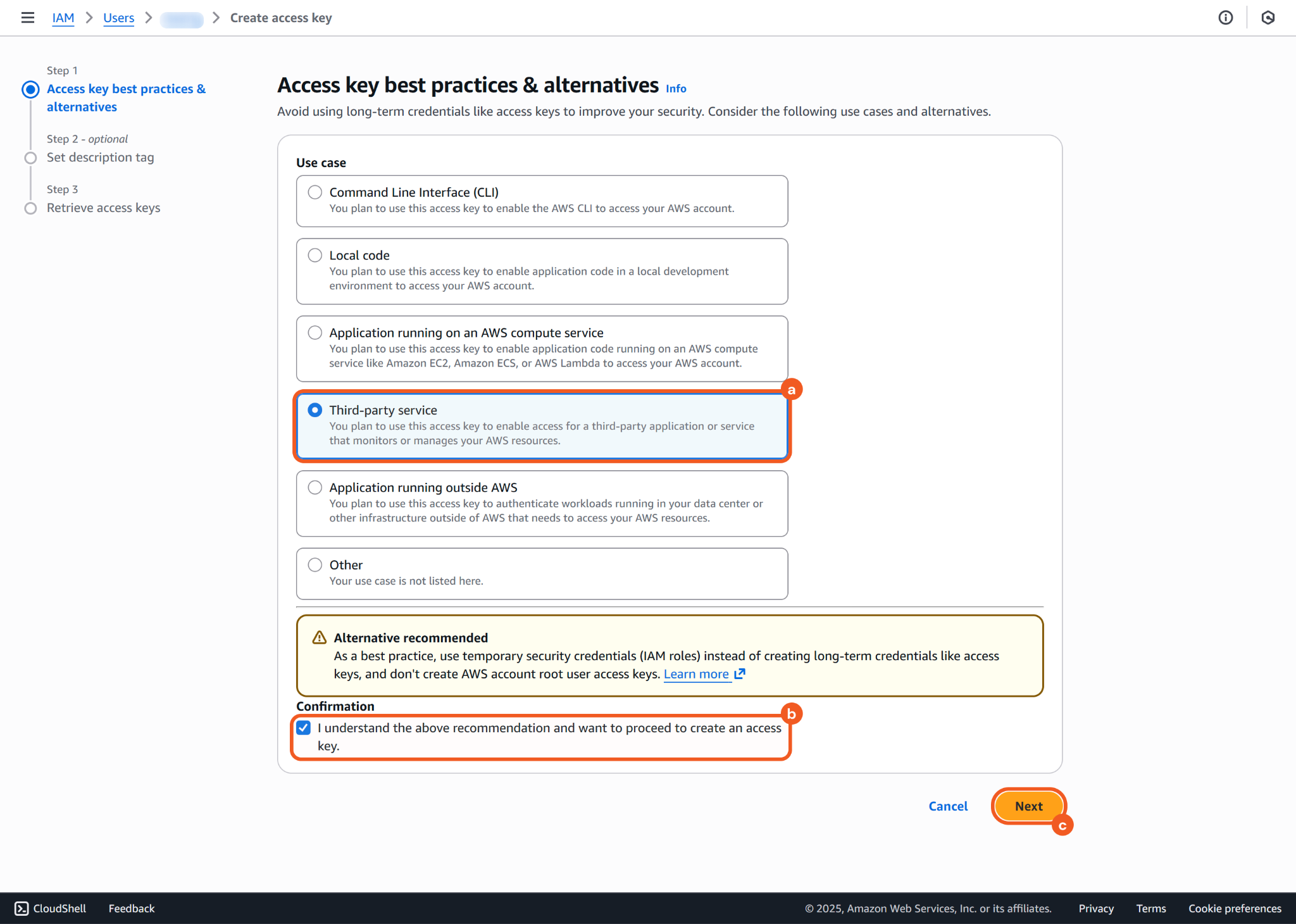
Select the appropriate use case (i.e., Third-party service), check the confirmation checkbox, then click the Next button.
Click the Create access key button, then click the Download .csv file button to save the credentials to the device.
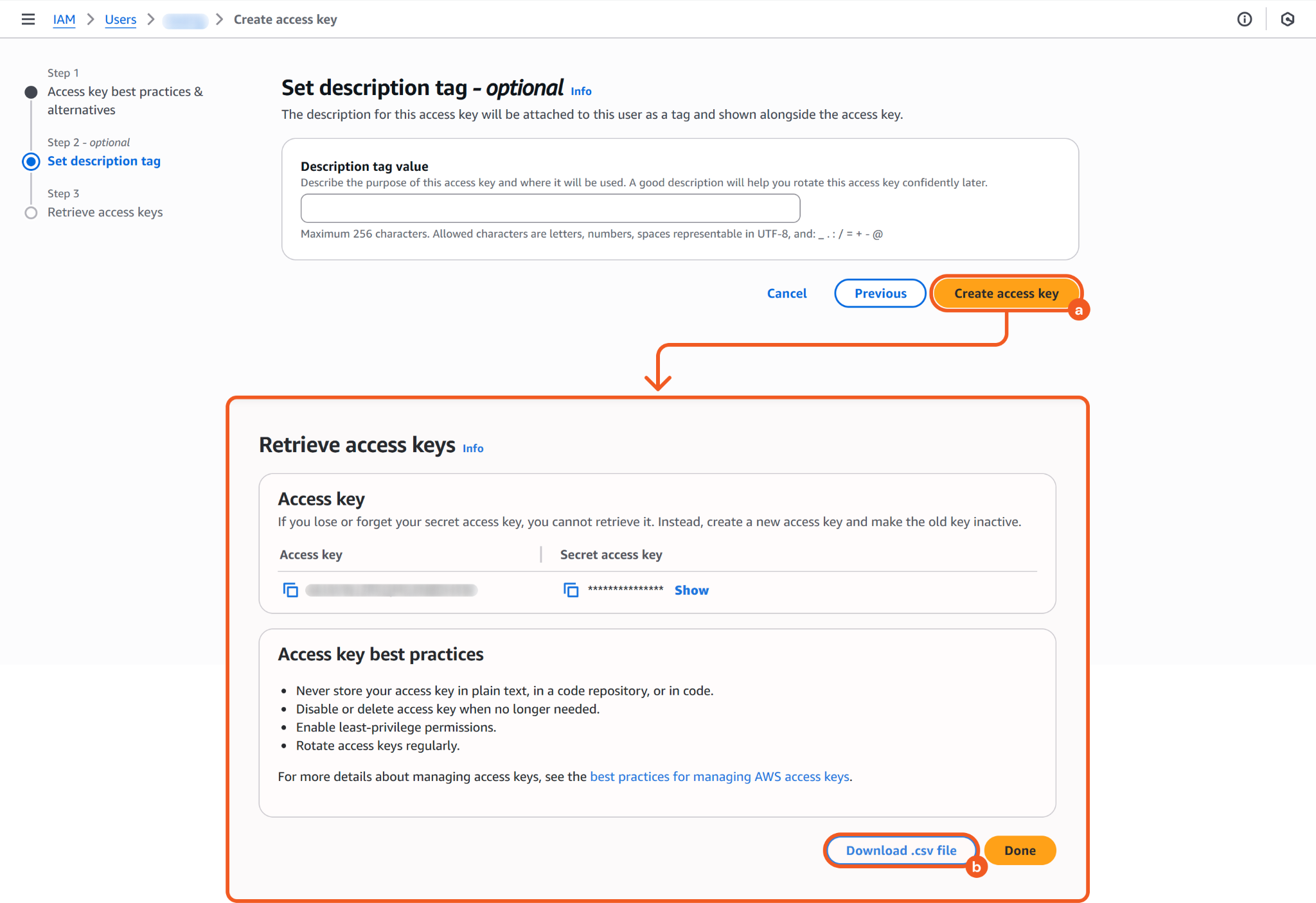
Refer to steps 3.i.1 and 3.i.2 in Configuring D3 SOAR to Work with AWS S3.
READER NOTE
The secret access key can only be viewed or downloaded once. Save the csv file in a secure location promptly. If lost, create a new access key and deactivate the old one.
A maximum of two access keys (active or inactive) are allowed per account.
Option 2: IAM Role (Assumed Role with Access Key, Secret Key, and Role ARN)
This section guides administrators to create a role that an IAM user can assume for temporary and secure access through a role session.
READER NOTE
Permissions are not cumulative. When a user assumes a role, their original permissions are temporarily replaced by those granted through the assumed role.
Creating a Role
Create a role in IAM.
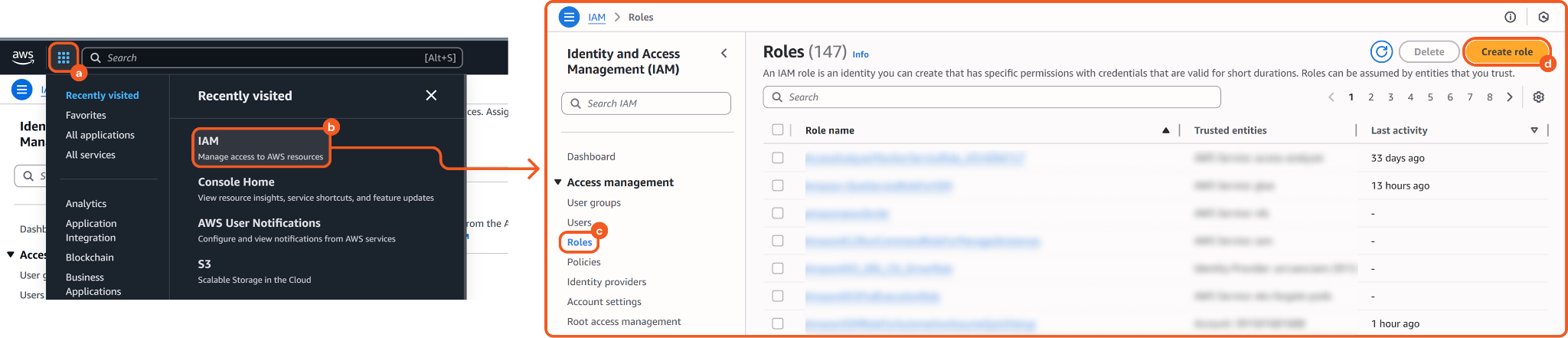
Click the
 (Services) button.
Select the IAM option.
Click the Roles menu item.
Click the Create role button.
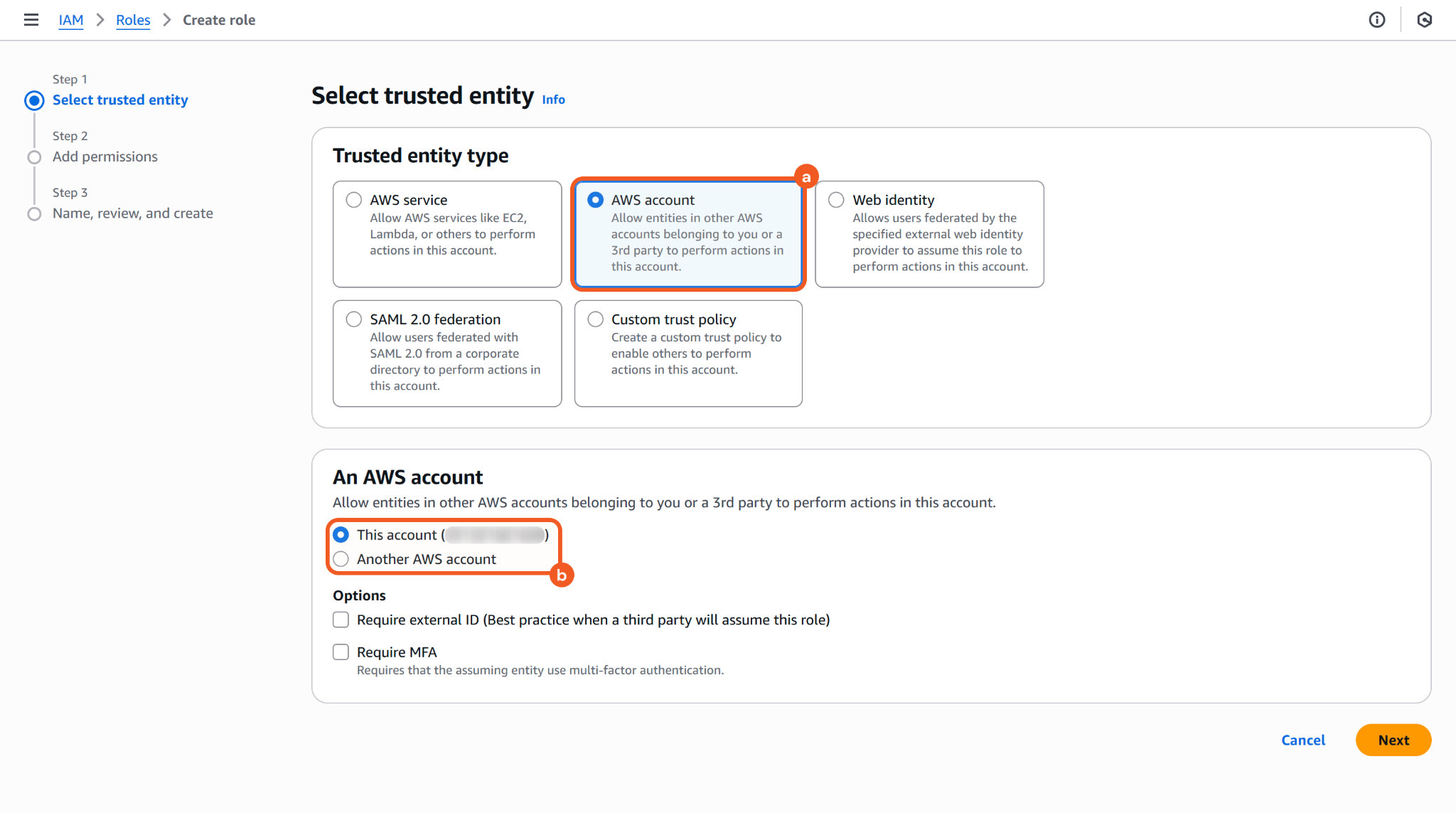
Select the AWS account option, then choose the account that will use this role (i.e., the current account or another AWS account).
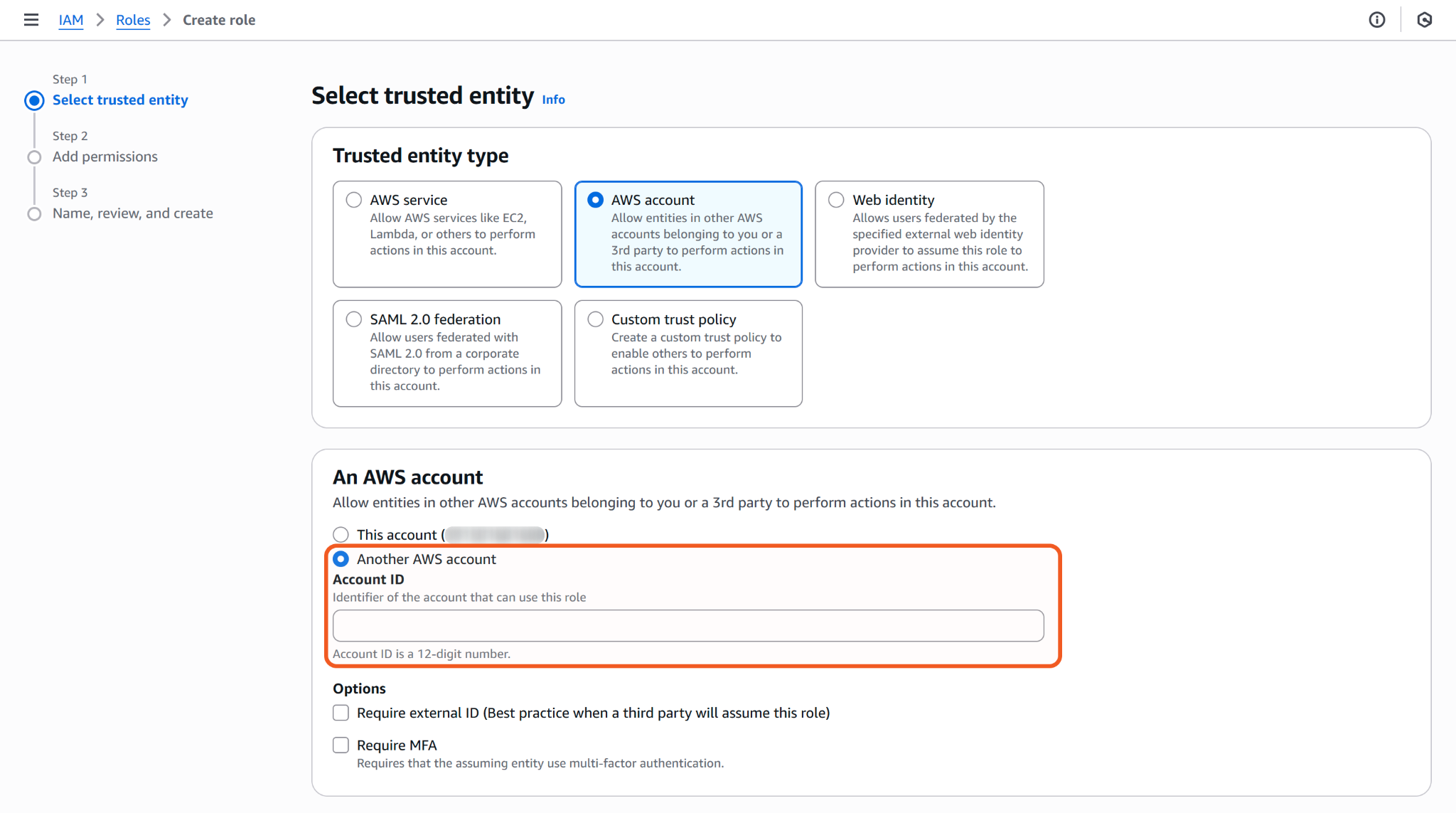
(Another AWS account only) Enter the Account ID of the AWS account that will assume this role.
Administrators can obtain a user's Account ID by navigating to Users > [user-name], then referencing the numeric portion of the ARN that appears after IAM::.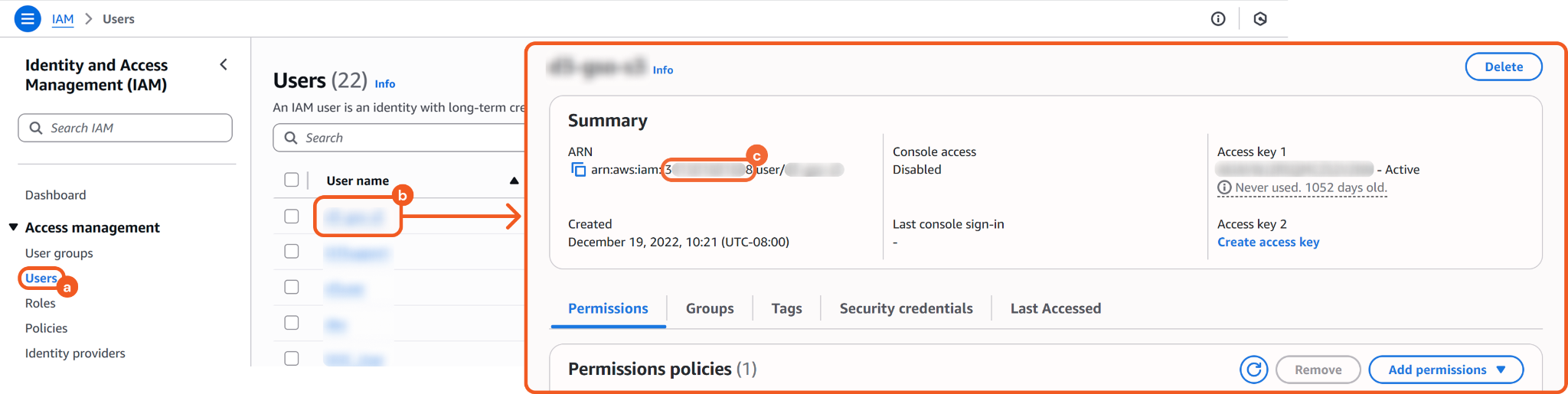
Click the
 button.
Select the appropriate permissions policy to attach to the role, then click the Next button.
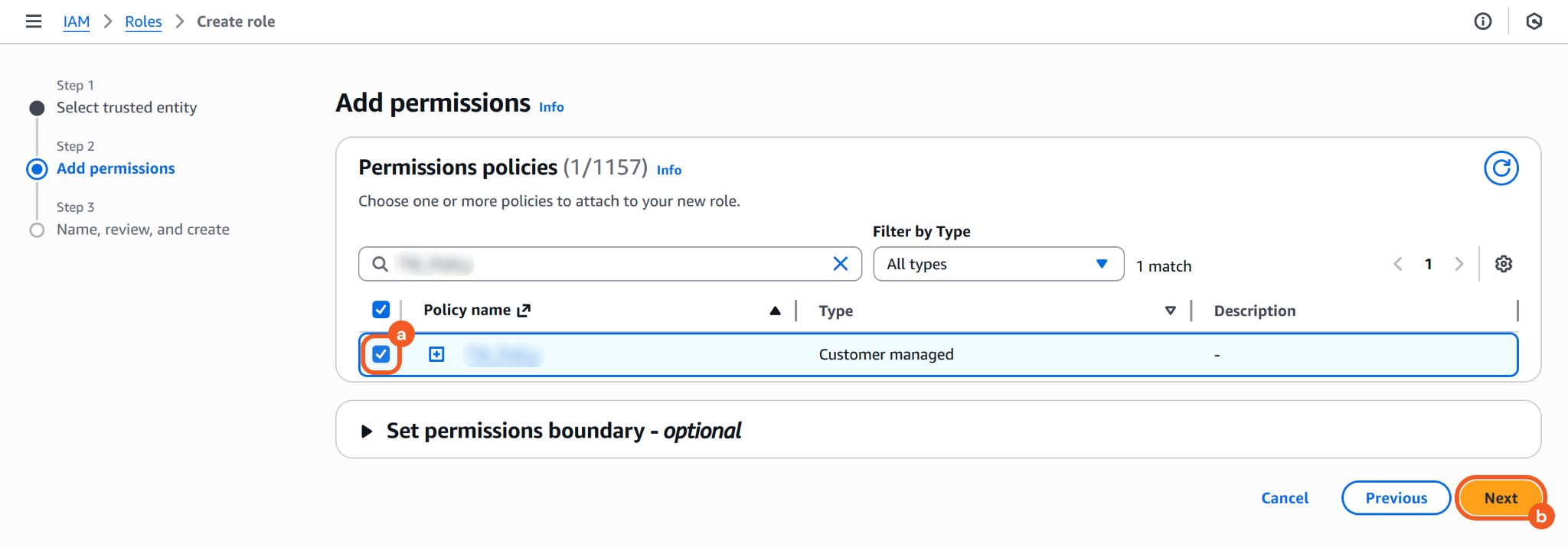
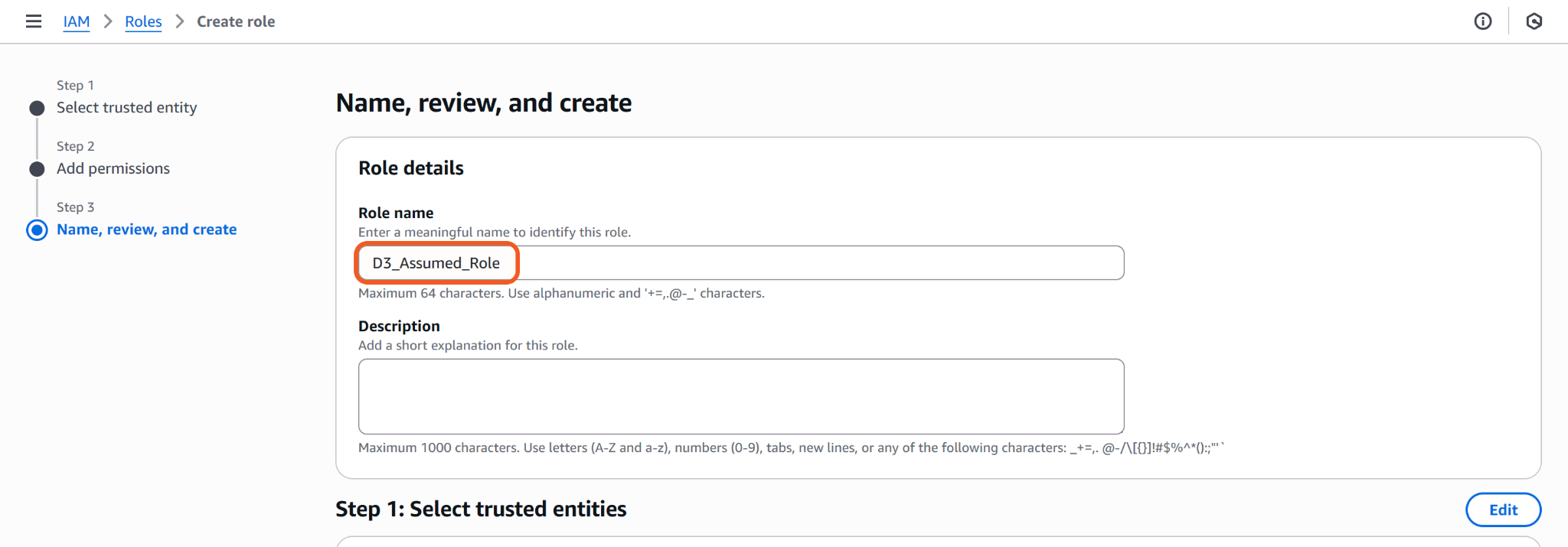
Refer to Creating a Policy for instructions on creating a new policy.Enter a name for the role, then click the

button.
Editing the Trust Policy
All manually created AWS roles must establish a trust relationship with AWS Directory Service by editing the role’s trust policy.
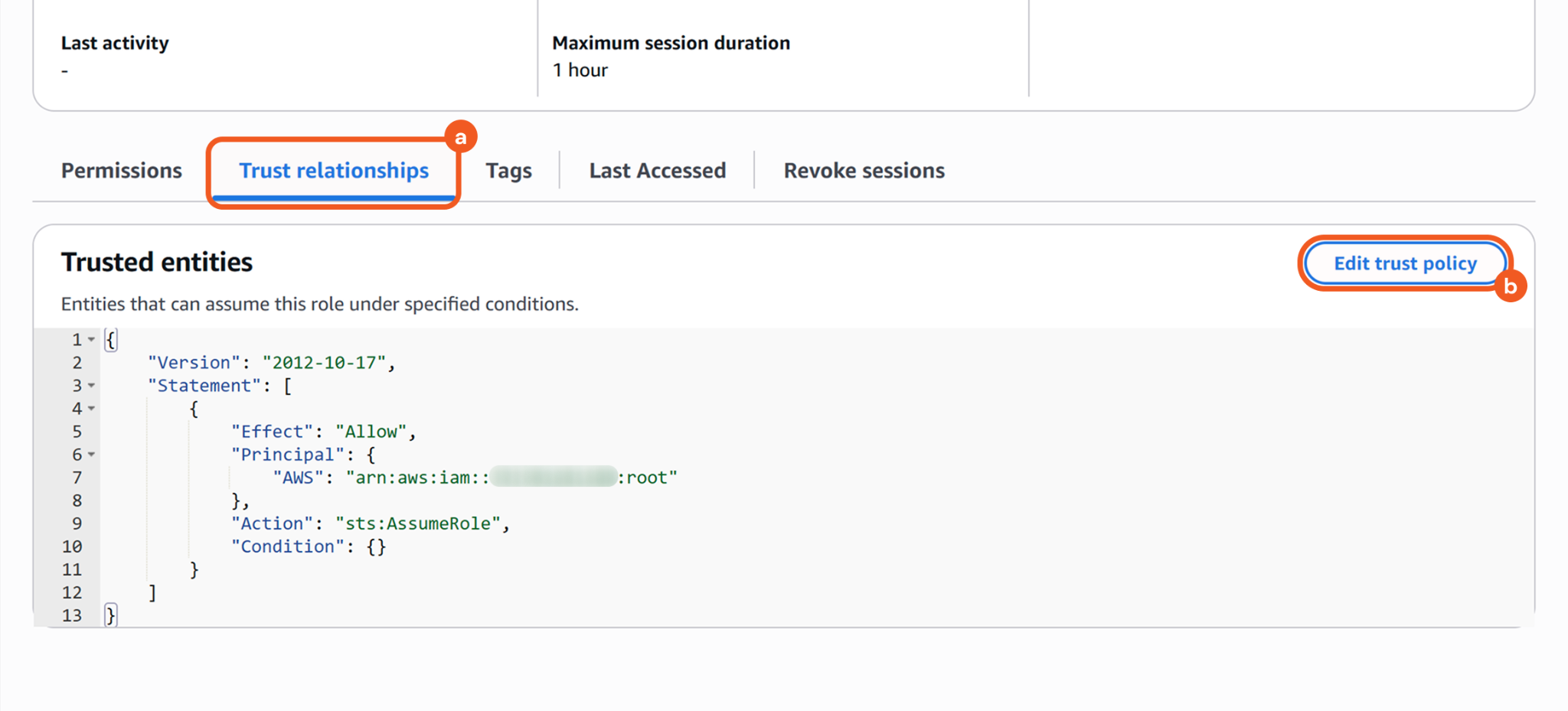
Search for and select the role that was just created.

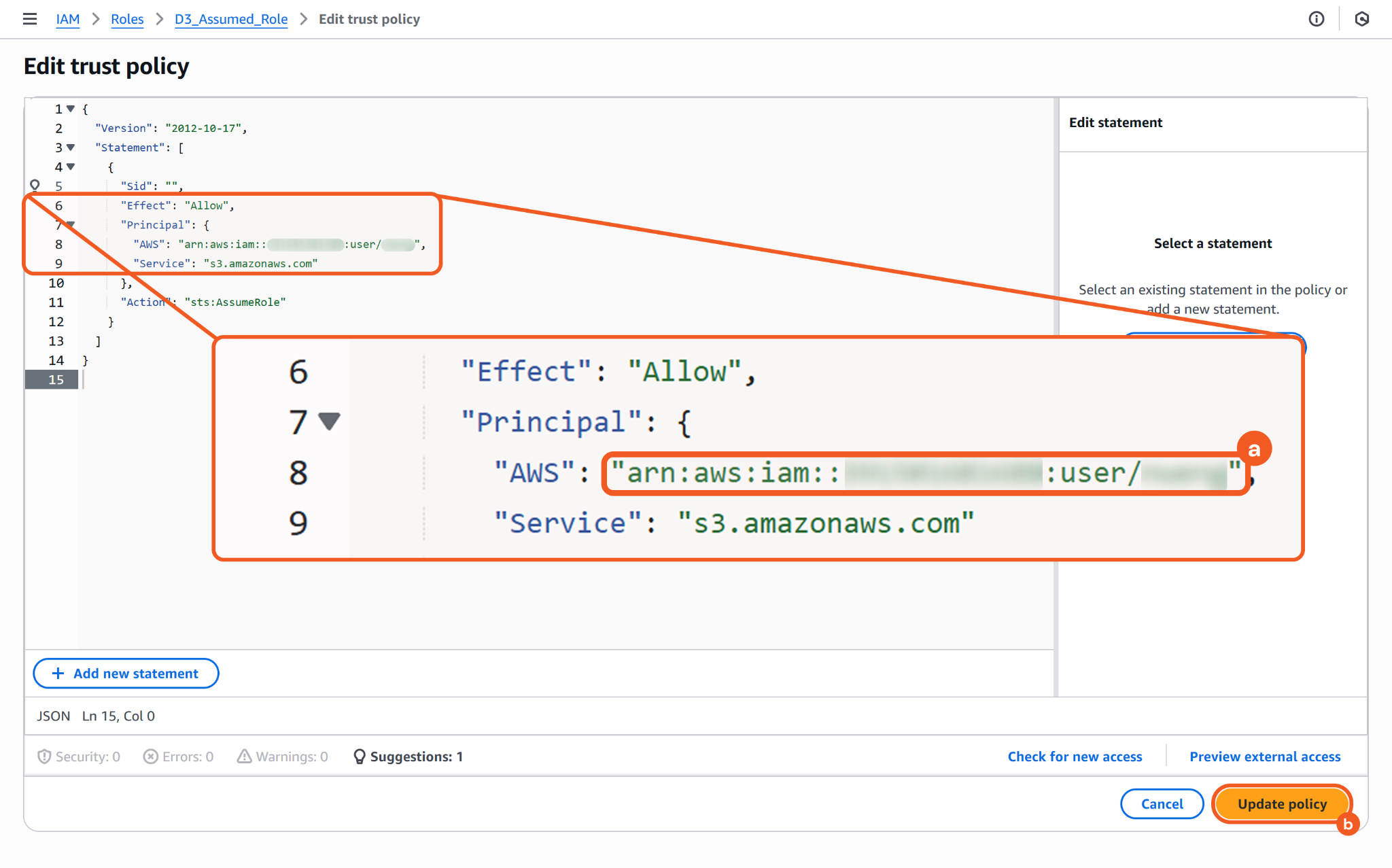
Open the Trust relationships tab, then click the Edit trust policy button.
Paste the following code in the editor.
JSON{ "Version": "2012-10-17", "Statement": [ { "Sid": "", "Effect": "Allow", "Principal": { "AWS": "<paste-the-user-ARN>", "Service": "s3.amazonaws.com" }, "Action": "sts:AssumeRole" } ] }Duplicate the current tab, then navigate to Users > [user-name] and copy the ARN of the user intended for role assumption.
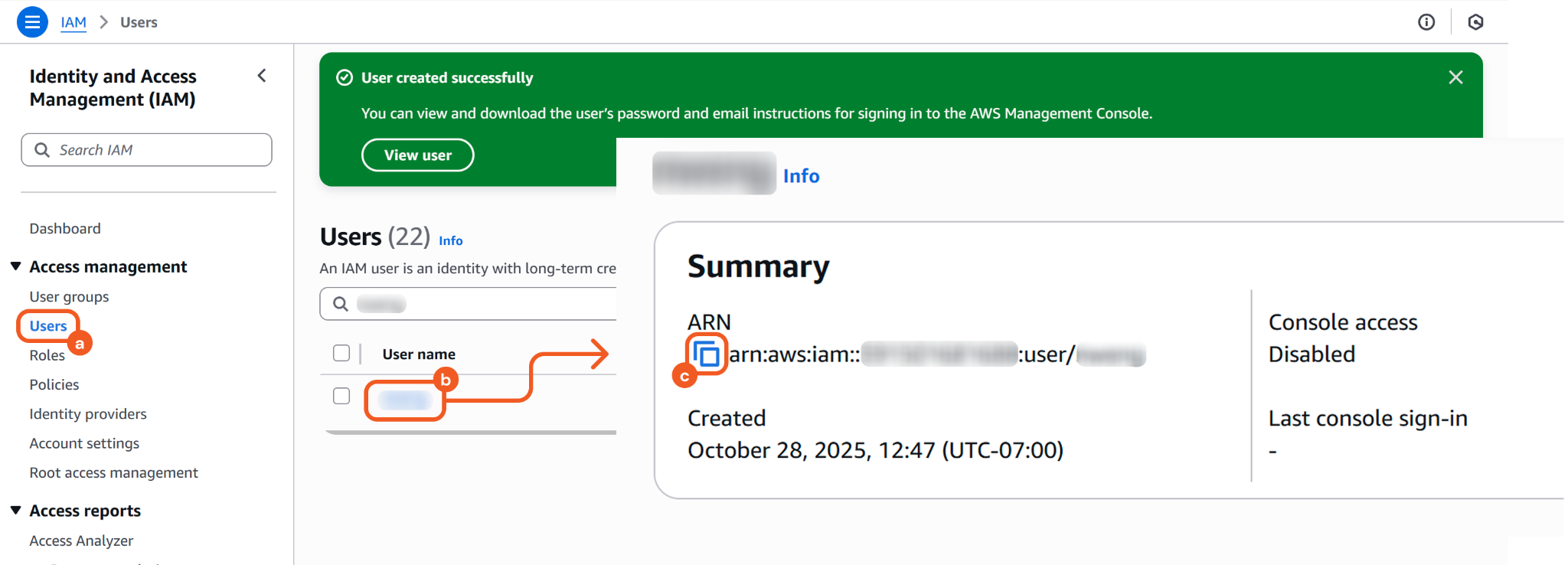
Replace the placeholder value (i.e., <paste-the-user-ARN>) under the AWS key with the copied user ARN to allow them to assume the role, then click the Update policy button.
READER NOTE
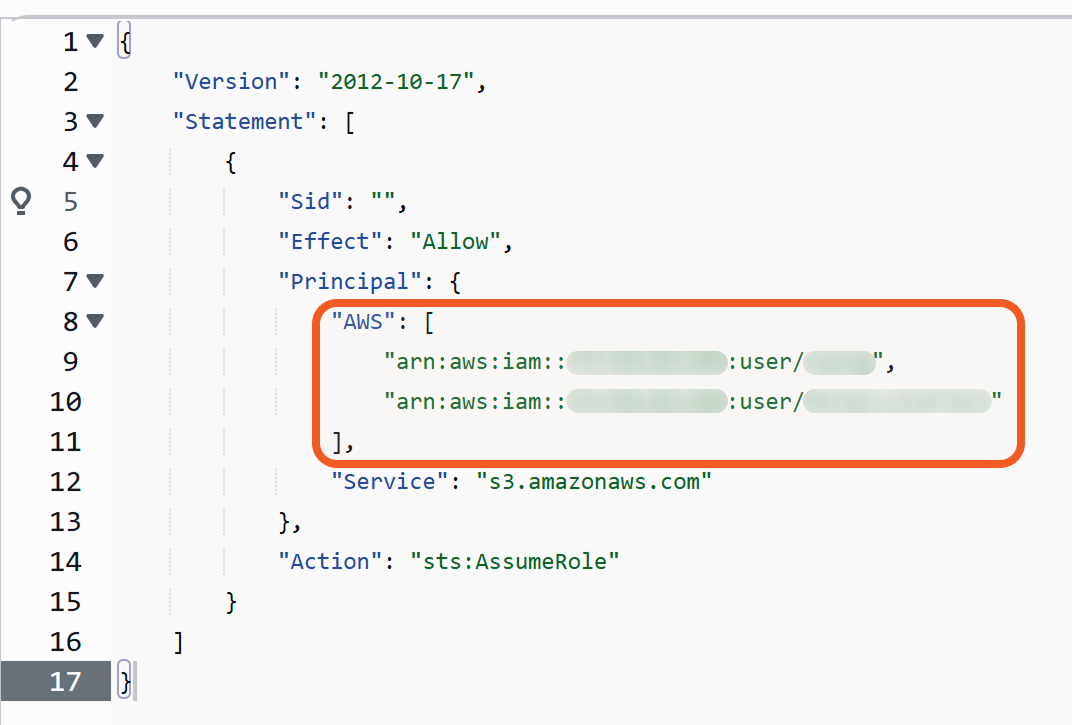
Users can also include multiple user ARNs in the trust policy under the AWS key.
Obtaining the Role ARN, Access Key, and Secret Key
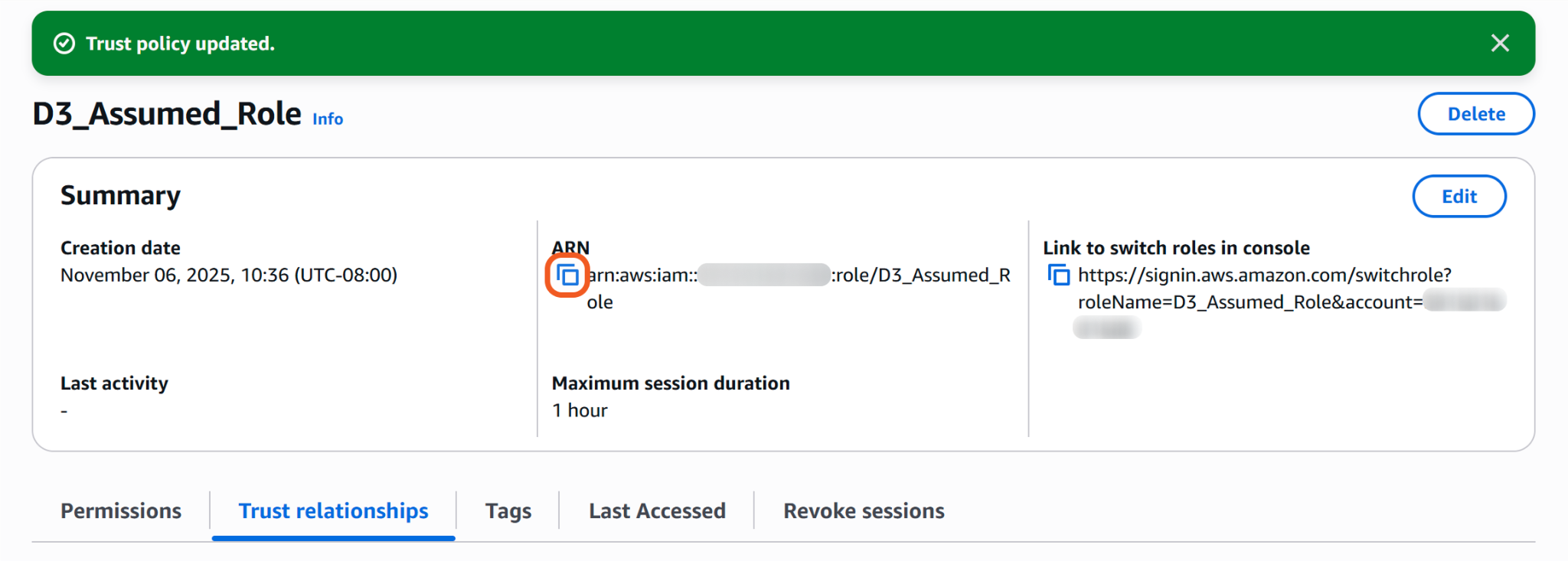
Copy the Role ARN and save it in a secure location.
Refer to 3.i.4 in Configuring D3 SOAR to Work with AWS S3.Navigate to Users > [user-name] to open the user details.
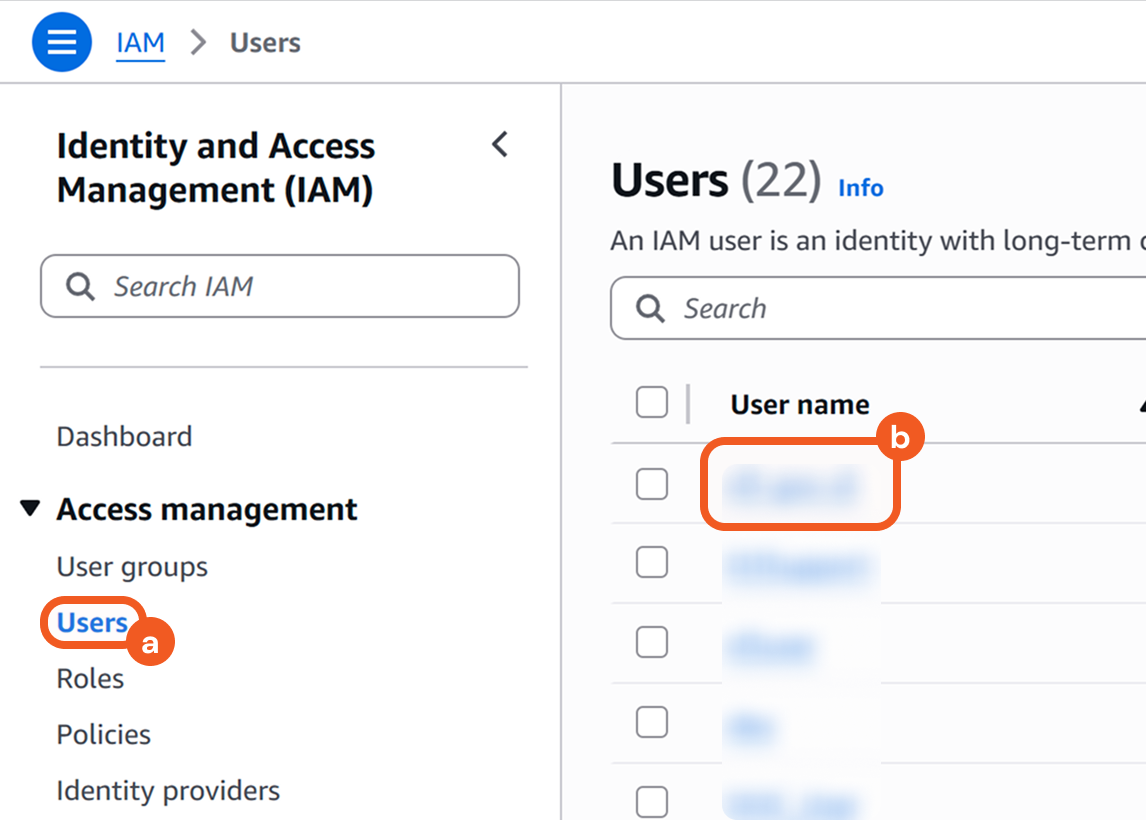
Refer to Creating a User for instructions on creating a new IAM user.Create an access key and secret key if they have not been created already.
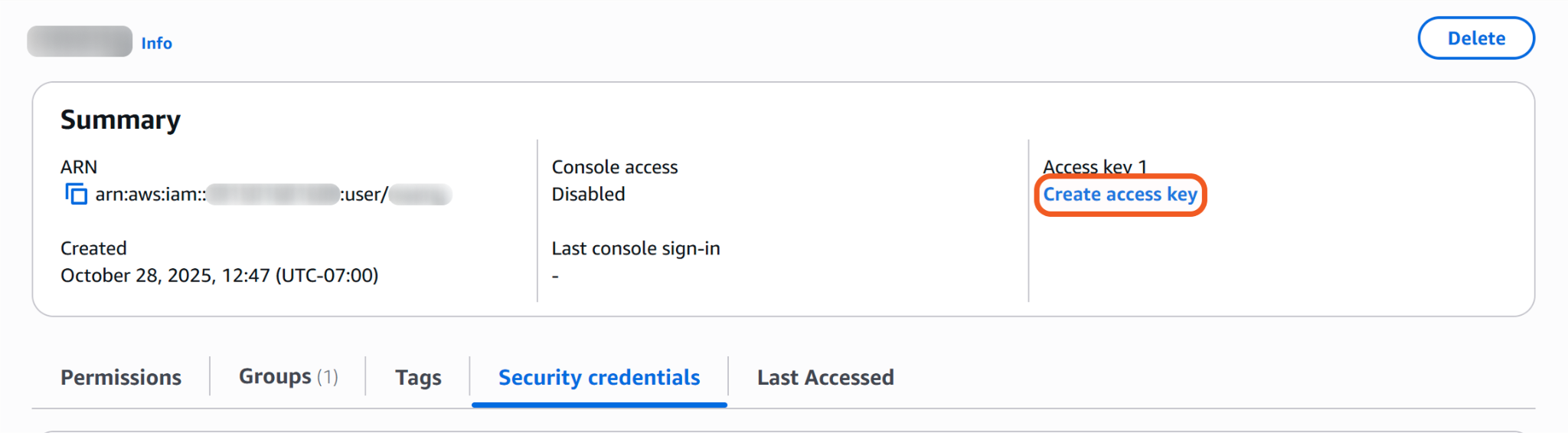
Refer to steps 2 to 4 in Obtaining the Access Key and Secret Key for more information.
READER NOTE
Users can configure the assumed role parameters (in addition to the AWS region name) in the connection form or at the command level. When command-level values are specified, they override the corresponding defaults in the connection form.
.png?inst-v=a9107af0-b04c-4e31-bb5a-938372783868)
Left: Configuration at the command level. Right: Configuration in the connection form.
Role ARN: The role to assume configured at the command level and overrides Default Role ARN when specified.
Role Session Name: The name of the assumed role session configured at the command level and overrides Default Role Session Name when specified.
Session Duration Time: The session validity period in seconds configured at the command level and overrides Default Session Duration Time when specified.
Detailed descriptions for each command-level role setting are available in the input section of every command.
Configuring D3 SOAR to Work with AWS S3
Log in to D3 SOAR.
Find the AWS S3 integration.
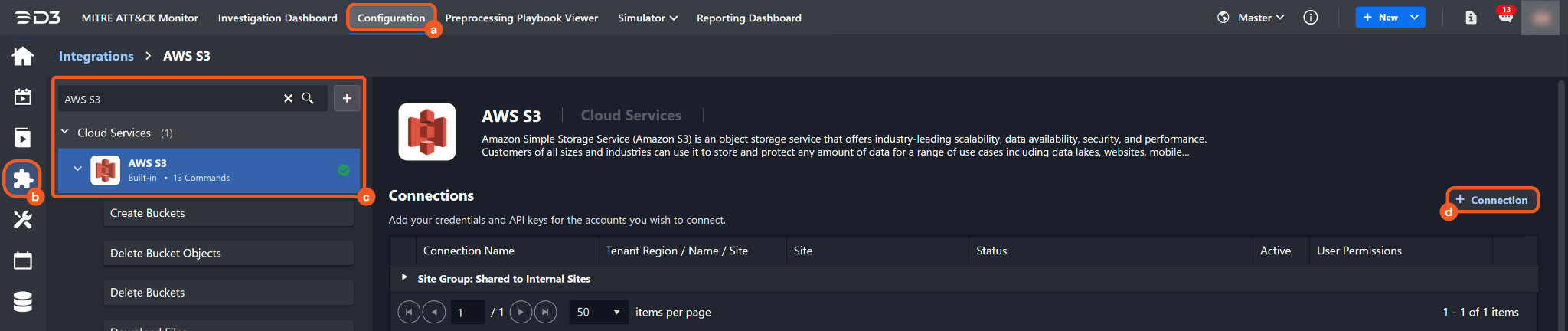
Navigate to Configuration on the top header menu.
Click on the Integration icon on the left sidebar.
Type AWS S3 in the search box to find the integration, then click it to select it.
Click + Connection, on the right side of the Connections section. A new connection window will appear.
Configure the following fields to create a connection to AWS S3.
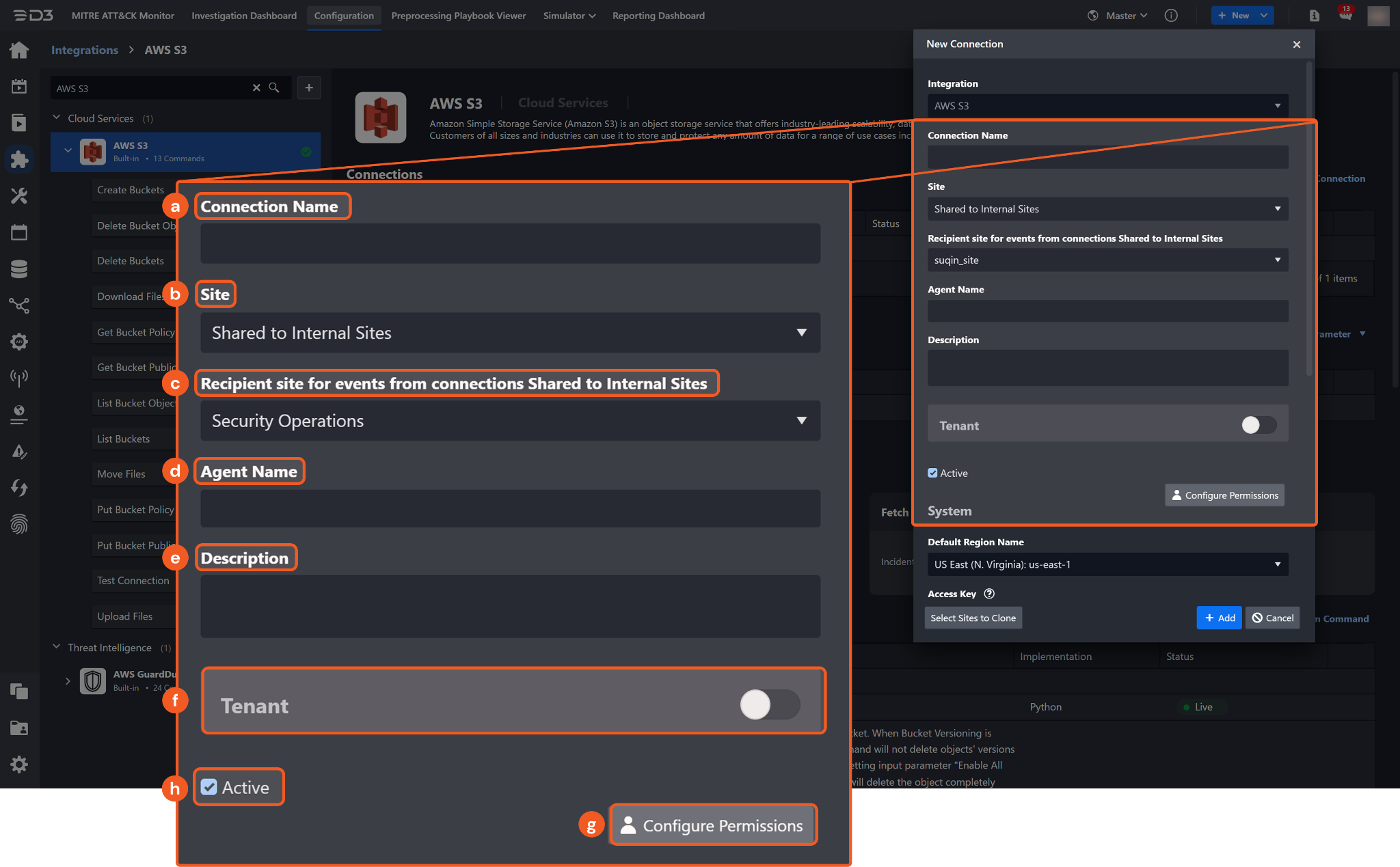
Connection Name: The desired name for the connection.
Site: The site on which to use the integration connection. Use the drop-down menu to select the site. The Share to Internal Sites option enables all internal sites to use the connection. Selecting a specific site will only enable that site to use the connection.
Recipient site for events from connections Shared to Internal Sites: This field is displayed when Share to Internal Sites is selected for the Site field, allowing selection of the internal site for deploying the integration connection.
Agent Name (Optional): The proxy agent required to build the connection. Use the dropdown menu to select the proxy agent from a list of previously configured proxy agents.
Description (Optional): The description for the connection.
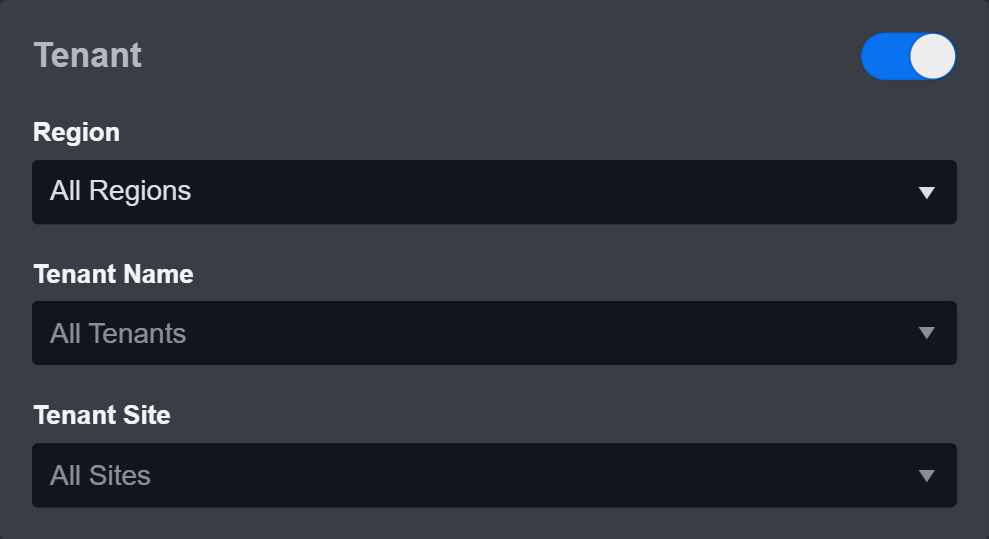
Tenant (Optional): When configuring the connection from a master tenant site, users can choose the specific tenant sites with which to share the connection. Once this setting is enabled, users can filter and select the desired tenant sites from the dropdowns to share the connection.
Configure User Permissions: Defines which users have access to the connection.
Active: The checkbox that enables the connection to be used when selected.
System: This section contains the parameters defined specifically for the integration. These parameters must be configured to create the integration connection.
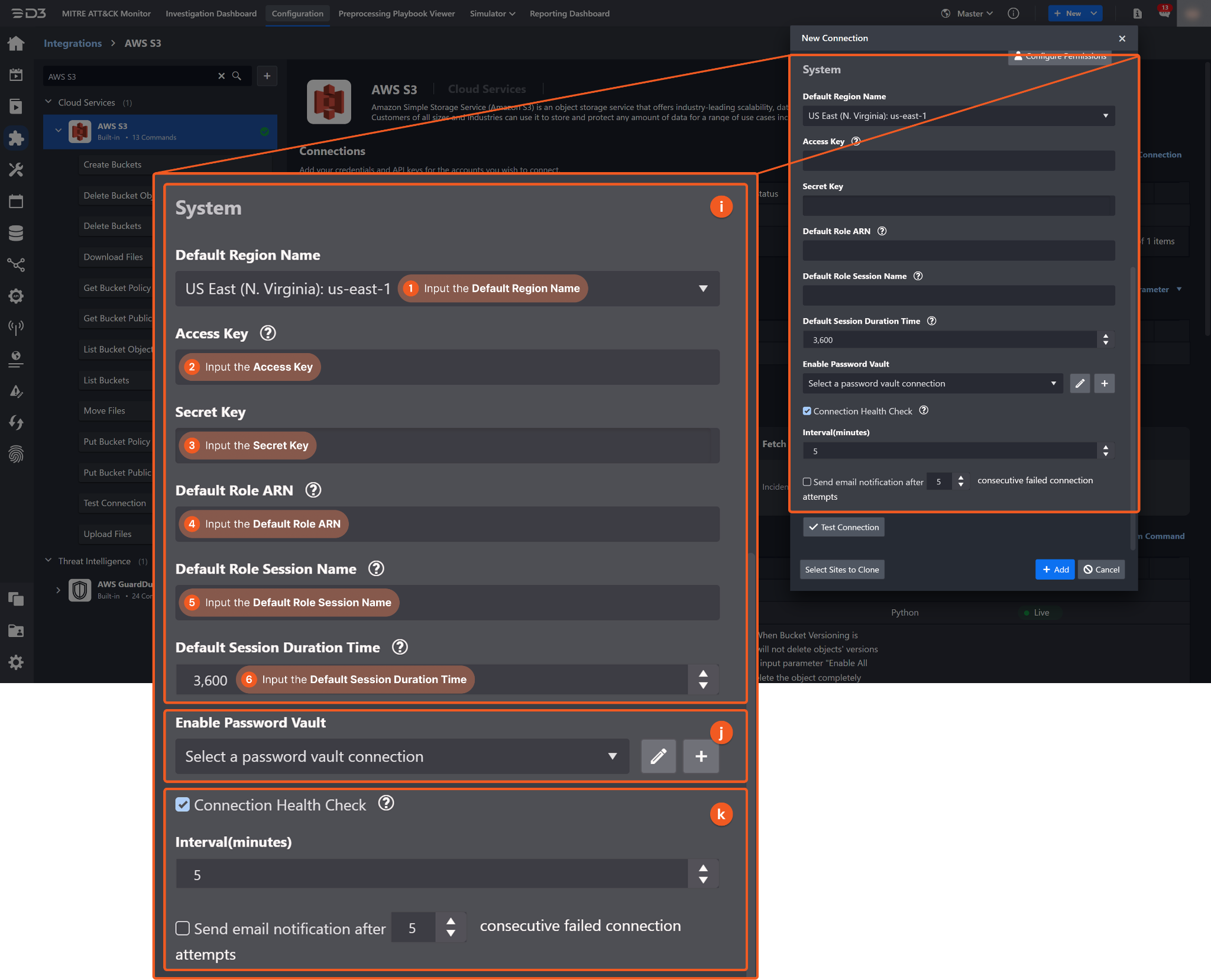
1. Input the AWS Default Region Name. By default, the value is set to US East (N.Virginia): us-east-1.
2. Input the Access Key obtained from the AWS console. Refer to Obtaining the Access Key and Secret Key.
3. Input the Secret Key obtained from the AWS console. Refer to Obtaining the Access Key and Secret Key.
4. (Optional) Input the Default Role ARN obtained from the AWS console. Refer to step 1 of Obtaining the Role ARN, Access Key, and Secret Key.
This parameter is required for the user associated with the access key and secret key to assume a role for the connection, overriding any previously assigned permissions.
5. (Optional) Input the Default Role Session Name. By default, a name is automatically created if Default Role ARN is specified.
6. (Optional) Input the Default Session Duration Time. By default, the value is 3,600 (seconds), or 1 hour.
Enable Password Vault: An optional feature that allows users to take the stored credentials from their own password vault. Refer to the password vault connection guide if needed.
Connection Health Check: Periodically checks the connection status by scheduling the Test Connection command at the specified interval (in minutes). Available only for active connections, this feature also allows configuring email notifications for failed attempts.
Test the connection.
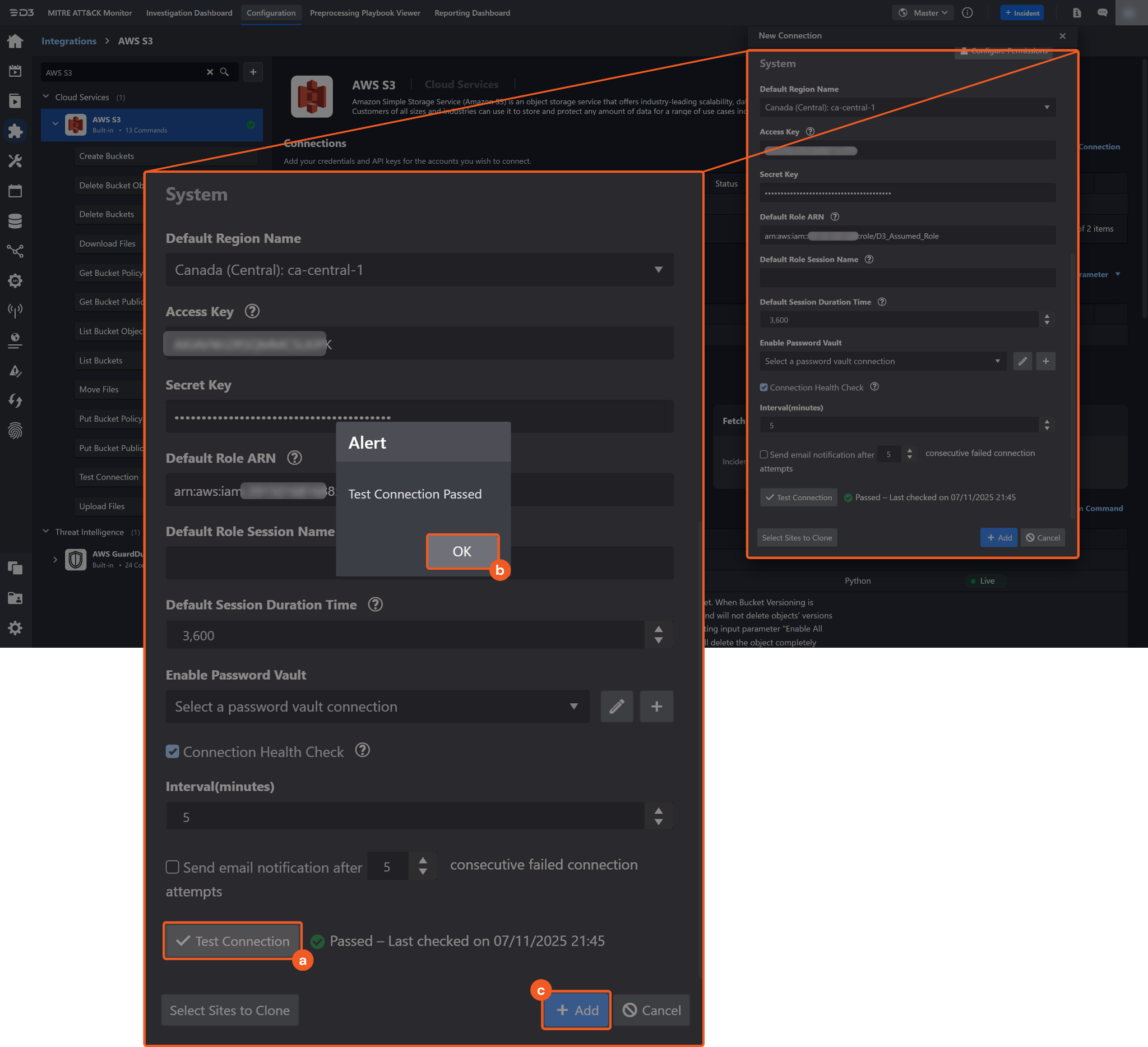
Click on the Test Connection button to verify credentials and connectivity. A success alert displays Passed with a green checkmark. If the connection fails, review the parameters and retry.
Click OK to close the alert window.
Click + Add to create and add the configured connection.
Commands
AWS S3 includes the following executable commands for users to set up schedules or create playbook workflows. With the Test Command, users can execute these commands independently for playbook troubleshooting.
Integration API Note
For more information about the AWS S3 API, refer to the AWS S3 API reference.
READER NOTE
Certain permissions are required for each command. Refer to the Permission Requirements and Configuring AWS S3 to Work with D3 SOAR for details.
Create Buckets
Creates AWS S3 buckets.
READER NOTE
Before running this command, ensure the bucket name is unique and complies with AWS S3 naming rules.
Each AWS account supports 100 buckets by default. When the limit is reached, D3 SOAR cannot create new buckets and returns the "You have attempted to create more buckets than allowed" error.
To increase the bucket limit to 1,000, submit a service limit increase request in AWS S3.
Bucket quantity does not affect performance.
Refer to General purpose bucket quotas, limitations, and restrictions - Amazon Simple Storage Service for details.
Input
Input Parameter | Required/Optional | Description | Example |
Bucket Names | Required | The names of the buckets to be created. Bucket Name must be unique and must not contain spaces or uppercase letters. Bucket Name can be obtained using the List Buckets command. |
JSON
|
Region Name | Optional | The AWS region name. By default, the value of the Default Region Name connection parameter is used. | US West (N. California) |
Role ARN | Optional | The Amazon Resource Name (ARN) of the IAM role to assume. By default, the value of the Default Role ARN connection parameter is used. Ensure the assumed role has the required permissions and is trusted by the account used for the connection. | arn:aws:iam::3*****8:role/awsflows3 |
Role Session Name | Optional | The unique identifier for the assumed role session. By default, the value of the Default Role Session Name connection parameter is used. The session name should include only upper- and lower-case alphanumeric characters or the following symbols: =,.@-. | awsflows3_Session1 |
Session Duration Time | Optional | The duration of the assumed role session, in seconds. By default, the value of the Default Session Duration Time connection parameter is used. Valid values range from 900 (15 minutes) up to the maximum session duration for the role (typically 1 hour). | 1800 |
Output
To view the sample output data for all commands, refer to this article.
Error Handling
If the Return Data is Partially Successful or Failed, an Error tab will appear in the Test Result window.
The error tab contains the details responded from D3 SOAR or third-party API calls, including Failure Indicator, Status Code, and Message. This can help locate the root cause of a command failure.
Parts in Error | Description | Example |
Failure Indicator | Indicates the command failure that happened at a specific input and/or API call. | Create Buckets failed. |
Status Code | The response code issued by the third-party API server or the D3 SOAR system that can be used to locate the corresponding error category. For example, if the returned status code is 401, the selected connection is unauthorized to run the command. The user or system support would need to check the permission setting in the AWS S3 portal. Refer to the HTTP Status Code Registry for details. | Status Code: 403. |
Message | The raw data or captured key error message from the integration API server about the API request failure. | Message: An error occurred (TooManyBuckets) when calling the CreateBucket operation: You have attempted to create more buckets than allowed. |
Error Sample Data Create Buckets failed. Status Code: 403. Message: An error occurred (TooManyBuckets) when calling the CreateBucket operation: You have attempted to create more buckets than allowed. |
Delete Bucket Objects
Deletes objects in an AWS S3 bucket. When Bucket Versioning is enabled, previous versions of objects and delete markers (records indicating that an object was deleted) remain unless the Enable All Versions Deletion parameter is set to True, which removes them as well. Retaining versions or delete markers can cause a BucketNotEmpty error when deleting the bucket using the Delete Buckets command. Deletions are denied for objects with Object Lock enabled or restricted permissions.
READER NOTE
Bucket Name and File Paths are required parameters to run this command.
Run the List Buckets command to obtain the Bucket Name. Bucket Names can be found in the raw data at $.Buckets[*].Name.
Run the List Bucket Objects command to obtain the File Paths. File Paths can be found in the raw data at $.Contents[*].Key.
The file path must reference a file in the specified bucket. Run List Bucket Objects for the target bucket to locate the file to delete, then use that bucket–file pair with this command.
Input
Input Parameter | Required/Optional | Description | Example |
Bucket Name | Required | The name of the bucket that contains the objects to be deleted. Bucket Name can be obtained using the List Buckets command. | mybucketbbb |
File Paths | Required | The file path in the bucket of the object to delete. File Paths can be obtained using the List Bucket Objects command. The file path includes the folder name if the file is located within a folder (e.g., temp/tests3.txt). |
JSON
|
Enable All Versions Deletion | Optional | Indicates whether to remove all object versions and delete markers in buckets with Bucket Versioning enabled.
This parameter has no effect if Bucket Versioning is disabled. | True |
Region Name | Optional | The AWS region name. By default, the value of the Default Region Name connection parameter is used. | US West (N. California) |
Role ARN | Optional | The Amazon Resource Name (ARN) of the IAM role to assume. By default, the value of the Default Role ARN connection parameter is used. Ensure the assumed role has the required permissions and is trusted by the account used for the connection. | arn:aws:iam::3*****8:role/awsflows3 |
Role Session Name | Optional | The unique identifier for the assumed role session. By default, the value of the Default Role Session Name connection parameter is used. The session name should include only upper- and lower-case alphanumeric characters or the following symbols: =,.@-. | awsflows3_Session1 |
Session Duration Time | Optional | The duration of the assumed role session, in seconds. By default, the value of the Default Session Duration Time connection parameter is used. Valid values range from 900 (15 minutes) up to the maximum session duration for the role (typically 1 hour). | 1800 |
Output
To view the sample output data for all commands, refer to this article.
Error Handling
If the Return Data is Partially Successful or Failed, an Error tab will appear in the Test Result window.
The error tab contains the details responded from D3 SOAR or third-party API calls, including Failure Indicator, Status Code, and Message. This can help locate the root cause of a command failure.
Parts in Error | Description | Example |
Failure Indicator | Indicates the command failure that happened at a specific input and/or API call. | Delete Bucket Objects failed. |
Status Code | The response code issued by the third-party API server or the D3 SOAR system that can be used to locate the corresponding error category. For example, if the returned status code is 401, the selected connection is unauthorized to run the command. The user or system support would need to check the permission setting in the AWS S3 portal. Refer to the HTTP Status Code Registry for details. | Status Code: 403. |
Message | The raw data or captured key error message from the integration API server about the API request failure. | Message: An error occurred (AccessDenied) when calling the ListObjectsV2 operation: Access Denied. |
Error Sample Data Delete Bucket Objects failed. Status Code: 403. Message: An error occurred (AccessDenied) when calling the ListObjectsV2 operation: Access Denied. |
Delete Buckets
Deletes the specified S3 buckets. All objects (including all object versions and delete markers) in the bucket must be deleted before the bucket can be deleted with this command.

WARNING
Empty the bucket before running this command to avoid errors. Follow the recommended procedure below.
Run the List Bucket Objects command on the target buckets to retrieve the object keys.
Run the Delete Bucket Objects command to remove all objects from the buckets.
Run this command to delete the specified buckets.
READER NOTE
Bucket Names is a required parameter to run this command.
Run the List Buckets command to obtain the Bucket Names. Bucket Names can be found in the raw data at $.Buckets[*].Name.
Input
Input Parameter | Required/Optional | Description | Example |
Bucket Names | Required | The names of the buckets to be deleted. Bucket Names can be obtained using the List Buckets command. |
JSON
|
Region Name | Optional | The AWS region name. By default, the value of the Default Region Name connection parameter is used. | US West (N. California) |
Role ARN | Optional | The Amazon Resource Name (ARN) of the IAM role to assume. By default, the value of the Default Role ARN connection parameter is used. Ensure the assumed role has the required permissions and is trusted by the account used for the connection. | arn:aws:iam::3*****8:role/awsflows3 |
Role Session Name | Optional | The unique identifier for the assumed role session. By default, the value of the Default Role Session Name connection parameter is used. The session name should include only upper- and lower-case alphanumeric characters or the following symbols: =,.@-. | awsflows3_Session1 |
Session Duration Time | Optional | The duration of the assumed role session, in seconds. By default, the value of the Default Session Duration Time connection parameter is used. Valid values range from 900 (15 minutes) up to the maximum session duration for the role (typically 1 hour). | 1800 |
Output
To view the sample output data for all commands, refer to this article.
Error Handling
If the Return Data is Partially Successful or Failed, an Error tab will appear in the Test Result window.
The error tab contains the details responded from D3 SOAR or third-party API calls, including Failure Indicator, Status Code, and Message. This can help locate the root cause of a command failure.
Parts in Error | Description | Example |
Failure Indicator | Indicates the command failure that happened at a specific input and/or API call. | Delete Buckets failed. |
Status Code | The response code issued by the third-party API server or the D3 SOAR system that can be used to locate the corresponding error category. For example, if the returned status code is 401, the selected connection is unauthorized to run the command. The user or system support would need to check the permission setting in the AWS S3 portal. Refer to the HTTP Status Code Registry for details. | Status Code: 403. |
Message | The raw data or captured key error message from the integration API server about the API request failure. | Message: Delete bucket \"***\" failed: An error occurred (NoSuchBucket) when calling the DeleteBucket operation: The specified bucket does not exist. |
Error Sample Data Delete Buckets failed. Status Code: 403. Message: Delete bucket \"***\" failed: An error occurred (NoSuchBucket) when calling the DeleteBucket operation: The specified bucket does not exist. |
Download Files
Downloads files from an AWS S3 bucket.
READER NOTE
Bucket Name and File Paths are required parameters to run this command.
Run the List Buckets command to obtain the Bucket Name. Bucket Names can be found in the raw data at $.Buckets[*].Name.
Run the List Bucket Objects command to obtain File Paths. File Paths can be found in the raw data at $.Contents[*].Key.
Ensure that the input bucket name and file path match; the file must exist in the specified bucket. Run List Bucket Objects on the target bucket to locate the file to delete, then use that bucket–file pair with this command.
Input
Input Parameter | Required/Optional | Description | Example |
Bucket Name | Required | The name of the bucket from which the files are downloaded. Bucket Name can be obtained using the List Buckets command. | mybucketbbb |
File Paths | Required | The file path in the bucket of the file to download. File Paths can be obtained using the List Bucket Objects command. The file path includes the name of the folder if the file is located in a folder (e.g.temp/tests3.txt). |
JSON
|
Region Name | Optional | The AWS region name. By default, the value of the Default Region Name connection parameter is used. | US West (N. California) |
Role ARN | Optional | The Amazon Resource Name (ARN) of the IAM role to assume. By default, the value of the Default Role ARN connection parameter is used. Ensure the assumed role has the required permissions and is trusted by the account used for the connection. | arn:aws:iam::3*****8:role/awsflows3 |
Role Session Name | Optional | The unique identifier for the assumed role session. By default, the value of the Default Role Session Name connection parameter is used. The session name should include only upper- and lower-case alphanumeric characters or the following symbols: =,.@-. | awsflows3_Session1 |
Session Duration Time | Optional | The duration of the assumed role session, in seconds. By default, the value of the Default Session Duration Time connection parameter is used. Valid values range from 900 (15 minutes) up to the maximum session duration for the role (typically 1 hour). | 1800 |
Output
To view the sample output data for all commands, refer to this article.
Error Handling
If the Return Data is Partially Successful or Failed, an Error tab will appear in the Test Result window.
The error tab contains the details responded from D3 SOAR or third-party API calls, including Failure Indicator, Status Code, and Message. This can help locate the root cause of a command failure.
Parts in Error | Description | Example |
Failure Indicator | Indicates the command failure that happened at a specific input and/or API call. | Download Files failed. |
Status Code | The response code issued by the third-party API server or the D3 SOAR system that can be used to locate the corresponding error category. For example, if the returned status code is 401, the selected connection is unauthorized to run the command. The user or system support would need to check the permission setting in the AWS S3 portal. Refer to the HTTP Status Code Registry for details. | Status Code: 403. |
Message | The raw data or captured key error message from the integration API server about the API request failure. | Message: Download file \"***\" in bucket \"***\" failed: An error occurred (NoSuchBucket) when calling the GetObject operation: The specified bucket does not exist. |
Error Sample Data Download Files failed. Status Code: 403. Message: Download file \"***\" in bucket \"***\" failed: An error occurred (NoSuchBucket) when calling the GetObject operation: The specified bucket does not exist. |
Get Bucket Policy
Retrieves the access policy of a specified AWS S3 bucket.
READER NOTE
Bucket Name is a required parameter to run this command.
Run the List Buckets command to obtain the Bucket Name. Bucket Names can be found in the raw data at $.Buckets[*].Name.
If the error message "The bucket policy does not exist" appears, it indicates that the specified bucket has no policy configured. To add one, run the Put Bucket Policy command.
Input
Input Parameter | Required/Optional | Description | Example |
Bucket Name | Required | The name of the bucket for which to retrieve the policy. Bucket Name can be obtained using the List Buckets command. | Mybucketbbb |
Region Name | Optional | The AWS region name. By default, the value of the Default Region Name connection parameter is used. | US West (N. California) |
Role ARN | Optional | The Amazon Resource Name (ARN) of the IAM role to assume. By default, the value of the Default Role ARN connection parameter is used. Ensure the assumed role has the required permissions and is trusted by the account used for the connection. | arn:aws:iam::3*****8:role/awsflows3 |
Role Session Name | Optional | The unique identifier for the assumed role session. By default, the value of the Default Role Session Name connection parameter is used. The session name should include only upper- and lower-case alphanumeric characters or the following symbols: =,.@-. | awsflows3_Session1 |
Session Duration Time | Optional | The duration of the assumed role session, in seconds. By default, the value of the Default Session Duration Time connection parameter is used. Valid values range from 900 (15 minutes) up to the maximum session duration for the role (typically 1 hour). | 1800 |
Output
To view the sample output data for all commands, refer to this article.
Error Handling
If the Return Data is Failed, an Error tab will appear in the Test Result window.
The error tab contains the details responded from D3 SOAR or third-party API calls, including Failure Indicator, Status Code, and Message. This can help locate the root cause of a command failure.
Parts in Error | Description | Example |
Failure Indicator | Indicates the command failure that happened at a specific input and/or API call. | Get Bucket Policy failed. |
Status Code | The response code issued by the third-party API server or the D3 SOAR system that can be used to locate the corresponding error category. For example, if the returned status code is 401, the selected connection is unauthorized to run the command. The user or system support would need to check the permission setting in the AWS S3 portal. Refer to the HTTP Status Code Registry for details. | Status Code: 403. |
Message | The raw data or captured key error message from the integration API server about the API request failure. | Message: An error occurred (AccessDenied) when calling the GetBucketPolicy operation: Access Denied', 'The access to the specified bucket is denied, please check bucket permission setting'. |
Error Sample Data Get Bucket Policy failed. Status Code: 403. Message: An error occurred (AccessDenied) when calling the GetBucketPolicy operation: Access Denied', 'The access to the specified bucket is denied, please check bucket permission setting'. |
Get Bucket Public Access Block
Retrieves the Public Access Block configuration of a specified AWS S3 bucket.
READER NOTE
Bucket Name is a required parameter to run this command.
Run the List Buckets command to obtain the Bucket Name. Bucket Names can be found in the raw data at $.Buckets[*].Name.
Input
Input Parameter | Required/Optional | Description | Example |
Bucket Name | Required | The name of the bucket whose Public Access Block configuration is retrieved. Bucket Name can be obtained using the List Buckets command. | Mybucketbbb |
Region Name | Optional | The AWS region name. By default, the value of the Default Region Name connection parameter is used. | US West (N. California) |
Role ARN | Optional | The Amazon Resource Name (ARN) of the IAM role to assume. By default, the value of the Default Role ARN connection parameter is used. Ensure the assumed role has the required permissions and is trusted by the account used for the connection. | arn:aws:iam::3*****8:role/awsflows3 |
Role Session Name | Optional | The unique identifier for the assumed role session. By default, the value of the Default Role Session Name connection parameter is used. The session name should include only upper- and lower-case alphanumeric characters or the following symbols: =,.@-. | awsflows3_Session1 |
Session Duration Time | Optional | The duration of the assumed role session, in seconds. By default, the value of the Default Session Duration Time connection parameter is used. Valid values range from 900 (15 minutes) up to the maximum session duration for the role (typically 1 hour). | 1800 |
Output
To view the sample output data for all commands, refer to this article.
Error Handling
If the Return Data is Failed, an Error tab will appear in the Test Result window.
The error tab contains the details responded from D3 SOAR or third-party API calls, including Failure Indicator, Status Code, and Message. This can help locate the root cause of a command failure.
Parts in Error | Description | Example |
Failure Indicator | Indicates the command failure that happened at a specific input and/or API call. | Get Bucket Public Access Block failed. |
Status Code | The response code issued by the third-party API server or the D3 SOAR system that can be used to locate the corresponding error category. For example, if the returned status code is 401, the selected connection is unauthorized to run the command. The user or system support would need to check the permission setting in the AWS S3 portal. Refer to the HTTP Status Code Registry for details. | Status Code: 403. |
Message | The raw data or captured key error message from the integration API server about the API request failure. | Message: An error occurred (AccessDenied) when calling the GetPublicAccessBlock operation: Access Denied. |
Error Sample Data Get Bucket Public Access Block failed. Status Code: 403. Message: An error occurred (AccessDenied) when calling the GetPublicAccessBlock operation: Access Denied. |
List Bucket Objects
Lists objects stored in an AWS S3 bucket. Object versions are not included if bucket versioning is enabled.
READER NOTE
Bucket Name is a required parameter to run this command.
Run the List Buckets command to obtain the Bucket Name. Bucket Names can be found in the raw data at $.Buckets[*].Name.
Input
Input Parameter | Required/Optional | Description | Example |
Bucket Name | Required | The name of the bucket for which to list objects. Bucket Name can be obtained using the List Buckets command. | mybucketbbb |
Maximum Objects | Optional | The maximum number of objects to return (up to 1,000). | 10 |
Region Name | Optional | The AWS region name. By default, the value of the Default Region Name connection parameter is used. | US West (N. California) |
Role ARN | Optional | The Amazon Resource Name (ARN) of the IAM role to assume. By default, the value of the Default Role ARN connection parameter is used. Ensure the assumed role has the required permissions and is trusted by the account used for the connection. | arn:aws:iam::3*****8:role/awsflows3 |
Role Session Name | Optional | The unique identifier for the assumed role session. By default, the value of the Default Role Session Name connection parameter is used. The session name should include only upper- and lower-case alphanumeric characters or the following symbols: =,.@-. | awsflows3_Session1 |
Session Duration Time | Optional | The duration of the assumed role session, in seconds. By default, the value of the Default Session Duration Time connection parameter is used. Valid values range from 900 (15 minutes) up to the maximum session duration for the role (typically 1 hour). | 1800 |
Output
To view the sample output data for all commands, refer to this article.
Error Handling
If the Return Data is Failed, an Error tab will appear in the Test Result window.
The error tab contains the details responded from D3 SOAR or third-party API calls, including Failure Indicator, Status Code, and Message. This can help locate the root cause of a command failure.
Parts in Error | Description | Example |
Failure Indicator | Indicates the command failure that happened at a specific input and/or API call. | List Bucket Objects failed. |
Status Code | The response code issued by the third-party API server or the D3 SOAR system that can be used to locate the corresponding error category. For example, if the returned status code is 401, the selected connection is unauthorized to run the command. The user or system support would need to check the permission setting in the AWS S3 portal. Refer to the HTTP Status Code Registry for details. | Status Code: 403. |
Message | The raw data or captured key error message from the integration API server about the API request failure. | Message: Invalid length for parameter RoleArn, value: *, valid min length: 20 Invalid value for parameter DurationSeconds, value: **, valid min value: 900. |
Error Sample Data List Bucket Objects failed. Status Code: 403. Message: Invalid length for parameter RoleArn, value: *, valid min length: 20 Invalid value for parameter DurationSeconds, value: **, valid min value: 900. |
List Buckets
Returns all buckets owned by the authenticated AWS account.
Input
Input Parameter | Required/Optional | Description | Example |
Region Name | Optional | The AWS region name. By default, the value of the Default Region Name connection parameter is used. | US West (N. California) |
Role ARN | Optional | The Amazon Resource Name (ARN) of the IAM role to assume. By default, the value of the Default Role ARN connection parameter is used. Ensure the assumed role has the required permissions and is trusted by the account used for the connection. | arn:aws:iam::3*****8:role/awsflows3 |
Role Session Name | Optional | The unique identifier for the assumed role session. By default, the value of the Default Role Session Name connection parameter is used. The session name should include only upper- and lower-case alphanumeric characters or the following symbols: =,.@-. | awsflows3_Session1 |
Session Duration Time | Optional | The duration of the assumed role session, in seconds. By default, the value of the Default Session Duration Time connection parameter is used. Valid values range from 900 (15 minutes) up to the maximum session duration for the role (typically 1 hour). | 1800 |
Output
To view the sample output data for all commands, refer to this article.
Error Handling
If the Return Data is Failed, an Error tab will appear in the Test Result window.
The error tab contains the details responded from D3 SOAR or third-party API calls, including Failure Indicator, Status Code, and Message. This can help locate the root cause of a command failure.
Parts in Error | Description | Example |
Failure Indicator | Indicates the command failure that happened at a specific input and/or API call. | List Buckets failed. |
Status Code | The response code issued by the third-party API server or the D3 SOAR system that can be used to locate the corresponding error category. For example, if the returned status code is 401, the selected connection is unauthorized to run the command. The user or system support would need to check the permission setting in the AWS S3 portal. Refer to the HTTP Status Code Registry for details. | Status Code: 403. |
Message | The raw data or captured key error message from the integration API server about the API request failure. | Message: Invalid length for parameter RoleArn, value: *, valid min length: 20 Invalid value for parameter DurationSeconds, value: **, valid min value: 900. |
Error Sample Data List Buckets failed. Status Code: 403. Message: Invalid length for parameter RoleArn, value: *, valid min length: 20 Invalid value for parameter DurationSeconds, value: **, valid min value: 900. |
Move Files
Moves objects within an AWS S3 bucket from a source path to a destination path. This command does not support copying objects across regions, as cross-region transfers incur bandwidth charges.
READER NOTE
Source Bucket Name, Source File Paths and Destination Bucket Name are required parameters to run this command.
Run the List Buckets command to obtain the Source Bucket Name and Destination Bucket Name. Source Bucket Names and Destination Bucket Names can be found in the raw data at $.Buckets[*].Name.
Run the List Bucket Objects command to obtain the Source File Paths. Source File Paths can be found in the raw data at $.Contents[*].Key.
Input
Input Parameter | Required/Optional | Description | Example |
Source Bucket Name | Required | The name of the bucket containing the objects to move. Source Bucket Name can be obtained using the List Buckets command. | sourceBucket |
Source File Paths | Required | The full path of the objects to move within the source bucket. Source File Paths can be obtained using the List Bucket Objects command. The file path includes the folder name if the file is located within a folder (e.g., temp/tests3.txt). |
JSON
|
Destination Bucket Name | Required | The name of the bucket to which the objects will be moved. Destination Bucket Name can be obtained using the List Buckets command. | destinationBucket |
Destination Path | Optional | The path within the destination bucket where the objects will be placed. By default, the bucket’s root path is used. | Temp |
Region Name | Optional | The AWS region name. By default, the value of the Default Region Name connection parameter is used. | US West (N. California) |
Role ARN | Optional | The Amazon Resource Name (ARN) of the IAM role to assume. By default, the value of the Default Role ARN connection parameter is used. Ensure the assumed role has the required permissions and is trusted by the account used for the connection. | arn:aws:iam::3*****8:role/awsflows3 |
Role Session Name | Optional | The unique identifier for the assumed role session. By default, the value of the Default Role Session Name connection parameter is used. The session name should include only upper- and lower-case alphanumeric characters or the following symbols: =,.@-. | awsflows3_Session1 |
Session Duration Time | Optional | The duration of the assumed role session, in seconds. By default, the value of the Default Session Duration Time connection parameter is used. Valid values range from 900 (15 minutes) up to the maximum session duration for the role (typically 1 hour). | 1800 |
Output
To view the sample output data for all commands, refer to this article.
Error Handling
If the Return Data is Partially Successful or Failed, an Error tab will appear in the Test Result window.
The error tab contains the details responded from D3 SOAR or third-party API calls, including Failure Indicator, Status Code, and Message. This can help locate the root cause of a command failure.
Parts in Error | Description | Example |
Failure Indicator | Indicates the command failure that happened at a specific input and/or API call. | Move Files failed. |
Status Code | The response code issued by the third-party API server or the D3 SOAR system that can be used to locate the corresponding error category. For example, if the returned status code is 401, the selected connection is unauthorized to run the command. The user or system support would need to check the permission setting in the AWS S3 portal. Refer to the HTTP Status Code Registry for details. | Status Code: 403. |
Message | The raw data or captured key error message from the integration API server about the API request failure. | Message: An error occurred (AccessDenied) when calling the GetBucketVersioning operation: Access Denied. |
Error Sample Data Move Files failed. Status Code: 403. Message: An error occurred (AccessDenied) when calling the GetBucketVersioning operation: Access Denied. |
Put Bucket Policy
Applies a bucket policy to a specified AWS S3 bucket.
READER NOTE
Bucket Name and Policy are required to run this command.
Run the List Buckets command to obtain the Bucket Name. Bucket Names can be found in the raw data at $.Buckets[*].Name.
Input
Input Parameter | Required/Optional | Description | Example |
Bucket Name | Required | The name of the bucket to which the policy is applied. Bucket Name can be obtained using the List Buckets command. | mybucketbbb |
Policy | Required | The policy in JSON format that is applied to the bucket. For details on policy structure, refer to Examples of Amazon S3 bucket policies - Amazon Simple Storage Service. |
JSON
|
Region Name | Optional | The AWS region name. By default, the value of the Default Region Name connection parameter is used. | US West (N. California) |
Role ARN | Optional | The Amazon Resource Name (ARN) of the IAM role to assume. By default, the value of the Default Role ARN connection parameter is used. Ensure the assumed role has the required permissions and is trusted by the account used for the connection. | arn:aws:iam::3*****8:role/awsflows3 |
Role Session Name | Optional | The unique identifier for the assumed role session. By default, the value of the Default Role Session Name connection parameter is used. The session name should include only upper- and lower-case alphanumeric characters or the following symbols: =,.@-. | awsflows3_Session1 |
Session Duration Time | Optional | The duration of the assumed role session, in seconds. By default, the value of the Default Session Duration Time connection parameter is used. Valid values range from 900 (15 minutes) up to the maximum session duration for the role (typically 1 hour). | 1800 |
Output
To view the sample output data for all commands, refer to this article.
Error Handling
If the Return Data is Failed, an Error tab will appear in the Test Result window.
The error tab contains the details responded from D3 SOAR or third-party API calls, including Failure Indicator, Status Code, and Message. This can help locate the root cause of a command failure.
Parts in Error | Description | Example |
Failure Indicator | Indicates the command failure that happened at a specific input and/or API call. | Put Bucket Policy failed. |
Status Code | The response code issued by the third-party API server or the D3 SOAR system that can be used to locate the corresponding error category. For example, if the returned status code is 401, the selected connection is unauthorized to run the command. The user or system support would need to check the permission setting in the AWS S3 portal. Refer to the HTTP Status Code Registry for details. | Status Code: 403. |
Message | The raw data or captured key error message from the integration API server about the API request failure. | Message: The access to the specified bucket is denied, please check bucket permission setting. |
Error Sample Data Put Bucket Policy failed. Status Code: 403. Message: The access to the specified bucket is denied, please check bucket permission setting. |
Put Bucket Public Access Block
Creates or updates the Public Access Block configuration of a specified AWS S3 bucket.
READER NOTE
Bucket Name is a required parameter to run this command.
Run the List Buckets command to obtain the Bucket Name. Bucket Names can be found in the raw data at $.Buckets[*].Name.
Input
Input Parameter | Required/Optional | Description | Example |
Bucket Name | Required | The name of the bucket for which the Public Access Block configuration is created or modified. Bucket Name can be obtained using the List Buckets command. | mybucketbbb |
Block Public ACLs | Required | Indicates whether Amazon S3 blocks public access control lists (ACLs) for the bucket and its objects. When set to True, S3 rejects requests that try to apply public ACLs through PUT Bucket ACL, PUT Object ACL, or PUT Object calls. Existing ACLs and policies are not affected. | True |
Ignore Public ACLs | Required | Indicates whether Amazon S3 ignores any public ACLs that exist on the bucket or its objects. When set to True, S3 treats all public ACLs as non-public but does not delete them or prevent new ACLs from being created. | True |
Block Public Policy | Required | Indicates whether Amazon S3 blocks bucket policies that allow public access. When set to True, S3 rejects any PUT Bucket Policy request that would make the bucket publicly accessible. | True |
Restrict Public Buckets | Required | Indicates whether Amazon S3 restricts public bucket access to users within the same account. When set to True, only AWS service principals and authorized users in the account can access the bucket if a public policy exists. | True |
Region Name | Optional | The AWS region name. By default, the value of the Default Region Name connection parameter is used. | US West (N. California) |
Role ARN | Optional | The Amazon Resource Name (ARN) of the IAM role to assume. By default, the value of the Default Role ARN connection parameter is used. Ensure the assumed role has the required permissions and is trusted by the account used for the connection. | arn:aws:iam::3*****8:role/awsflows3 |
Role Session Name | Optional | The unique identifier for the assumed role session. By default, the value of the Default Role Session Name connection parameter is used. The session name should include only upper- and lower-case alphanumeric characters or the following symbols: =,.@-. | awsflows3_Session1 |
Session Duration Time | Optional | The duration of the assumed role session, in seconds. By default, the value of the Default Session Duration Time connection parameter is used. Valid values range from 900 (15 minutes) up to the maximum session duration for the role (typically 1 hour). | 1800 |
Output
To view the sample output data for all commands, refer to this article.
Error Handling
If the Return Data is Failed, an Error tab will appear in the Test Result window.
The error tab contains the details responded from D3 SOAR or third-party API calls, including Failure Indicator, Status Code, and Message. This can help locate the root cause of a command failure.
Parts in Error | Description | Example |
Failure Indicator | Indicates the command failure that happened at a specific input and/or API call. | Put Bucket Public Access Block failed. |
Status Code | The response code issued by the third-party API server or the D3 SOAR system that can be used to locate the corresponding error category. For example, if the returned status code is 401, the selected connection is unauthorized to run the command. The user or system support would need to check the permission setting in the AWS S3 portal. Refer to the HTTP Status Code Registry for details. | Status Code: 403. |
Message | The raw data or captured key error message from the integration API server about the API request failure. | Message: An error occurred (AccessDenied) when calling the PutPublicAccessBlock operation: Access Denied. |
Error Sample Data Put Bucket Public Access Block failed. Status Code: 403. Message: An error occurred (AccessDenied) when calling the PutPublicAccessBlock operation: Access Denied. |
Update Bucket Object
Creates or updates an object in an AWS S3 bucket.
READER NOTE
Bucket Name is a required parameter to run this command.
Run the List Buckets command to obtain the Bucket Name. Bucket Names can be found in the raw data at $.Buckets[*].Name.
Input
Input Parameter | Required/Optional | Description | Example |
Text Content | Required | The text content to write to the S3 object. | Content for the file. |
S3 Object Name | Required | The name of the S3 object. Including the file extension is recommended. | testFile.txt |
Bucket Name | Required | The name of the S3 bucket where the object will be created or updated. Bucket Name can be obtained using the List Buckets command. | mybucket |
Bucket Path | Optional | The folder path within the bucket where the file is uploaded. If omitted, the file is placed in the bucket’s root. The path should exclude the bucket and object names and not begin with "/". If the specified path does not exist, it is automatically created as part of the object upload or update. | temp/sub |
Region Name | Optional | The AWS region name. By default, the value of the Default Region Name connection parameter is used. | US West (N. California) |
Role ARN | Optional | The Amazon Resource Name (ARN) of the IAM role to assume. By default, the value of the Default Role ARN connection parameter is used. Ensure the assumed role has the required permissions and is trusted by the account used for the connection. | arn:aws:iam::3*****8:role/awsflows3 |
Role Session Name | Optional | The unique identifier for the assumed role session. By default, the value of the Default Role Session Name connection parameter is used. The session name should include only upper- and lower-case alphanumeric characters or the following symbols: =,.@-. | awsflows3_Session1 |
Session Duration Time | Optional | The duration of the assumed role session, in seconds. By default, the value of the Default Session Duration Time connection parameter is used. Valid values range from 900 seconds (15 minutes) to the role's maximum session duration, typically 1 hour. | 1800 |
Output
To view the sample output data for all commands, refer to this article.
Error Handling
If the Return Data displays Failed, an Error tab will appear in the Test Result window.
The error tab contains the details responded from D3 SOAR or third-party API calls, including Failure Indicator, Status Code, and Message. This can help locate the root cause of a command failure.
Parts in Error | Description | Example |
Failure Indicator | Indicates the command failure that happened at a specific input and/or API call. | Update Bucket Object failed. |
Status Code | The response code issued by the third-party API server or the D3 SOAR system that can be used to locate the corresponding error category. For example, if the returned status code is 401, the selected connection is unauthorized to run the command. The user or system support would need to check the permission setting in the AWS S3 portal. Refer to the HTTP Status Code Registry for details. | Status Code: 403. |
Message | The raw data or captured key error message from the integration API server about the API request failure. | Message: The access to the specified bucket is denied, please check bucket permission setting. |
Error Sample Data Update Bucket Object failed. Status Code: 403. Message: The access to the specified bucket is denied, please check bucket permission setting. |
Upload Files
Uploads files to a folder within an AWS S3 bucket.
READER NOTE
Bucket Name is a required parameter to run this command.
Run the List Buckets command to obtain the Bucket Name. Bucket Names can be found in the raw data at $.Buckets[*].Name.
If the specified Bucket Folder does not exist, a new folder is created automatically, and the uploaded file is placed in that folder.
D3 File IDs and D3 File Source
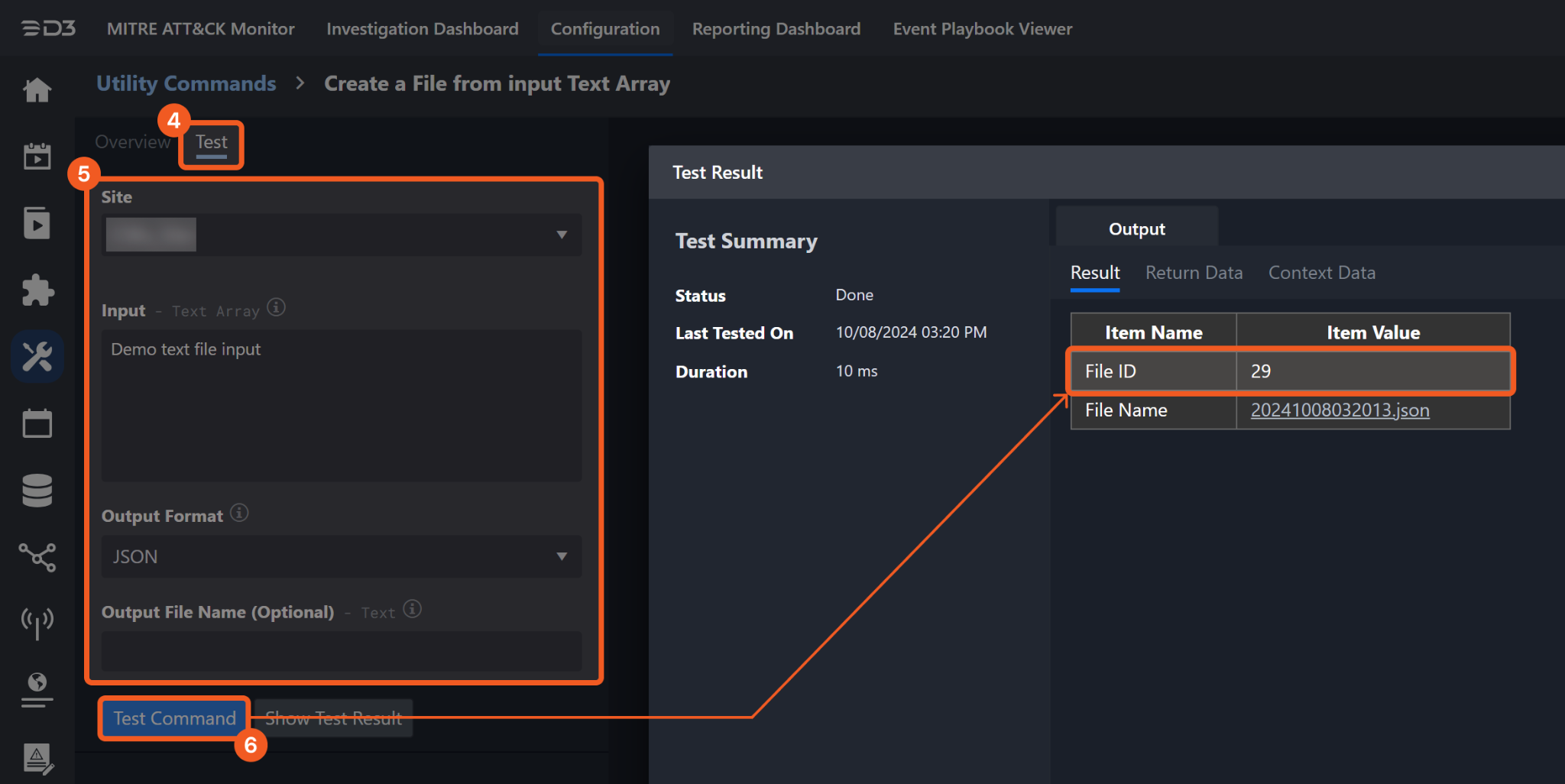
It is not recommended to use the Test Command feature with the Upload Files command as it is designed for dynamic input files in Playbooks, Incident Attachments, and Artifact Attachments. There is a simple workaround to test the command:
Navigate to Configuration on the top bar menu.
Click on Utility Commands on the left sidebar menu.
Use the search box to find and select the Create a File from input Text Array command.
Click on the Test tab.
Input the required information for the parameters.
Click on the Test Command button. A D3 File ID will appear in the output data after the file has been successfully created. The D3 File Source of the created file will be Playbook File.
Input
Input Parameter | Required/Optional | Description | Example |
D3 File IDs | Required | The IDs of the D3 files to upload. |
JSON
|
D3 File Source | Required | The source of the D3 files to upload. The options for file sources are:
| Playbook File |
Bucket Name | Required | The name of the bucket to which the files are uploaded. Bucket Name can be obtained using the List Buckets command. | mybucketbbb |
Bucket Folder | Optional | The folder path within the bucket where the files are uploaded. If omitted, the file is placed in the bucket’s root. The path should exclude the bucket and object names and not begin with "/". If the specified folder does not exist, it is created automatically, and the uploaded file is placed in that folder. | temp/sub |
Region Name | Optional | The AWS region name. By default, the value of the Default Region Name connection parameter is used. | US West (N. California) |
Role ARN | Optional | The Amazon Resource Name (ARN) of the IAM role to assume. By default, the value of the Default Role ARN connection parameter is used. Ensure the assumed role has the required permissions and is trusted by the account used for the connection. | arn:aws:iam::3*****8:role/awsflows3 |
Role Session Name | Optional | The unique identifier for the assumed role session. By default, the value of the Default Role Session Name connection parameter is used. The session name should include only upper- and lower-case alphanumeric characters or the following symbols: =,.@-. | awsflows3_Session1 |
Session Duration Time | Optional | The duration of the assumed role session, in seconds. By default, the value of the Default Session Duration Time connection parameter is used. Valid values range from 900 (15 minutes) up to the maximum session duration for the role (typically 1 hour). | 1800 |
Output
To view the sample output data for all commands, refer to this article.
Error Handling
If the Return Data is Partially Successful or Failed, an Error tab will appear in the Test Result window.
The error tab contains the details responded from D3 SOAR or third-party API calls, including Failure Indicator, Status Code, and Message. This can help locate the root cause of a command failure.
Parts in Error | Description | Example |
Failure Indicator | Indicates the command failure that happened at a specific input and/or API call. | Upload Files failed. |
Status Code | The response code issued by the third-party API server or the D3 SOAR system that can be used to locate the corresponding error category. For example, if the returned status code is 401, the selected connection is unauthorized to run the command. The user or system support would need to check the permission setting in the AWS S3 portal. Refer to the HTTP Status Code Registry for details. | Status Code: 403. |
Message | The raw data or captured key error message from the integration API server about the API request failure. | Message: Upload file with ID \"***\" to bucket \"***\" failed: Download file failed:\"Error converting data type nvarchar to bigint. |
Error Sample Data Upload Files failed. Status Code: 403. Message: Upload file with ID \"***\" to bucket \"***\" failed: Download file failed:\"Error converting data type nvarchar to bigint. |
Test Connection
Allows users to perform a health check on an integration connection. Users can schedule a periodic health check by selecting Connection Health Check when editing an integration connection.
Input
N/A
Output
Output Type | Description | Return Data Type |
Return Data | Indicates one of the possible command execution states: Successful or Failed. The Failed state can be triggered by any of the following errors:
More details about an error can be viewed in the Error tab. | String |
Error Handling
If the Return Data displays Failed, an Error tab will appear in the Test Result window.
The error tab contains the details responded from D3 SOAR or third-party API calls, including Failure Indicator, Status Code, and Message. This can help locate the root cause of a command failure.
Parts in Error | Description | Example |
Failure Indicator | Indicates the command failure that happened at a specific input and/or API call. | Test Connection failed. Failed to check the connector. |
Status Code | The response code issued by the third-party API server or the D3 SOAR system that can be used to locate the corresponding error category. For example, if the returned status code is 401, the selected connection is unauthorized to run the command. The user or system support would need to check the permission setting in the AWS S3 portal. Refer to the HTTP Status Code Registry for details. | Status Code: 403. |
Message | The raw data or captured key error message from the integration API server about the API request failure. | Message: The AWS Access Key Id you provided does not exist in our records. |
Error Sample Data Test Connection failed. Failed to check the connector. Status Code: 403. Message: The AWS Access Key Id you provided does not exist in our records. |