
Absolute
LAST UPDATED: OCTOBER 24, 2025
Overview
Absolute is a cybersecurity platform that provides persistent endpoint security and visibility, allowing organizations to track, manage, and protect devices—even if they're off-network or compromised.
D3 SOAR is providing REST operations to function with Absolute.
Absolute is available for use in:
Connection
Gather the following information to connect D3 SOAR to Absolute.
Parameter | Description | Example |
Server URL | The base URL for accessing the Absolute API. The server URL corresponds to the login portal:
Refer to API access for more information. | https://api.us.absolute.com/jws/validate |
Token ID | The unique token ID generated in the Absolute Secure Endpoint Console. | ***** |
Token Secret Key | The secret key associated with the token. | ***** |
API Version | The version of the API to use for the connection. The default version is v3. | v3 |
Permission Requirements
Each endpoint in the Absolute API requires a certain permission scope. The following are required scopes for the commands in this integration:
Command | Required Permissions |
Freeze Hosts |
|
Get Freeze Request |
|
Get Host Details |
|
Get Run Script Actions | Run permission for Reach Script |
Get Run Script Request | |
List Scripts | |
Run Script | |
Unfreeze Hosts | Perform permission for Remove Freeze |
Test Connection | View permission for Device reports |
As Absolute is using role-based access control (RBAC), the Token ID is generated based on a specific user account and the application. Therefore, the command permissions are inherited from the user account’s role. Users need to configure their user profile from the Absolute console for each command in this integration.
Configuring Absolute to Work with D3 SOAR
Refer to Create your API token for instructions on assigning permissions and retrieving the Token ID and Token Secret Key. Currently, only symmetric encryption is supported.

ALERT
Token permissions cannot be modified once the token is created. Delete the existing token and create a new one to assign new permissions.
The secret key will no longer be accessible once the download token dialog is closed.
Configuring D3 SOAR to Work with Absolute
Log in to D3 SOAR.
Find the Absolute integration.
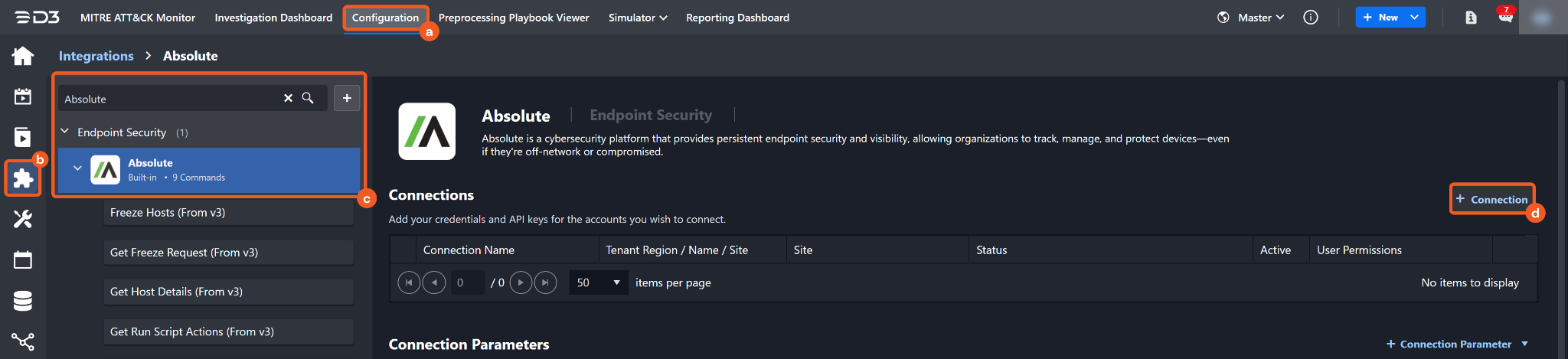
Navigate to Configuration on the top header menu.
Click on the Integration icon on the left sidebar.
Type Absolute in the search box to find the integration, then click it to select it.
Click on the + Connection button on the right side of the Connections section. A new connection window will appear.
Configure the following fields to create a connection to Absolute.
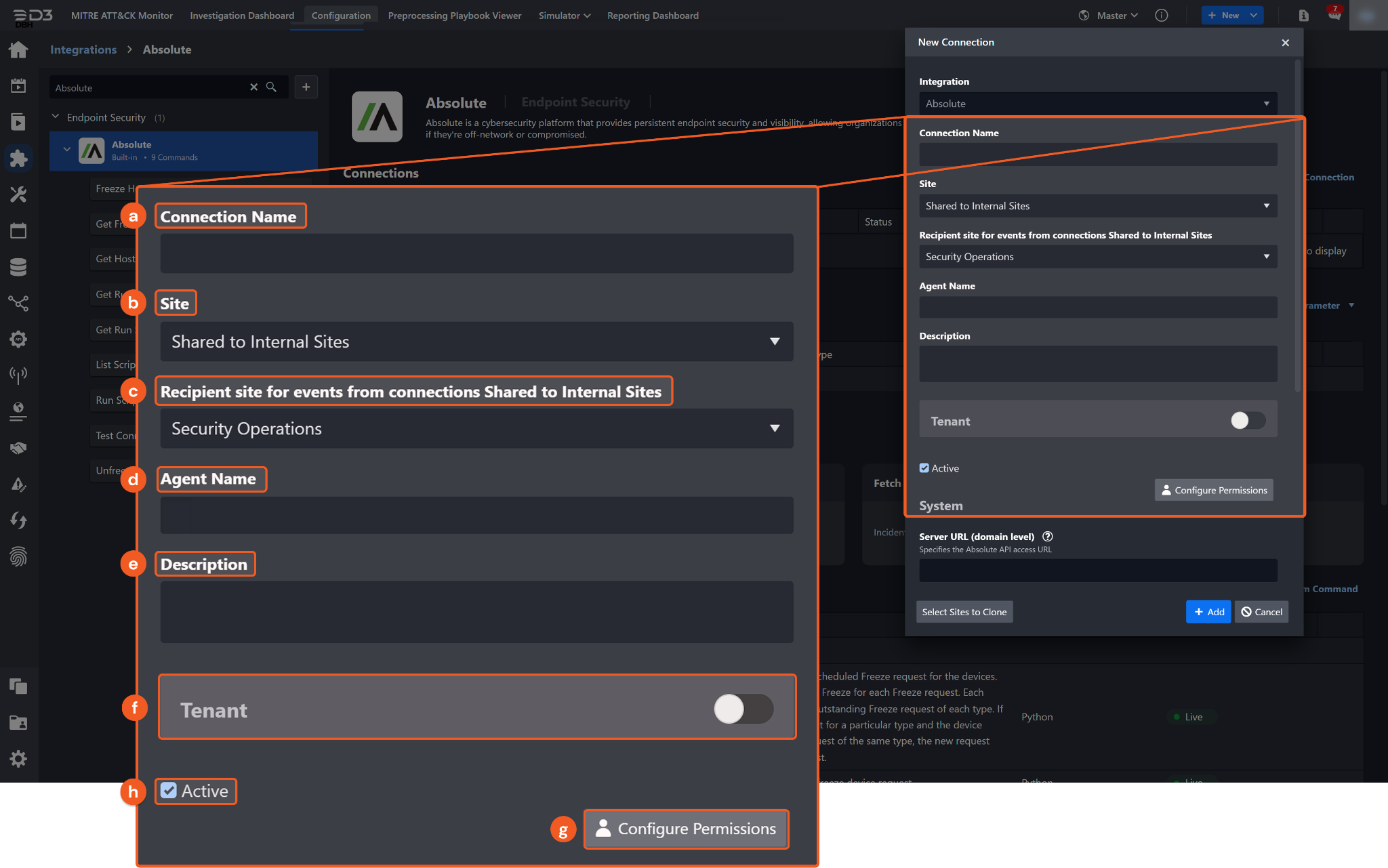
Connection Name: The desired name for the connection.
Site: The site on which to use the integration connection. Use the drop-down menu to select the site. The Share to Internal Sites option enables all internal sites to use the connection. Selecting a specific site will only enable that site to use the connection.
Recipient site for events from connections Shared to Internal Sites: This field is displayed when Share to Internal Sites is selected for the Site field, allowing selection of the internal site for deploying the integration connection.
Agent Name (Optional): The proxy agent required to build the connection. Use the dropdown menu to select the proxy agent from a list of previously configured proxy agents.
Description (Optional): The description for the connection.
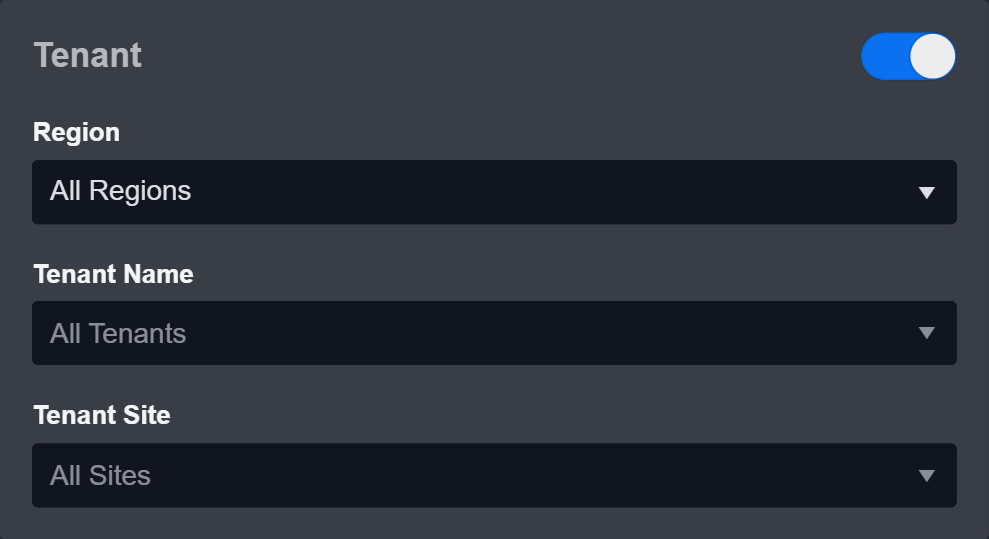
Tenant (Optional): When configuring the connection from a master tenant site, users can choose the specific tenant sites with which to share the connection. Once this setting is enabled, users can filter and select the desired tenant sites from the dropdowns to share the connection.
Active: The checkbox that enables the connection to be used when selected.
Configure User Permissions: Defines which users have access to the connection.
System: This section contains the parameters defined specifically for the integration. These parameters must be configured to create the integration connection.
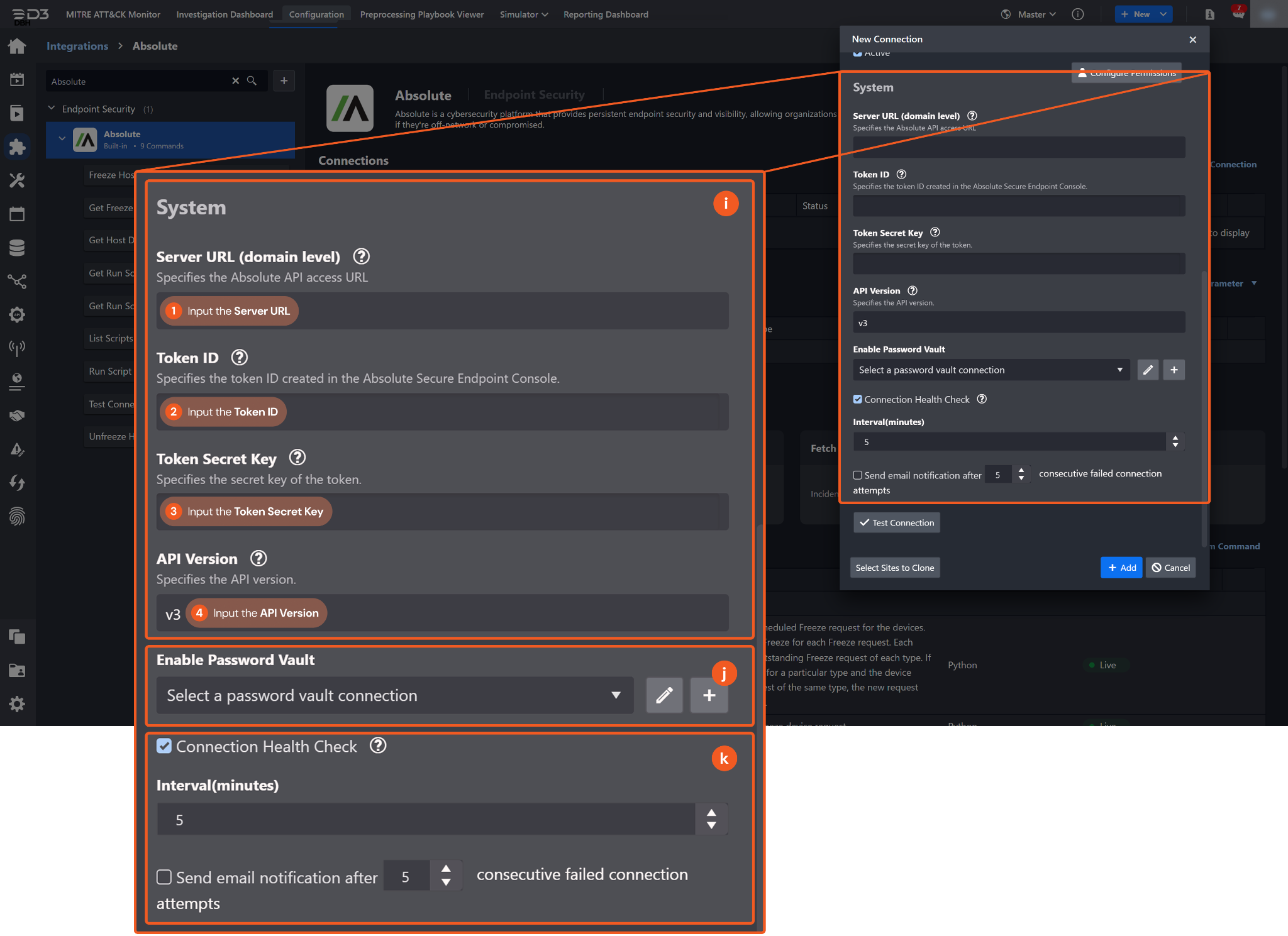
1. Input the Server URL.
2. Input the Token ID from the Absolute Secure Endpoint Console.
3. Input the Token Secret Key from the Absolute Secure Endpoint Console.
4. Input the API Version. The default value is v3.
Enable Password Vault: An optional feature that allows users to take the stored credentials from their own password vault. Refer to the password vault connection guide if needed.
Connection Health Check: Periodically checks the connection status by scheduling the Test Connection command at the specified interval (in minutes). Available only for active connections, this feature also allows configuring email notifications for failed attempts.
Test the connection.
Click on the Test Connection button to verify credentials and connectivity. A success alert displays Passed with a green checkmark. If the connection fails, review the parameters and retry.
Click OK to close the alert window.
Click + Add to create and add the configured connection.
Commands
Absolute includes the following executable commands for users to set up schedules or create playbook workflows. With the Test Command function, users can execute these commands independently for playbook troubleshooting.
Integration API Note
For more information about the Absolute API, refer to the Absolute API reference.

READER NOTE
Certain permissions are required for each command. Refer to the Permission Requirements and Configuring Absolute to Work with D3 SOAR sections for details.
Note for Time-related parameters
The input format of time-related parameters may vary based on user account settings, which may cause the sample data in commands to differ from what is displayed. To adjust the time format, follow these steps:
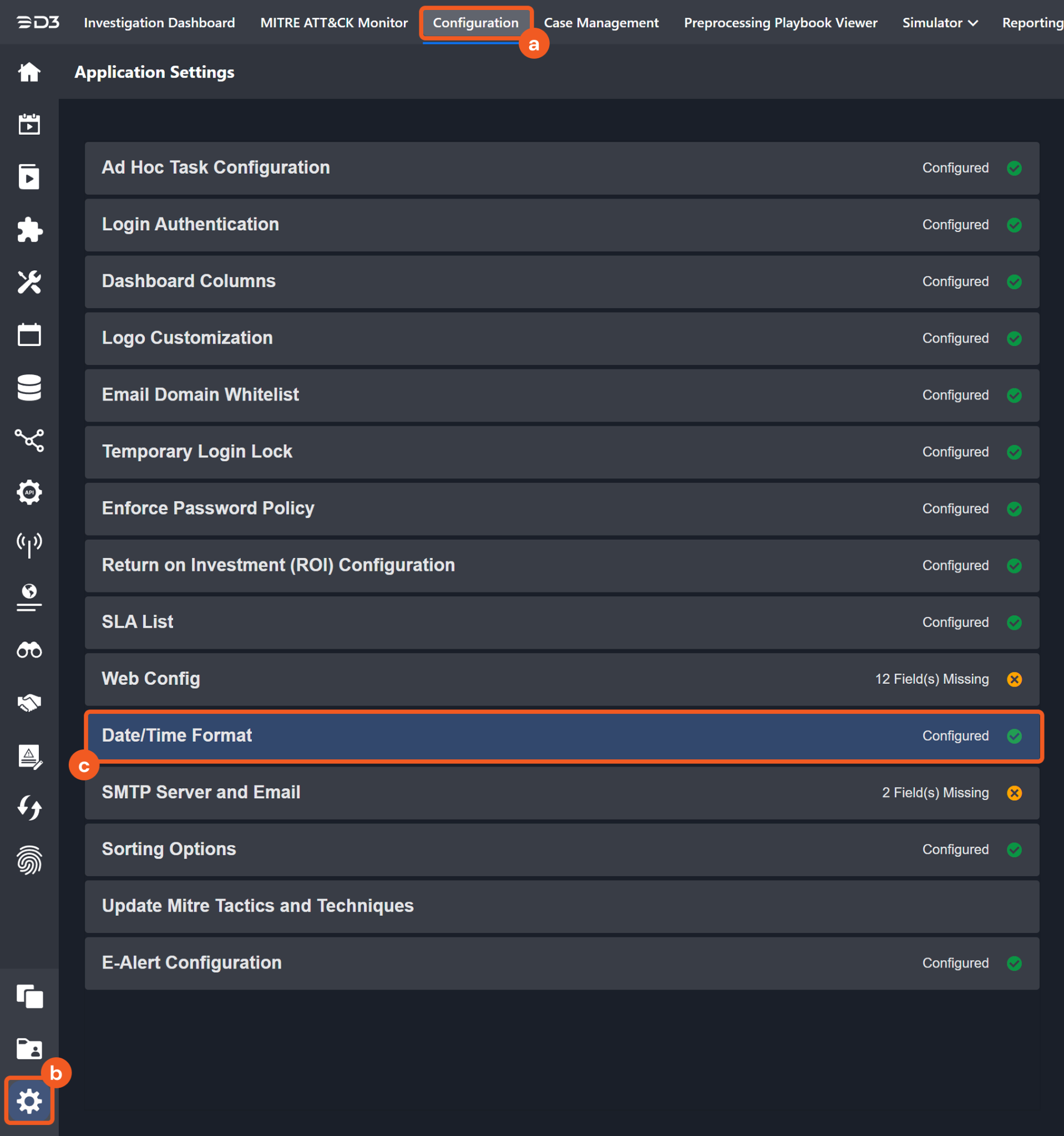
Navigate to Configuration > Application Settings. Select Date/Time Format.
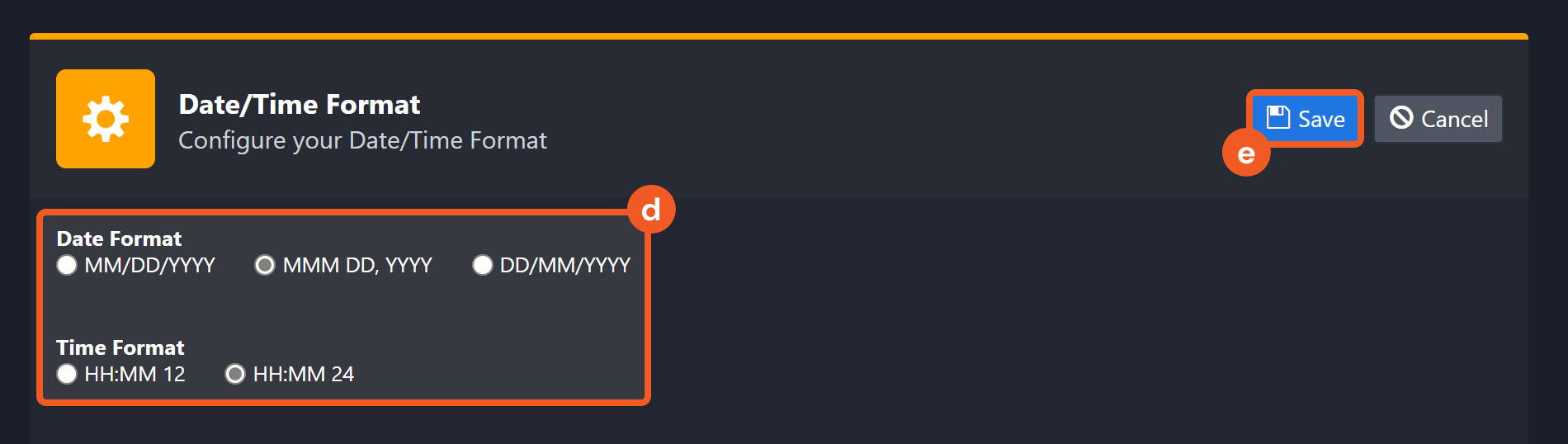
Choose the desired date and time format, then click on the Save button.
The selected time format will now be visible when configuring Date/Time command input parameters.
Freeze Hosts
Creates an On-demand or Scheduled Freeze request on specified devices. Each Freeze request applies one Freeze type. A device can have only one active Freeze request per type. Submitting a new request of the same type replaces the existing one.
READER NOTE
Device UIDs is a required parameter to run this command.
Run the Get Host Details command to obtain the Device UIDs. Device UIDs can be found in the raw data at $.data[*].deviceUid.
Input
Input Parameter | Required/Optional | Description | Example |
Device UIDs | Required | The unique identifiers of the target devices on which to create the Freeze request. Device UIDs can be obtained using the Get Host Details command. Up to 10,000 devices can be specified. |
JSON
|
Request Title | Required | The user-defined title of the Freeze request. The maximum length is 250 characters. | test |
Passcode Method Options | Required | The method used to generate the unfreeze code for devices. Valid options are:
| Random For All |
Passcode | Optional | The user-defined 4–8 digit numeric unfreeze code used to immediately unfreeze a frozen device. This parameter applies only when Passcode Method Options is set to User Defined. | 12345678 |
Freeze Type | Required | The type of Freeze to apply. Valid options are:
| On Demand |
Scheduled Datetime | Optional | The date and time (in UTC) when the device should be frozen. This parameter applies only when Freeze Type is set to Scheduled. | 2025-08-01 12:00 AM |
Message Name | Optional | The user-defined name of the Freeze message displayed on the device when frozen. The name must be between 1 and 255 characters. | Test |
Message | Optional | The user-defined Freeze message shown on the frozen device. The message can include HTML and must be between 1 and 4000 characters. The system automatically sanitizes the content by removing unsafe tags or attributes to mitigate security risks, such as cross-site scripting (XSS). | Test message |
Output
To view the sample output data for all commands, refer to this article.
Error Handling
If the Return Data displays Failed, an Error tab will appear in the Test Result window.
The error tab contains the details responded from D3 SOAR or third-party API calls, including Failure Indicator, Status Code, and Message. This can help locate the root cause of a command failure.
Parts in Error | Description | Example |
Failure Indicator | Indicates the command failure that happened at a specific input and/or API call. | Freeze Hosts failed. |
Status Code | The response code issued by the third-party API server or the D3 SOAR system that can be used to locate the corresponding error category. For example, if the returned status code is 401, the selected connection is unauthorized to run the command. The user or system support would need to check the permission setting in the Absolute portal. Refer to the HTTP Status Code Registry for details. | Status Code: 401. |
Message | The raw data or captured key error message from the integration API server about the API request failure. | Message: Unauthorized. |
Error Sample Data Freeze Hosts failed. Status Code: 401. Message: Unauthorized. |
Get Freeze Request
Retrieves details about the specified Freeze request.
READER NOTE
Request UID is a required parameter to run this command.
Run the Freeze Hosts command to obtain the Request UID. Request UIDs can be found in the raw data at $.data.requestUid.
Input
Input Parameter | Required/Optional | Description | Example |
Request UID | Required | The unique identifier of the Freeze request. Request UID can be obtained using the Freeze Hosts command. | 23db*****f598 |
Next Page | Optional | The pagination token used to retrieve the next page of results. Each page contains up to 10,000 records. | ***** |
Output
To view the sample output data for all commands, refer to this article.
Error Handling
If the Return Data displays Failed, an Error tab will appear in the Test Result window.
The error tab contains the details responded from D3 SOAR or third-party API calls, including Failure Indicator, Status Code, and Message. This can help locate the root cause of a command failure.
Parts in Error | Description | Example |
Failure Indicator | Indicates the command failure that happened at a specific input and/or API call. | Get Freeze Request failed. |
Status Code | The response code issued by the third-party API server or the D3 SOAR system that can be used to locate the corresponding error category. For example, if the returned status code is 401, the selected connection is unauthorized to run the command. The user or system support would need to check the permission setting in the Absolute portal. Refer to the HTTP Status Code Registry for details. | Status Code: 401. |
Message | The raw data or captured key error message from the integration API server about the API request failure. | Message: Unauthorized. |
Error Sample Data Get Freeze Request failed. Status Code: 401. Message: Unauthorized. |
Get Host Details
Retrieves information about devices associated with the authenticated account.
READER NOTE
Certain Select fields require additional permission scopes assigned to the authenticated user.
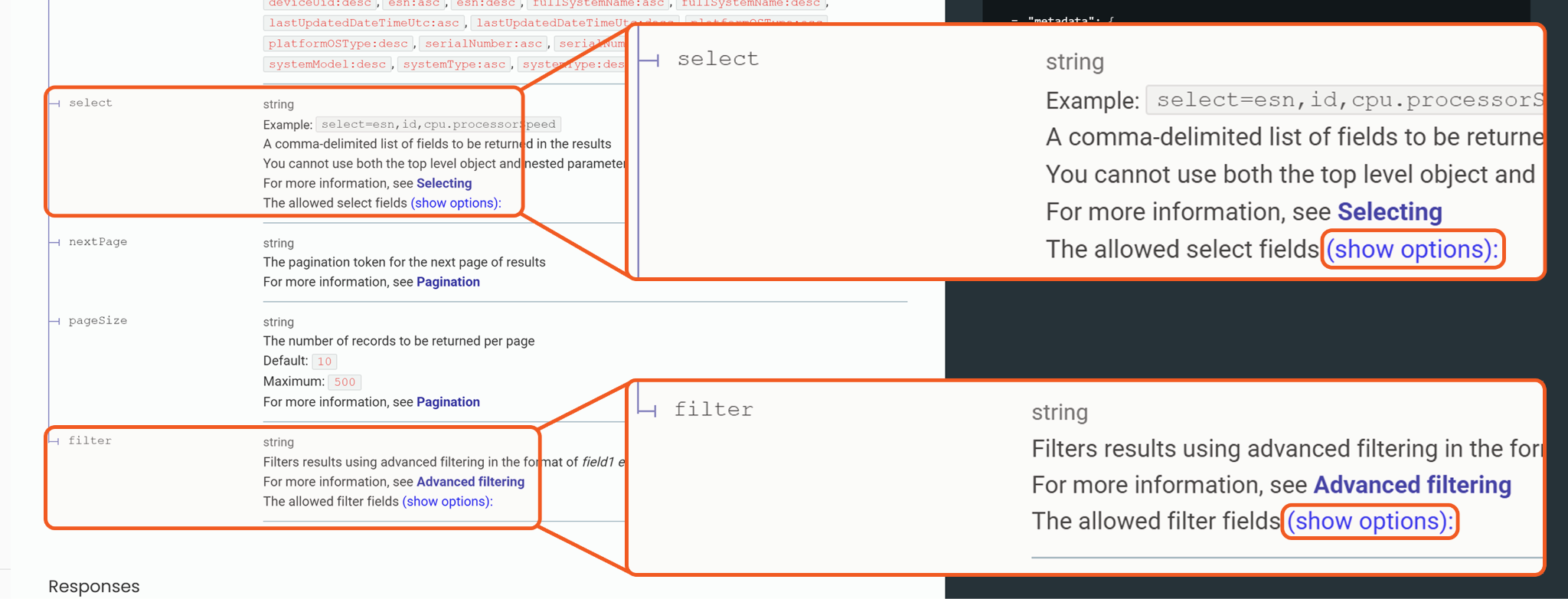
For a list of all supported Filter and Select fields, navigate to Get device details (Advanced) then click show options.
Input
Input Parameter | Required/Optional | Description | Example |
Page Size | Optional | The number of records to return per page. The maximum allowed value is 500. By default, the value is 10. | 5 |
Next Page | Optional | The pagination token used to retrieve the next page of results. | ***** |
Filter | Optional | The filtering conditions applied to refine results in the field1 eq value1 and/or field2 eq value2 format. Logical operators and and or are supported, and parentheses may be used to control grouping. String values must be enclosed in single quotes. Refer to Get device details (Advanced) for all supported filter fields. | esnStartsWith eq '1A2B' and (platformOSType eq 'Windows' or platformOSType eq 'Mac') and lastConnectedDateTimeUtcTo eq '2022-01-01T00:00:00.000Z' and isStolen eq true |
Sort By | Optional | The sorting rule applied to results in the field:order format. order can be asc or desc, meaning ascending or descending order, respectively. Supported fields are:
| agentStatus:asc |
Select | Optional | The comma-separated list of fields to include in the results. Nested and top-level fields cannot be selected together. Refer to Get device details (Advanced) for all supported select fields. | esn,id,cpu.processorSpeed |
Output
To view the sample output data for all commands, refer to this article.
Error Handling
If the Return Data displays Failed, an Error tab will appear in the Test Result window.
The error tab contains the details responded from D3 SOAR or third-party API calls, including Failure Indicator, Status Code, and Message. This can help locate the root cause of a command failure.
Parts in Error | Description | Example |
Failure Indicator | Indicates the command failure that happened at a specific input and/or API call. | Get Host Details failed. |
Status Code | The response code issued by the third-party API server or the D3 SOAR system that can be used to locate the corresponding error category. For example, if the returned status code is 401, the selected connection is unauthorized to run the command. The user or system support would need to check the permission setting in the Absolute portal. Refer to the HTTP Status Code Registry for details. | Status Code: 401. |
Message | The raw data or captured key error message from the integration API server about the API request failure. | Message: Unauthorized. |
Error Sample Data Get Host Details failed. Status Code: 401. Message: Unauthorized. |
Get Run Script Actions
Retrieves the status of the individual actions that make up a Run Script request. Each action represents the execution of the script on a specific device.
READER NOTE
Request UID and Device UIDs are required parameters to run this command.
Run the Run Script command to obtain the Request UID. Request UIDs can be found in the raw data at $.data.requestUid.
Run the Get Host Details command to obtain the Device UIDs. Device UIDs can be found in the raw data at $.data[*].deviceUid.
Input
Input Parameter | Required/Optional | Description | Example |
Request UID | Required | The unique identifier of the Run Script request. Request UID can be obtained using the Run Script command. | 23db*****f598 |
Device UIDs | Required | The unique identifiers of the devices. Device UIDs can be obtained using the Get Host Details command. Up to 10,000 devices can be specified. |
JSON
|
Next Page | Optional | The pagination token used to retrieve the next page of results. Each page contains 100 records. | ***** |
Output
To view the sample output data for all commands, refer to this article.
Error Handling
If the Return Data displays Failed, an Error tab will appear in the Test Result window.
The error tab contains the details responded from D3 SOAR or third-party API calls, including Failure Indicator, Status Code, and Message. This can help locate the root cause of a command failure.
Parts in Error | Description | Example |
Failure Indicator | Indicates the command failure that happened at a specific input and/or API call. | Get Run Script Actions failed. |
Status Code | The response code issued by the third-party API server or the D3 SOAR system that can be used to locate the corresponding error category. For example, if the returned status code is 401, the selected connection is unauthorized to run the command. The user or system support would need to check the permission setting in the Absolute portal. Refer to the HTTP Status Code Registry for details. | Status Code: 401. |
Message | The raw data or captured key error message from the integration API server about the API request failure. | Message: Unauthorized. |
Error Sample Data Get Run Script Actions failed. Status Code: 401. Message: Unauthorized. |
Get Run Script Request
Retrieves details about the status and advanced configuration options used in the Reach script defined in a Run Script request.
READER NOTE
Request UID is a required parameter to run this command.
Run the Run Script command to obtain the Request UID. Request UIDs can be found in the raw data at $.data.requestUid.
Input
Input Parameter | Required/Optional | Description | Example |
Request UID | Required | The unique identifier of the Run Script request. Request UID can be obtained using the Run Script command. | 23db*****f598 |
Output
To view the sample output data for all commands, refer to this article.
Error Handling
If the Return Data displays Failed, an Error tab will appear in the Test Result window.
The error tab contains the details responded from D3 SOAR or third-party API calls, including Failure Indicator, Status Code, and Message. This can help locate the root cause of a command failure.
Parts in Error | Description | Example |
Failure Indicator | Indicates the command failure that happened at a specific input and/or API call. | Get Run Script Request failed. |
Status Code | The response code issued by the third-party API server or the D3 SOAR system that can be used to locate the corresponding error category. For example, if the returned status code is 401, the selected connection is unauthorized to run the command. The user or system support would need to check the permission setting in the Absolute portal. Refer to the HTTP Status Code Registry for details. | Status Code: 401. |
Message | The raw data or captured key error message from the integration API server about the API request failure. | Message: Unauthorized. |
Error Sample Data Get Run Script Request failed. Status Code: 401. Message: Unauthorized. |
List Scripts
Retrieves all scripts available in the Reach Library.
Input
Input Parameter | Required/Optional | Description | Example |
Script Name | Optional | Filters results to include only scripts whose names contain the specified value. | Test |
Script Type | Optional | Filters results to include only scripts of the specified type. Valid options are:
| Custom |
Page Size | Optional | The number of records to return per page. The maximum allowed value is 500. By default, the value is 100. | 5 |
Next Page | Optional | The pagination token used to retrieve the next page of results. | ***** |
Output
To view the sample output data for all commands, refer to this article.
Error Handling
If the Return Data displays Failed, an Error tab will appear in the Test Result window.
The error tab contains the details responded from D3 SOAR or third-party API calls, including Failure Indicator, Status Code, and Message. This can help locate the root cause of a command failure.
Parts in Error | Description | Example |
Failure Indicator | Indicates the command failure that happened at a specific input and/or API call. | List Scripts failed. |
Status Code | The response code issued by the third-party API server or the D3 SOAR system that can be used to locate the corresponding error category. For example, if the returned status code is 401, the selected connection is unauthorized to run the command. The user or system support would need to check the permission setting in the Absolute portal. Refer to the HTTP Status Code Registry for details. | Status Code: 401. |
Message | The raw data or captured key error message from the integration API server about the API request failure. | Message: Unauthorized. |
Error Sample Data List Scripts failed. Status Code: 401. Message: Unauthorized. |
Run Script
Creates a Run Script request on specified devices with a script from the Reach Library. Ensure to upload the script to the Reach Library in the Secure Endpoint Console before running the command.
READER NOTE
Device UIDs and Script UID are required parameters to run this command.
Run the Get Host Details command to obtain the Device UIDs. Device UIDs can be found in the raw data at $.data[*].deviceUid.
Run the List Scripts command to obtain the Script UID. Script UIDs can be found in the raw data at $.data[*].scriptUid.
Input
Input Parameter | Required/Optional | Description | Example |
Request Title | Optional | The title for the Run Script request. | Test |
Device UIDs | Required | The unique identifiers of the target devices on which to run the specified script. Device UIDs can be obtained using the Get Host Details command. Up to 10,000 devices can be specified. |
JSON
|
Script UID | Required | The unique identifier of the script to execute. Script UIDs can be obtained using the List Scripts command. | 7e06*****55f5 |
Advanced Configuration Options | Optional | The configuration settings used when executing the script. Valid options are:
By default, the value is set to Both. | Both |
Maximum Run Time | Optional | The maximum duration (in minutes) that the script is allowed to run. Valid values are integers between 1 and 1440. By default, the value is 300. | 300 |
Run Privileges | Optional | The privilege level used to execute the script. Valid options are:
When set to Administrator, the script runs with the privileges of the local system account. When set to LoggedInUser, the script runs using the permissions assigned to the currently logged-in user. By default, the value is set to LoggedInUser. | LoggedInUser |
Run Condition | Optional | The condition that determines whether the user must be logged in when the script executes. This parameter applies only to Windows devices. Valid options are:
On macOS, and by default for Windows, the condition is set to UserIsOrIsNotSignedIn. | UserIsOrIsNotSignedIn |
Command Line | Optional | The PowerShell or Bash command-line arguments used to execute the script. This includes both required and optional parameters and their corresponding values. | WINDOWS EXAMPLE -Date "January 31, 2021" -Address "ABC Company" MAC EXAMPLE -d "January 31, 2021" -a "ABC Company" |
Always Run 32 Bits | Optional | The flag that determines whether to run the 32-bit version of PowerShell on 64-bit Windows systems when running the script.
On macOS, and by default for Windows, the value is set to False. | False |
Start Up Directory | Optional | The directory used by the agent to download and execute the specified script. | No sample data |
Output
To view the sample output data for all commands, refer to this article.
Error Handling
If the Return Data displays Failed, an Error tab will appear in the Test Result window.
The error tab contains the details responded from D3 SOAR or third-party API calls, including Failure Indicator, Status Code, and Message. This can help locate the root cause of a command failure.
Parts in Error | Description | Example |
Failure Indicator | Indicates the command failure that happened at a specific input and/or API call. | Run Script failed. |
Status Code | The response code issued by the third-party API server or the D3 SOAR system that can be used to locate the corresponding error category. For example, if the returned status code is 401, the selected connection is unauthorized to run the command. The user or system support would need to check the permission setting in the Absolute portal. Refer to the HTTP Status Code Registry for details. | Status Code: 401. |
Message | The raw data or captured key error message from the integration API server about the API request failure. | Message: Unauthorized. |
Error Sample Data Run Script failed. Status Code: 401. Message: Unauthorized. |
Unfreeze Hosts
Creates a Remove Freeze request on the specified devices. The request unfreezes them regardless of current freeze status and cancels any pending Scheduled Freeze requests.
READER NOTE
Device UIDs is a required parameter to run this command.
Run the Get Host Details command to obtain the Device UIDs. Device UIDs can be found in the raw data at $.data[*].deviceUid.
Input
Input Parameter | Required/Optional | Description | Example |
Device UIDs | Required | The unique identifiers of the target devices on which to create a Remove Freeze request. Device UIDs can be obtained using the Get Host Details command. Up to 10,000 devices can be specified. |
JSON
|
Remove Scheduled | Optional | The flag that determines whether to remove Scheduled Freeze requests.
By default, the value is set to False. | False |
Remove Offline | Optional | The flag that determines whether to remove Conditional – Offline Freeze requests.
By default, the value is set to False. | False |
Output
To view the sample output data for all commands, refer to this article.
Error Handling
If the Return Data displays Failed, an Error tab will appear in the Test Result window.
The error tab contains the details responded from D3 SOAR or third-party API calls, including Failure Indicator, Status Code, and Message. This can help locate the root cause of a command failure.
Parts in Error | Description | Example |
Failure Indicator | Indicates the command failure that happened at a specific input and/or API call. | Unfreeze Hosts failed. |
Status Code | The response code issued by the third-party API server or the D3 SOAR system that can be used to locate the corresponding error category. For example, if the returned status code is 401, the selected connection is unauthorized to run the command. The user or system support would need to check the permission setting in the Absolute portal. Refer to the HTTP Status Code Registry for details. | Status Code: 401. |
Message | The raw data or captured key error message from the integration API server about the API request failure. | Message: Unauthorized. |
Error Sample Data Unfreeze Hosts failed. Status Code: 401. Message: Unauthorized. |
Test Connection
Allows users to perform a health check on an integration connection. Users can schedule a periodic health check by selecting Connection Health Check when editing an integration connection.
Input
N/A
Output
Output Type | Description | Return Data Type |
Return Data | Indicates one of the possible command execution states: Successful or Failed. The Failed state can be triggered by any of the following errors:
More details about an error can be viewed in the Error tab. | String |
Error Handling
If the Return Data displays Failed, an Error tab will appear in the Test Result window.
The error tab contains the details responded from D3 SOAR or third-party API calls, including Failure Indicator, Status Code, and Message. This can help locate the root cause of a command failure.
Parts in Error | Description | Example |
Failure Indicator | Indicates the command failure that happened at a specific input and/or API call. | Test Connection failed. Failed to check the connector. |
Status Code | The response code issued by the third-party API server or the D3 SOAR system that can be used to locate the corresponding error category. For example, if the returned status code is 401, the selected connection is unauthorized to run the command. The user or system support would need to check the permission setting in the Absolute portal. Refer to the HTTP Status Code Registry for details. | Status Code: 401. |
Message | The raw data or captured key error message from the integration API server about the API request failure. | Message: Unauthorized. |
Error Sample Data Test Connection failed. Failed to check the connector. Status Code: 401. Message: Unauthorized. |