
Last updated: February 13, 2026
Overview
This guide provides step-by-step instructions for configuring SAML authentication between Keycloak and D3 vSOC. It describes how to create and configure a SAML client in Keycloak, and how to enable login to D3 vSOC using Keycloak as the identity provider.
Configuring SAML in Keycloak
-
Login to the admin console of Keycloak.
.png?cb=0acc401e91170825bd5c30f474d2f324)
-
Navigate to the Manage realms page.
-20260212-183416.png?cb=87beb8c2ea39af8377480509e2183423)
-
Click on the Create realm button.
-20260211-234854.png?cb=6a1e031a5d7e8bfce13eeafbec97d5ae)
-
Name and finish creating the realm.
.png?cb=e2433826e7011c02d2d841605074097f)
-
Click into this newly created realm.
-20260212-182944.png?cb=1aec3dd31d242817cfb1926b02062843)
-
Verify that the name of the new realm appears at the top-left corner.
-20260212-183154.png?cb=886331e0ad75dd53ac2e094aeeca1cac)
-
Click on the Realm settings menu item within the left sidebar.
-20260212-184618.png?cb=3a887c348ffa716f0d4d3c0db45960c7)
-
Click on the SAML 2.0 Identity Provider Metadata hyperlink near the bottom of the page.
-20260212-184438.png?cb=ecd066df9ada7a521cf076e0e5f855c2)
-
Store the value between the <ds:X509Certificate> and </ds:X509Certificate> tags securely for later reference.
-20260212-001459.png?cb=b16cfb389b2af5e30c21db3a8396b5d1)
-
Navigate to the Clients page.
-20260212-184147.png?cb=05e718bbd01a64f3d2022ee59a884b5a)
-
Click on the Create client button.
-20260212-002257.png?cb=0c2cfacc5d262dcab90579b295553a1f)
-
Configure the general settings.
-20260212-003324.png?cb=b11cc2900709ca5d9e3f07abec28f470)
-
Select the SAML option from the client type dropdown.
-
Enter your D3 vSOC URL (ending with
/VSOC/D3SOC) in the Client ID field. -
Click on the Next button.
-
-
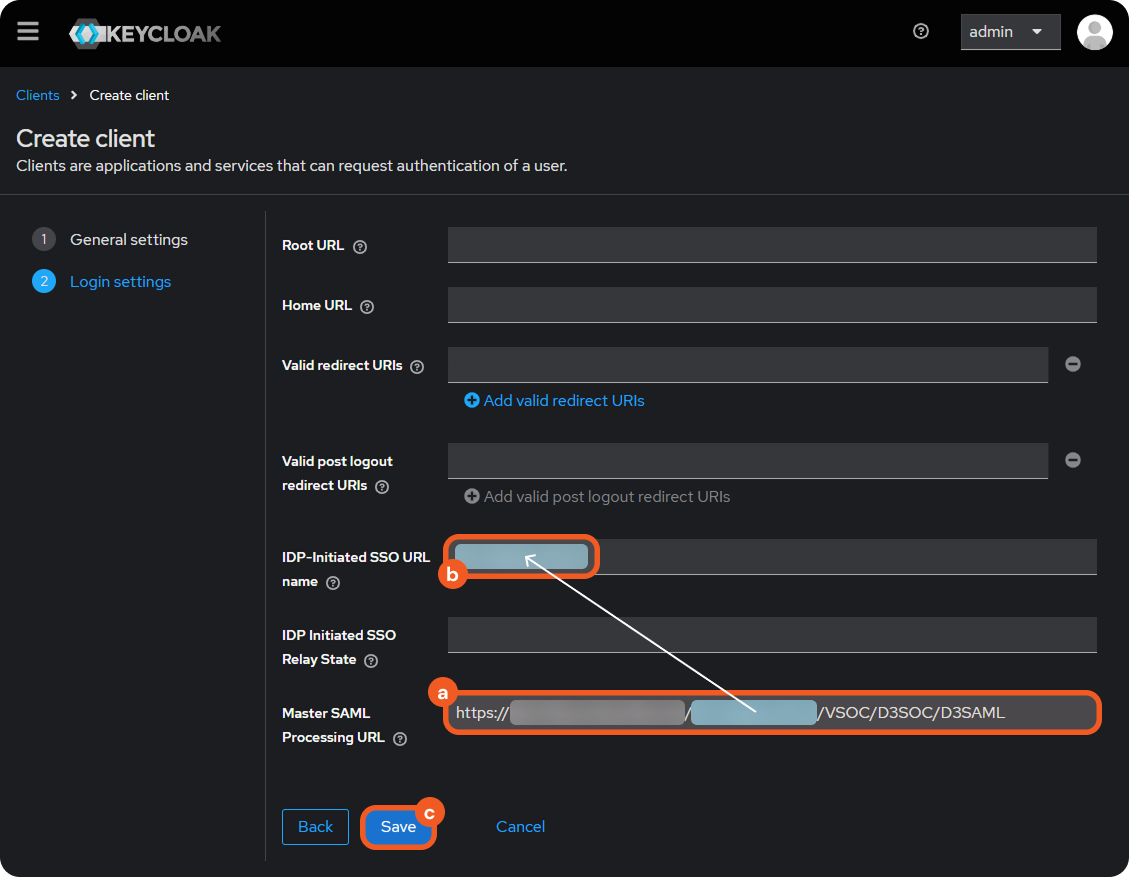
Configure the Login settings.
-
Enter your D3 vSOC URL (ending with
/VSOC/D3SOC/D3SAML) in the Master SAML Processing URL field. -
Enter the path between the base URL and the /vSOC/D3SOC/D3SAML endpoint in the IDP-Initiated SSO URL name field, without the leading and trailing slashes.
-
Click on the Save button.
-
-
Scroll to the SAML capabilities section, then select the email option for the name ID format dropdown.
-20260212-005025.png?cb=479ccbe76eef638e4094744e273a48ac)
-
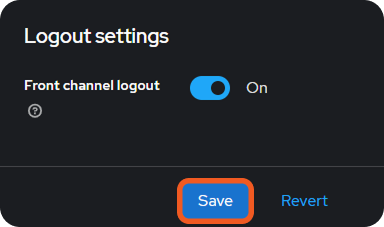
Click on the Save button.
-
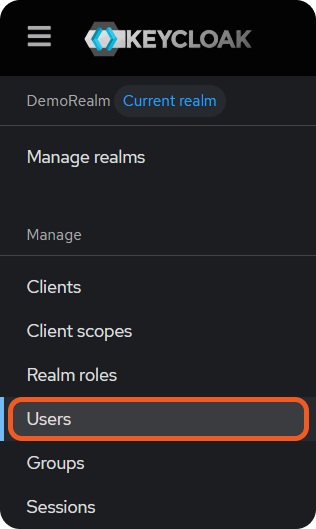
Navigate to the Users page.
-
Click on the Add user (or Create new user) button.
-20260212-010116.png?cb=e25f3dca56b1977b969ceec4687ca53c)
-
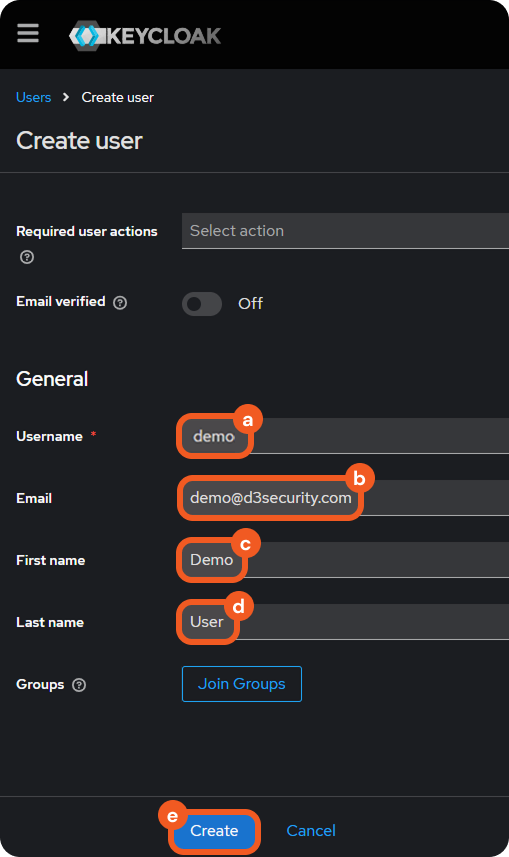
Create the user.
-
Enter a unique username.
-
Enter an email address.
-
Enter the first name of the user.
-
Enter the last name of the user.
-
Click on the Create button.
-
-
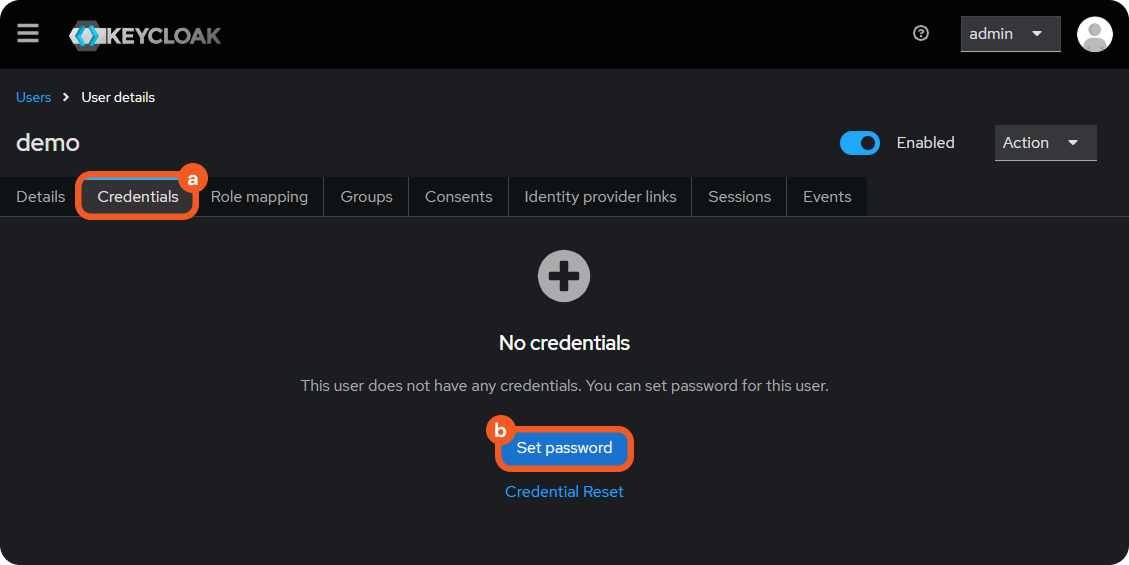
Navigate to the Credentials tab, then click on the Set password button.
-
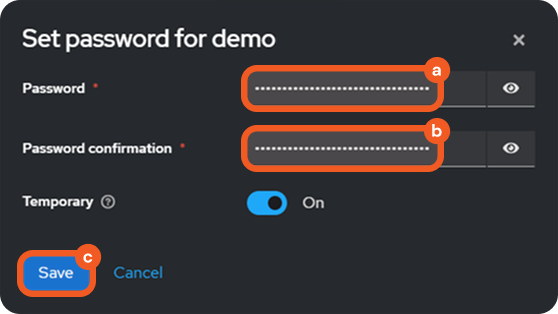
Enter and confirm a strong password, then click on the Save button.
READER NOTE
Before proceeding, ensure that you have:
-
Created D3 user accounts (Organization Management > Users > + Add Users).
-
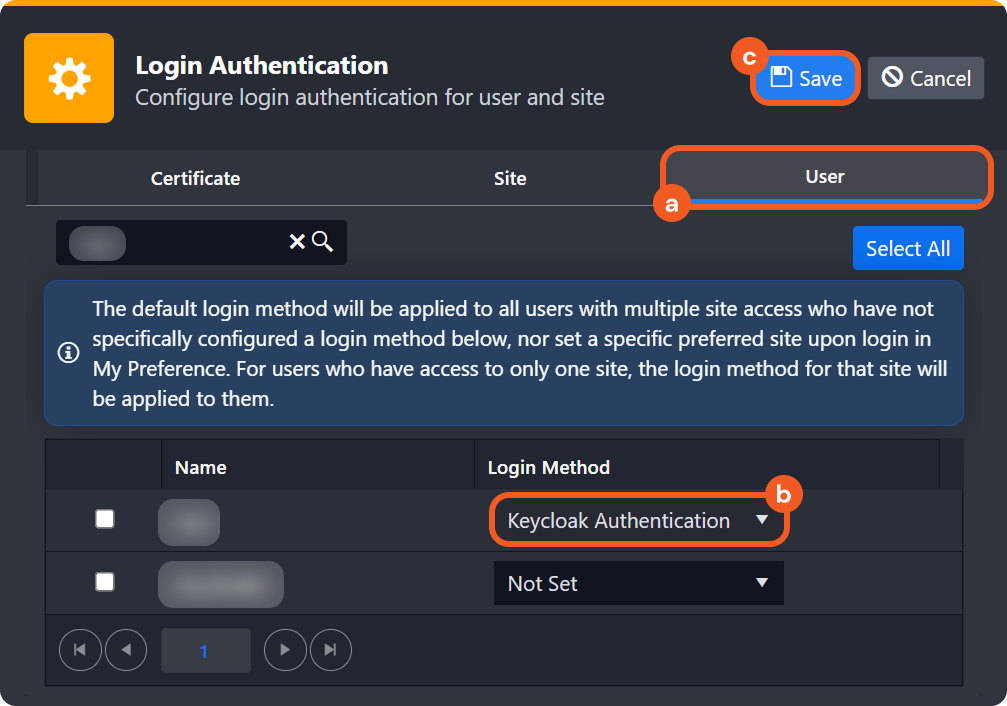
Reviewed the procedure for adding a new login method. The new Keycloak SAML login method must to be assigned to the appropriate D3 user accounts (Application Settings > Login Authentication > Users).
-
Reviewed the SAMLEmailIDType article. Depending on the SAMLEmailIDType configuration, the D3 login username is either the full email address or its local part.
-
Create a SAML20 D3 login authentication method.
-20260212-191351.png?cb=01da0afca48e8dc530360523cdccaf98)
-
Name the authentication method.
-
Construct and input the target URL in the following format:
http://<keycloak-host>:<port>/realms/<realm-name>/protocol/saml/clients/<client-id><keycloak-host> - The hostname or IP address of the Keycloak server.
<port> - The port on which Keycloak is running.
<realm-name> - The name of the realm entered in step 4a.
<client-id> - The same value entered in step 13b. -
Enter the certificate value stored in step 9.
-
Click on the Save button.
-
-
Click on the Save button next to the Login Authentication header.

-
Assign the login method to D3 users.
Logging in to D3 vSOC via Keycloak
-
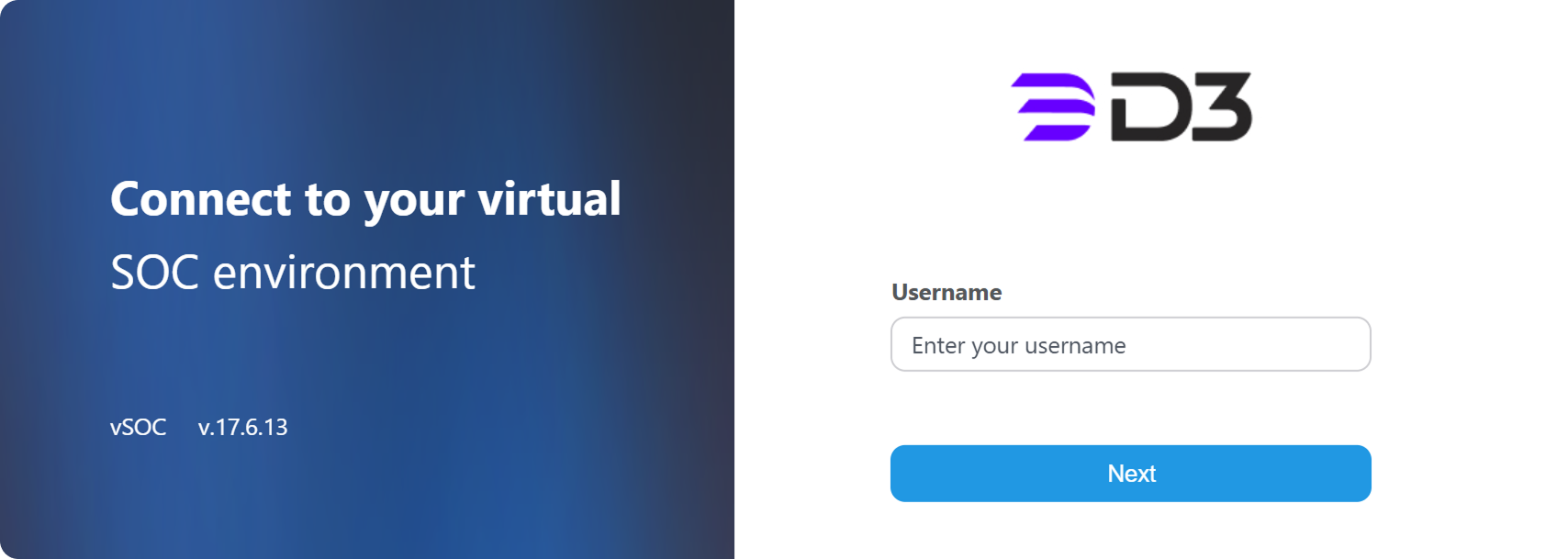
Enter the D3 username in the D3 vSOC login page for the user assigned the Keycloak authentication method in step 23b.
-
Enter the user credentials configured in steps 18a or 18b, and 20, on the Keycloak login page, then click on the Sign In button.
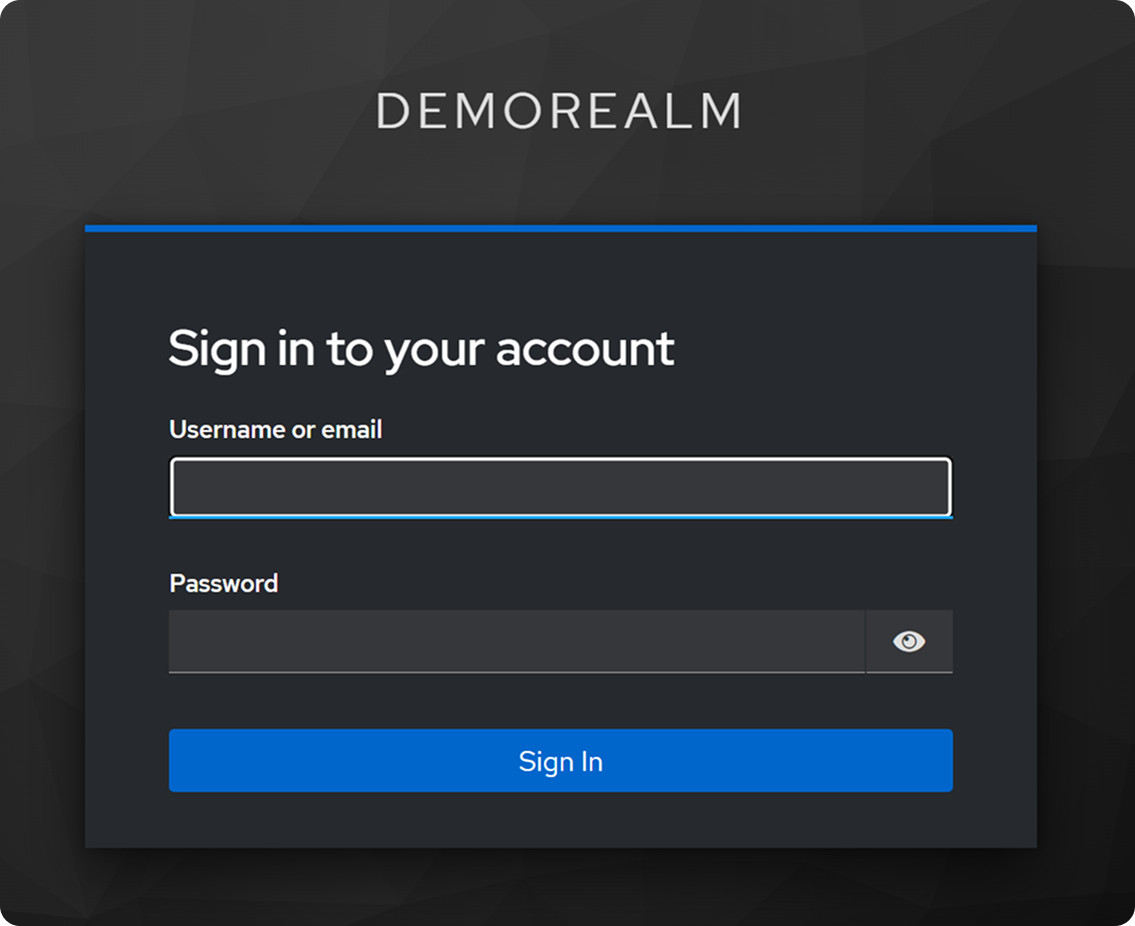
READER NOTE *
This redirect link differs from the admin console link. The correct page displays the realm name as the title (rather than "Keycloak").