Playbook Library
LAST UPDATED: JAN 6, 2025
Overview
The Playbook Library provides pre-built templates tailored to common cybersecurity threat investigation scenarios. Users can leverage these templates to streamline playbook creation.

Accessing the Playbook Library
There are two ways to access the playbook library.
On the playbook landing page
Navigate to Configuration > Preprocessing Playbooks (or Investigation Playbooks).
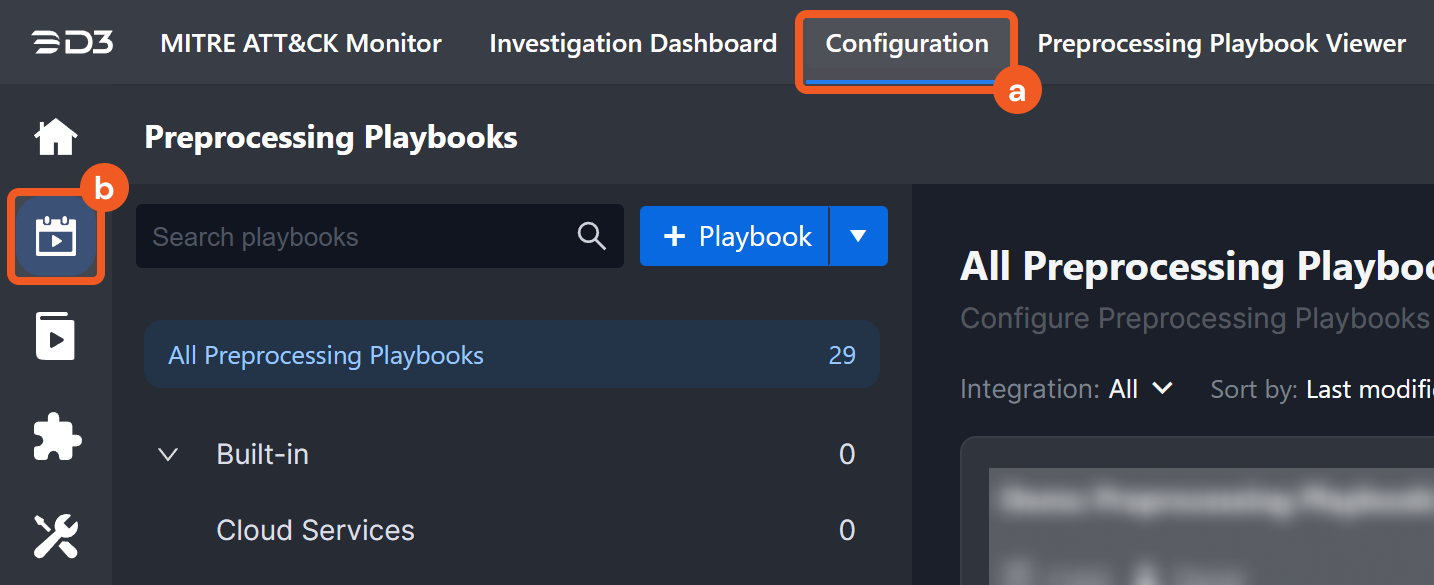
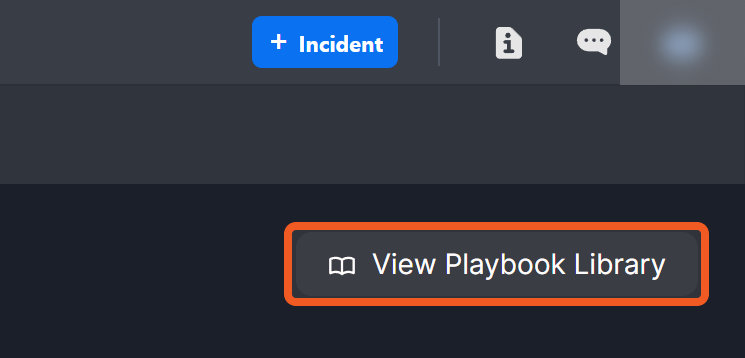
Click on the View Playbook Library button.
Within a playbook
Navigate to Configuration > Preprocessing Playbooks (or Investigation Playbooks).
Click into a playbook.
-20241227-195740.png?inst-v=bfb1ec42-c45a-425e-9e97-43428b3365fd)
Click on the
button beside the task menu.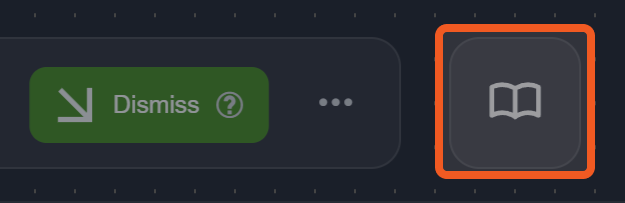
Using a Template
Use the left-hand menu to browse through different categories.
-20250103-171431.png?inst-v=bfb1ec42-c45a-425e-9e97-43428b3365fd)
Click on a playbook card to open its template.
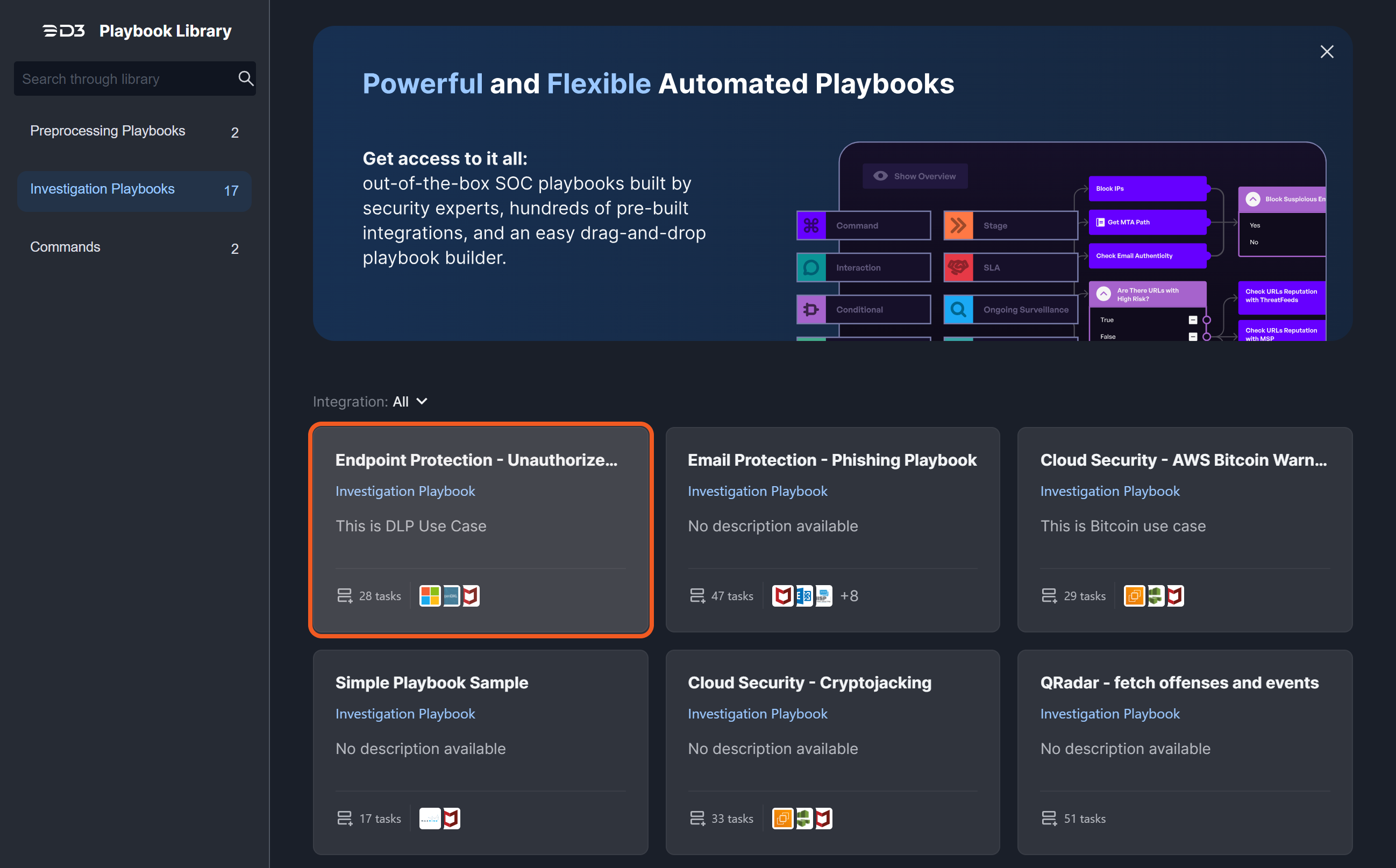
Observe and use the template as needed.
-20250103-172644.png?inst-v=bfb1ec42-c45a-425e-9e97-43428b3365fd)
Hover over a task node, then click on the the
%20(1)-20250103-172935.png?inst-v=bfb1ec42-c45a-425e-9e97-43428b3365fd) icon to copy a single task.
icon to copy a single task.
Refer to Pasting Template Tasks for instructions on pasting a task onto the playbook canvas.Click on the
%20(2)-20250103-173219.png?inst-v=bfb1ec42-c45a-425e-9e97-43428b3365fd) button export the entire template playbook as an XML file.
button export the entire template playbook as an XML file.

READER NOTE
Playbooks must be imported as their respective types.
Attempting to import a playbook into the wrong category (e.g. importing an investigation playbook as a preprocessing playbook) is not allowed.
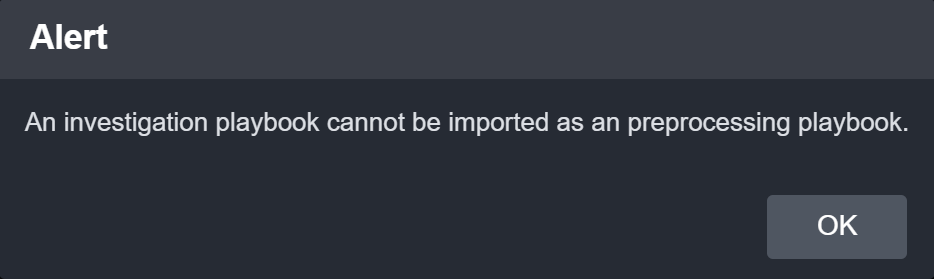
Navigate to Configuration > Investigation Playbooks (or Preprocessing Playbooks).
-20250103-174301.png?inst-v=bfb1ec42-c45a-425e-9e97-43428b3365fd)
Click the
 button.
 Click on the Browse button.
-20250103-173958.png?inst-v=bfb1ec42-c45a-425e-9e97-43428b3365fd)
Select the XML file.
Click on the Import button.
-20250103-173804.png?inst-v=bfb1ec42-c45a-425e-9e97-43428b3365fd)
Pasting Template Tasks
Open a playbook.
-20241227-201256.png?inst-v=bfb1ec42-c45a-425e-9e97-43428b3365fd)
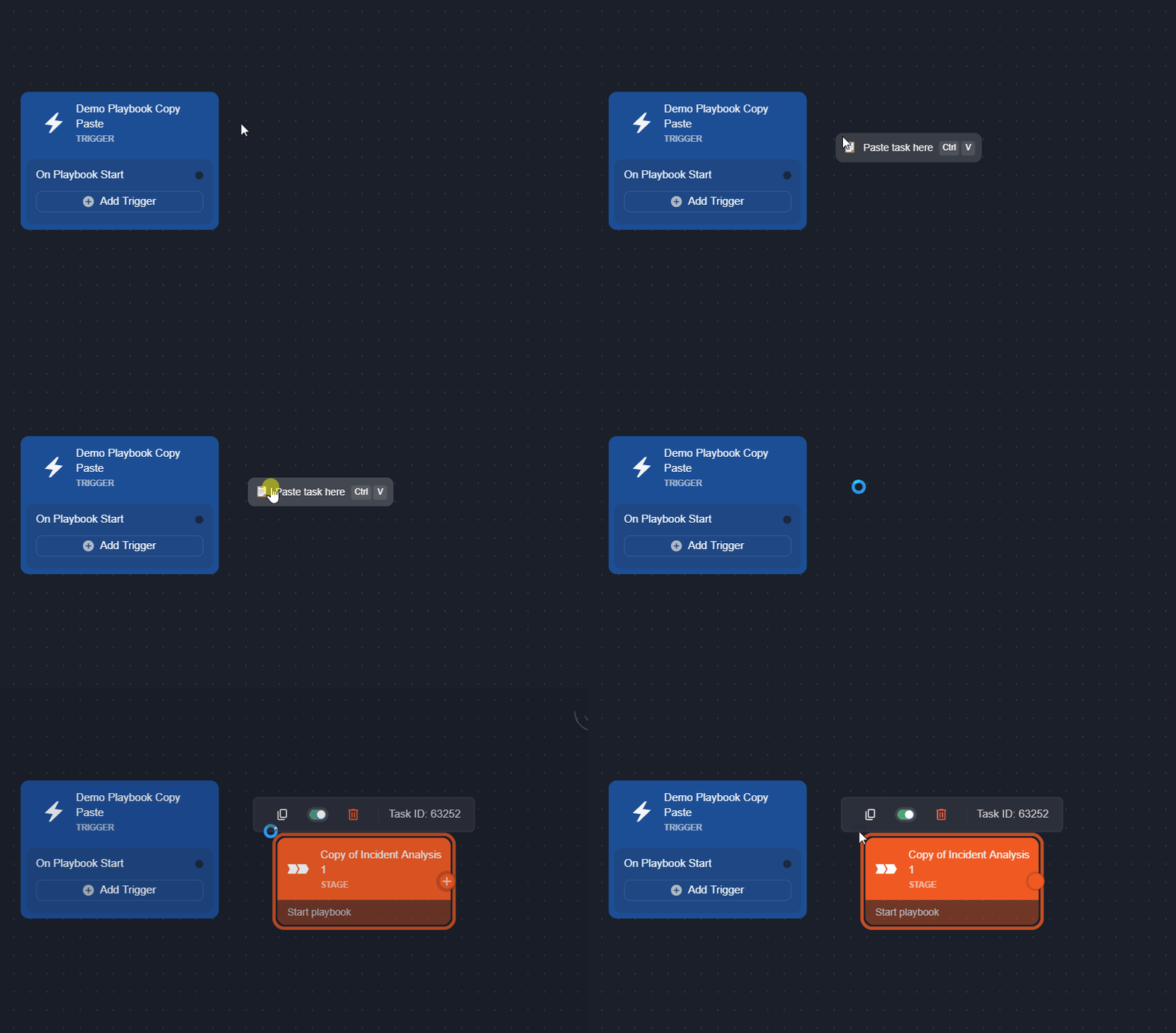
Right-click on the playbook canvas, then click on the Paste task here button (or press Ctrl + V).