
Colortokens Xshield
LAST UPDATED: OCTOBER 20, 2025
Overview
ColorTokens Xshield is a Zero Trust microsegmentation platform that provides asset visibility, dynamic policy enforcement, and real-time quarantine. It helps organizations isolate threats, reduce lateral movement, and strengthen security across cloud and on-prem environments.
D3 SOAR is providing REST operations to function with Colortokens Xshield.
Colortokens Xshield is available for use in:
Connection
To connect to Colortokens Xshield from D3 SOAR, follow this part to collect the required information below:
Parameter | Description | Example |
Server URL | The server URL of the Colortokens Xshield instance. | https://{tenant}.spectrum.colortokens.com |
API Token | The API token used to authenticate the connection. | ***** |
Tenant | The tenant name of the ColorTokens Xshield instance. By default, it is derived from the server URL. | selab-pb |
API Version | The version of the API to use for the connection. | v1 |
Configuring D3 SOAR to Work with Colortokens Xshield
Log in to D3 SOAR.
Find the Colortokens Xshield integration.
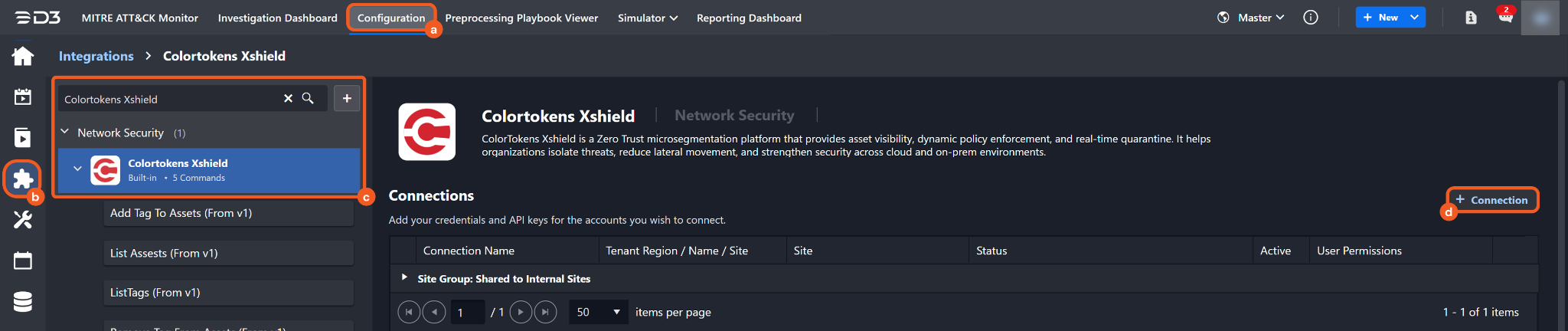
Navigate to Configuration on the top header menu.
Click on the Integration icon on the left sidebar.
Type Colortokens Xshield in the search box to find the integration, then click it to select it.
Click on the + Connection button on the right side of the Connections section. A new connection window will appear.
Configure the following fields to create a connection to Colortokens Xshield.
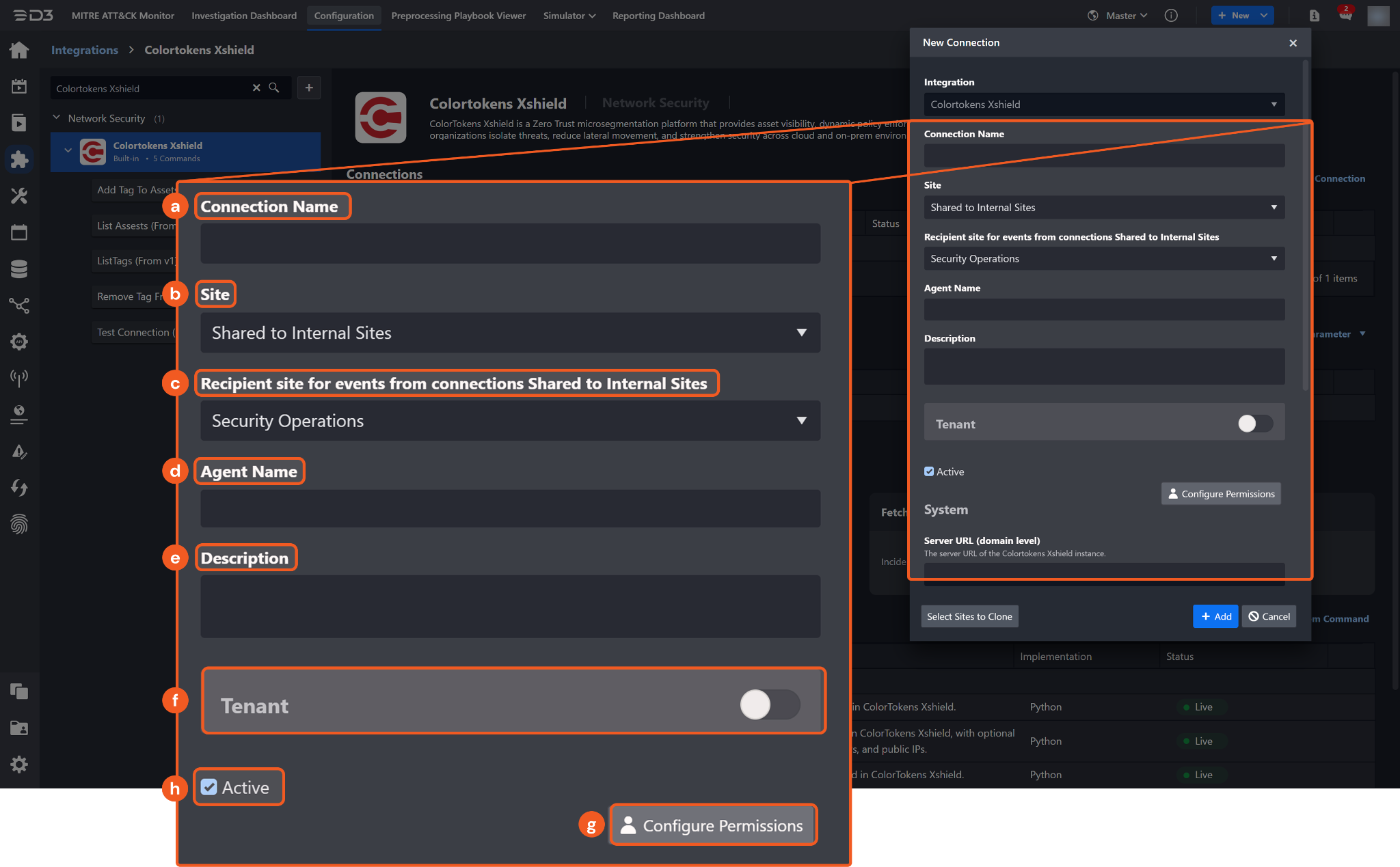
Connection Name: The desired name for the connection.
Site: The site on which to use the integration connection. Use the drop-down menu to select the site. The Share to Internal Sites option enables all internal sites to use the connection. Selecting a specific site will only enable that site to use the connection.
Recipient site for events from connections Shared to Internal Sites: This field is displayed when Share to Internal Sites is selected for the Site field, allowing selection of the internal site for deploying the integration connection.
Agent Name (Optional): The proxy agent required to build the connection. Use the dropdown menu to select the proxy agent from a list of previously configured proxy agents.
Description (Optional): The description for the connection.
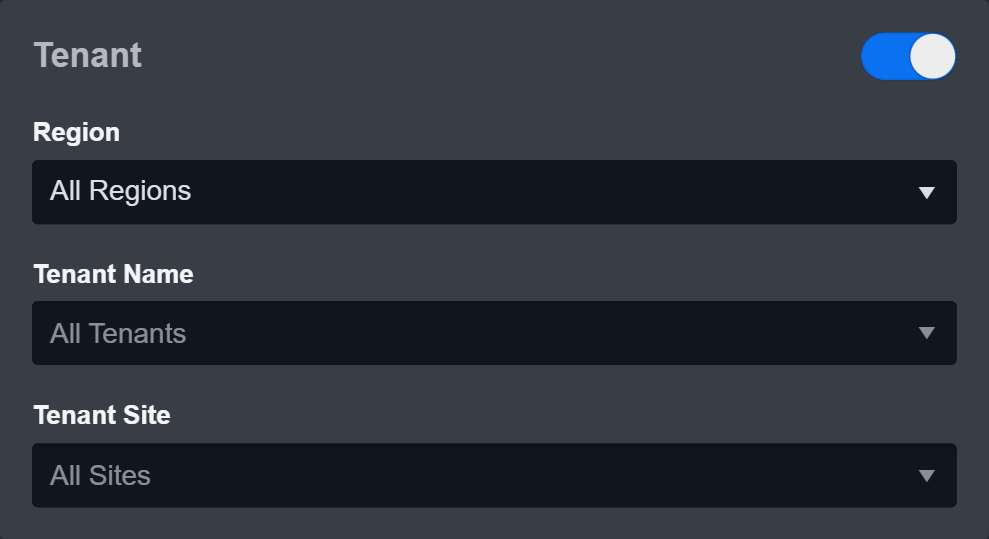
Tenant (Optional): When configuring the connection from a master tenant site, users can choose the specific tenant sites with which to share the connection. Once this setting is enabled, users can filter and select the desired tenant sites from the dropdowns to share the connection.
Configure User Permissions: Defines which users have access to the connection.
Active: The checkbox that enables the connection to be used when selected.
System: This section contains the parameters defined specifically for the integration. These parameters must be configured to create the integration connection.
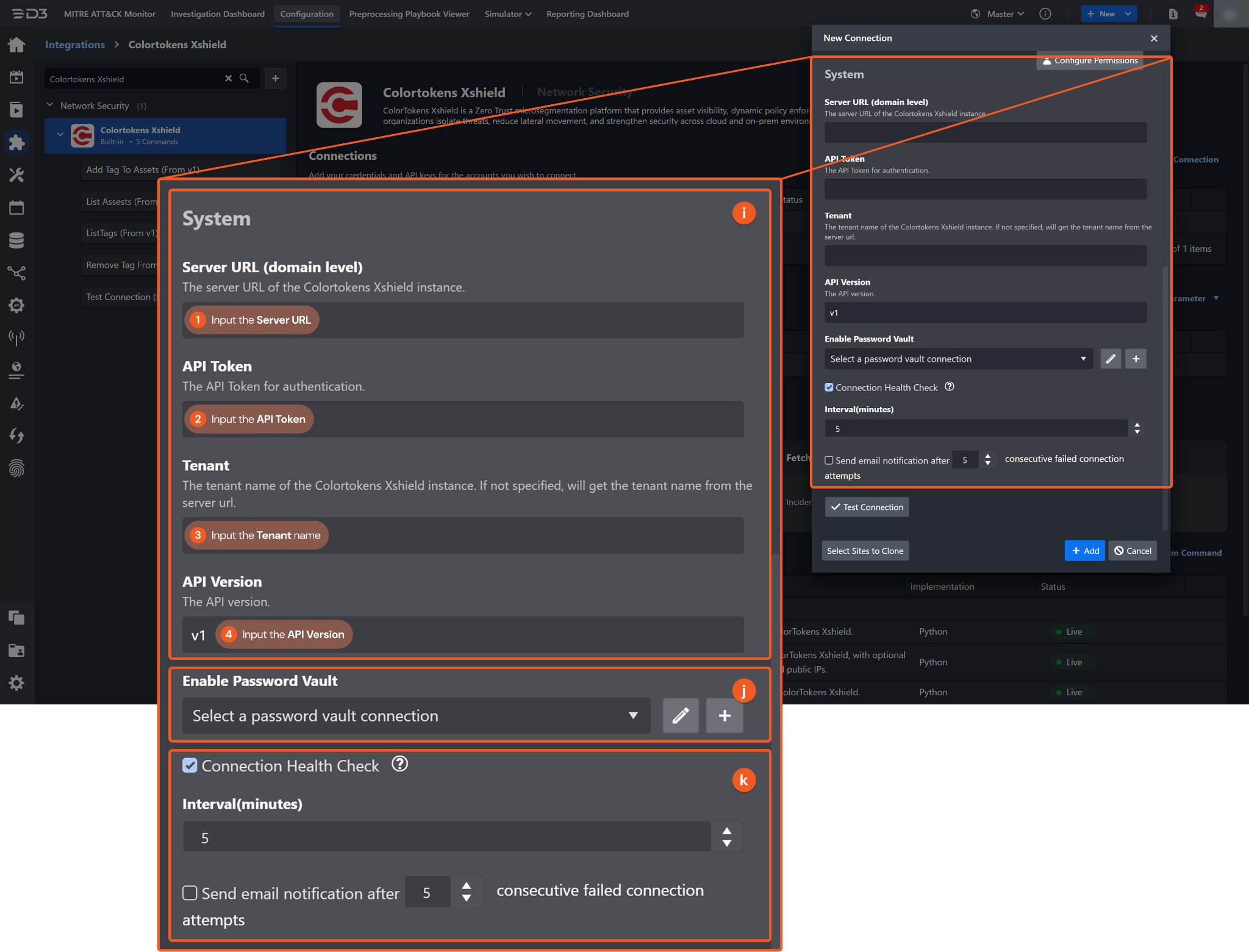
1. Input the Server URL in the https://{tenant}.spectrum.colortokens.com format.
2. Input the API Token obtained from the Colortokens Xshield platform.
3. Input the Tenant name. By default, the tenant name is derived from the server URL.
4. Input the API Version. The default value is v1.
Enable Password Vault: An optional feature that allows users to take the stored credentials from their own password vault. Refer to the password vault connection guide if needed.
Connection Health Check: Periodically checks the connection status by scheduling the Test Connection command at the specified interval (in minutes). Available only for active connections, this feature also allows configuring email notifications for failed attempts.
Test the connection.
Click on the Test Connection button to verify credentials and connectivity. A success alert displays Passed with a green checkmark. If the connection fails, review the parameters and retry.
Click OK to close the alert window.
Click + Add to create and add the configured connection.
Commands
Colortokens Xshield includes the following executable commands for users to set up schedules or create playbook workflows. With the Test Command function, users can execute these commands independently for playbook troubleshooting.
Add Tag to Assets
Adds a tag to specified assets in ColorTokens Xshield.

READER NOTE
Assets, Tag Key, and Tag Value are required parameters to run this command.
Run the List Assets command to obtain the Assets. Assets is referring to the asset ID or hostname, which can be found in the raw data at:
$.data[*].id for asset ID
$.data[*].hostname for hostname
Run the List Tags command to obtain the Tag Key and Tag Value. Tag Keys and Tag Values can be found in the raw data at:
$.data[*].key for Tag Key
$.data[*].values for Tag Value
Input
Input Parameter | Required/Optional | Description | Example |
Assets | Required | The IDs or hostnames of the assets to tag. Asset IDs or hostnames can be obtained using the List Assets command. |
JSON
|
Tag Key | Required | The key of the tag. Tag keys can be obtained using the List Tags command. | testkey |
Tag Value | Required | The value of the tag. Tag values can be obtained using the List Tags command. | testvalue |
Output
To view the sample output data for all commands, refer to this article.
Error Handling
If the Return Data displays Partially Successful or Failed, an Error tab will appear in the Test Result window.
The error tab contains the details responded from D3 SOAR or third-party API calls, including Failure Indicator, Status Code, and Message. This can help locate the root cause of a command failure.
Parts in Error | Description | Example |
Failure Indicator | Indicates the command failure that happened at a specific input and/or API call. | Add Tag to Assets failed. |
Status Code | The response code issued by the third-party API server or the D3 SOAR system that can be used to locate the corresponding error category. For example, if the returned status code is 401, the selected connection is unauthorized to run the command. The user or system support would need to check the permission setting in the Colortokens Xshield portal. Refer to the HTTP Status Code Registry for details. | Status Code: 401. |
Message | The raw data or captured key error message from the integration API server about the API request failure. | Message: Unauthorized. |
Error Sample Data Add Tag to Assets failed. Status Code: 401. Message: Unauthorized. |
List Assets
Retrieves all assets from a ColorTokens Xshield tenant.
Input
Input Parameter | Required/Optional | Description | Example |
Hostnames | Optional | Filters assets by one or more hostnames. |
JSON
|
Local IPs | Optional | Filters assets by one or more internal (local) IP addresses. |
JSON
|
Public IPs | Optional | Filters assets by one or more public IP addresses. |
JSON
|
Output
To view the sample output data for all commands, refer to this article.
Error Handling
If the Return Data displays Failed, an Error tab will appear in the Test Result window.
The error tab contains the details responded from D3 SOAR or third-party API calls, including Failure Indicator, Status Code, and Message. This can help locate the root cause of a command failure.
Parts in Error | Description | Example |
Failure Indicator | Indicates the command failure that happened at a specific input and/or API call. | List Assets failed. |
Status Code | The response code issued by the third-party API server or the D3 SOAR system that can be used to locate the corresponding error category. For example, if the returned status code is 401, the selected connection is unauthorized to run the command. The user or system support would need to check the permission setting in the Colortokens Xshield portal. Refer to the HTTP Status Code Registry for details. | Status Code: 401. |
Message | The raw data or captured key error message from the integration API server about the API request failure. | Message: Unauthorized. |
Error Sample Data List Assets failed. Status Code: 401. Message: Unauthorized. |
List Tags
Retrieves all available tags defined in ColorTokens Xshield.
Input
N/A
Output
To view the sample output data for all commands, refer to this article.
Error Handling
If the Return Data displays Failed, an Error tab will appear in the Test Result window.
The error tab contains the details responded from D3 SOAR or third-party API calls, including Failure Indicator, Status Code, and Message. This can help locate the root cause of a command failure.
Parts in Error | Description | Example |
Failure Indicator | Indicates the command failure that happened at a specific input and/or API call. | List Tags failed. |
Status Code | The response code issued by the third-party API server or the D3 SOAR system that can be used to locate the corresponding error category. For example, if the returned status code is 401, the selected connection is unauthorized to run the command. The user or system support would need to check the permission setting in the Colortokens Xshield portal. Refer to the HTTP Status Code Registry for details. | Status Code: 401. |
Message | The raw data or captured key error message from the integration API server about the API request failure. | Message: Unauthorized. |
Error Sample Data List Tags failed. Status Code: 401. Message: Unauthorized. |
Remove Tag From Assets
Removes a tag from specified assets in ColorTokens Xshield.
READER NOTE
Assets, Tag Key, and Tag Value are required parameters to run this command.
Run the List Assets command to obtain the Assets. Assets is referring to the asset ID or hostname, which can be found in the raw data at:
$.data[*].id for asset ID
$.data[*].hostname for hostname
Run the List Tags command to obtain the Tag Key and Tag Value. Tag Keys and Tag Values can be found in the raw data at:
$.data[*].key for Tag Key
$.data[*].values for Tag Value
Input
Input Parameter | Required/Optional | Description | Example |
Assets | Required | The IDs or hostnames of the assets from which tags are removed. Asset IDs or hostnames can be obtained using the List Assets command. |
JSON
|
Tag Key | Required | The key of the tag. Tag keys can be obtained using the List Tags command. | testkey |
Tag Value | Required | The value of the tag. Tag values can be obtained using the List Tags command. | testvalue |
Output
To view the sample output data for all commands, refer to this article.
Error Handling
If the Return Data displays Partially Successful or Failed, an Error tab will appear in the Test Result window.
The error tab contains the details responded from D3 SOAR or third-party API calls, including Failure Indicator, Status Code, and Message. This can help locate the root cause of a command failure.
Parts in Error | Description | Example |
Failure Indicator | Indicates the command failure that happened at a specific input and/or API call. | Remove Tag From Assets failed. |
Status Code | The response code issued by the third-party API server or the D3 SOAR system that can be used to locate the corresponding error category. For example, if the returned status code is 401, the selected connection is unauthorized to run the command. The user or system support would need to check the permission setting in the Colortokens Xshield portal. Refer to the HTTP Status Code Registry for details. | Status Code: 401. |
Message | The raw data or captured key error message from the integration API server about the API request failure. | Message: Unauthorized. |
Error Sample Data Remove Tag From Assets failed. Status Code: 401. Message: Unauthorized. |
Test Connection
Allows users to perform a health check on an integration connection. Users can schedule a periodic health check by selecting Connection Health Check when editing an integration connection.
Input
N/A
Output
Output Type | Description | Return Data Type |
Return Data | Indicates one of the possible command execution states: Successful or Failed. The Failed state can be triggered by any of the following errors:
More details about an error can be viewed in the Error tab. | String |
Error Handling
If the Return Data displays Failed, an Error tab will appear in the Test Result window.
The error tab contains the details responded from D3 SOAR or third-party API calls, including Failure Indicator, Status Code, and Message. This can help locate the root cause of a command failure.
Parts in Error | Description | Example |
Failure Indicator | Indicates the command failure that happened at a specific input and/or API call. | Test Connection failed. Failed to check the connector. |
Status Code | The response code issued by the third-party API server or the D3 SOAR system that can be used to locate the corresponding error category. For example, if the returned status code is 401, the selected connection is unauthorized to run the command. The user or system support would need to check the permission setting in the Colortokens Xshield portal. Refer to the HTTP Status Code Registry for details. | Status Code: 401. |
Message | The raw data or captured key error message from the integration API server about the API request failure. | Message: Unauthorized. |
Error Sample Data Test Connection failed. Failed to check the connector. Status Code: 401. Message: Unauthorized. |