
Last Updated: October 23, 2026
Multi-tenancy is a feature designed to support organizations in managing multiple clients and business units. Business units include subsidiaries, departments, teams, hierarchical tiers within departments or teams, and organizational divisions in distant geographic regions (see Distributed Multi-Tenancy). In D3, multi-tenancy is implemented through sites, each operating independently with isolated data, workflows, and configurations.
Creating Sites
Follow the steps below to create a site:
-
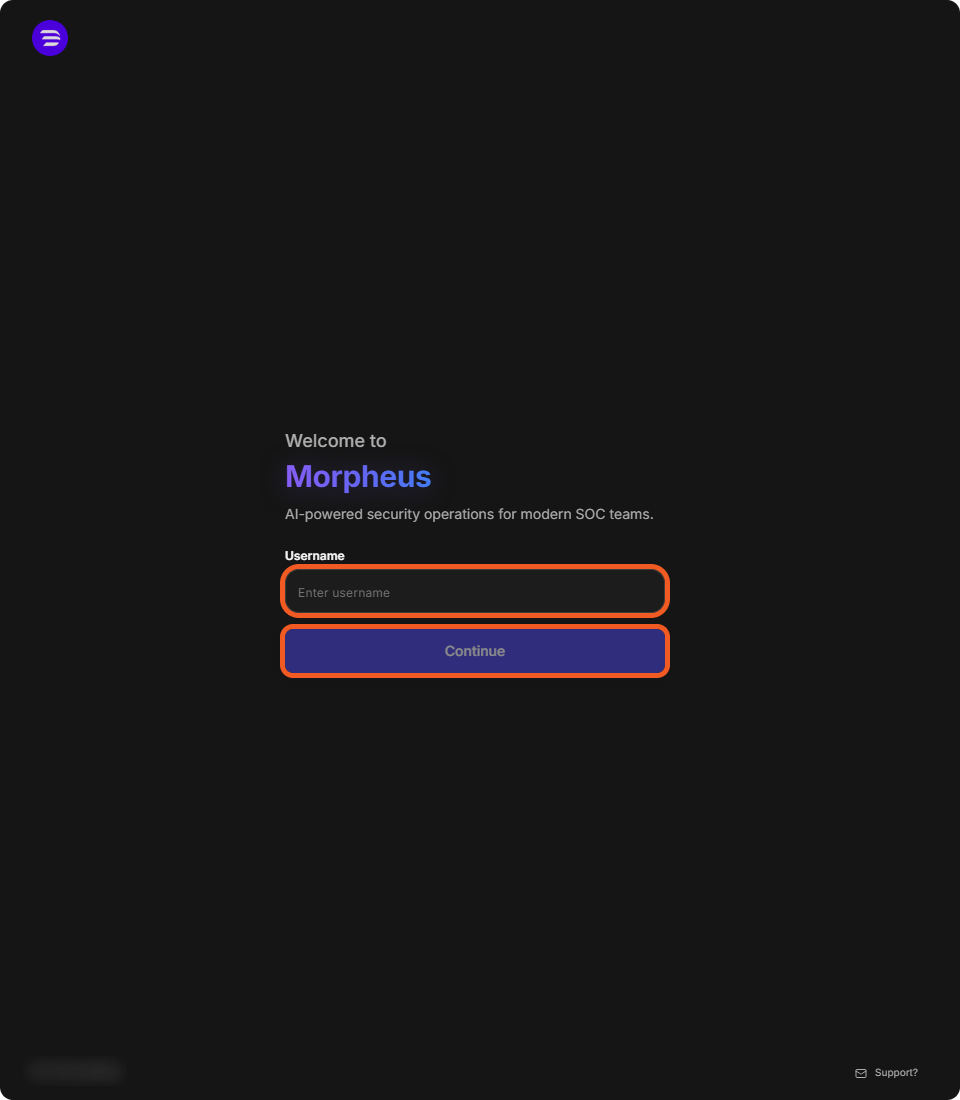
Sign in to D3: enter your Username and select Continue, then enter your password and select Sign In.
-
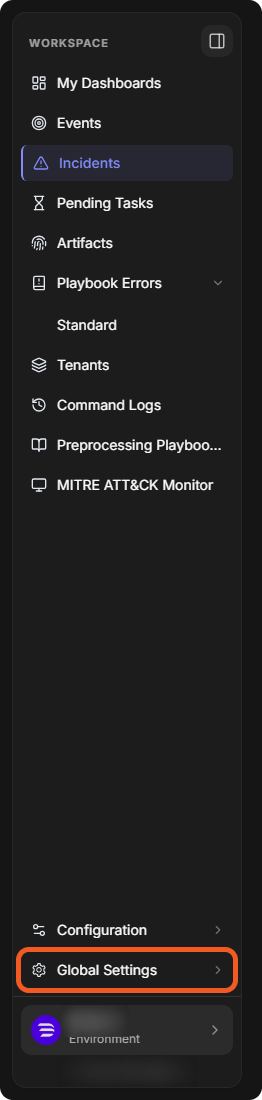
In the sidebar, select Global Settings.
-
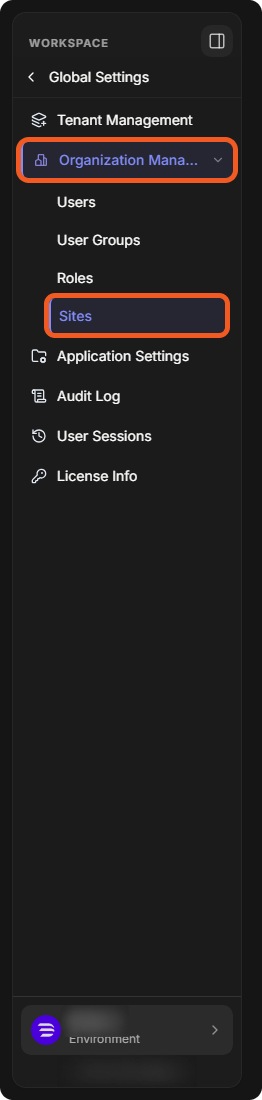
Select Organization Management > Sites.
-
Select Add Site.

-
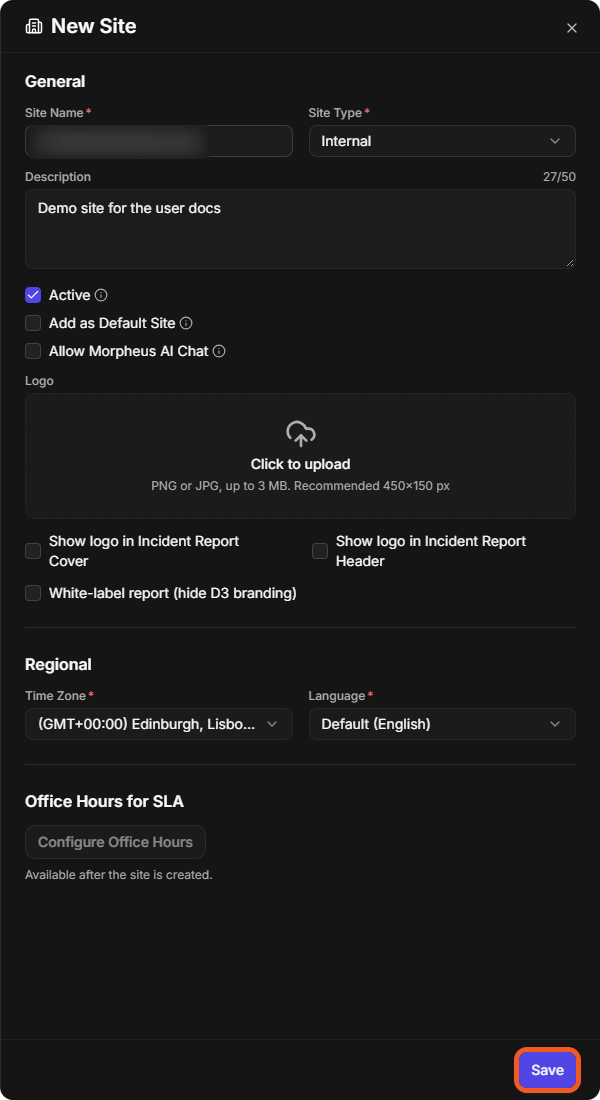
Enter the site details in the New Site panel.
-
Enter a Site Name.
-
Select the Site Type, which can be Internal or Client:
-
Internal: used for managing internal business units.
-
Client: designated for external clients or customers.
-
-
(Optional) Enter a Description (up to 50 characters).
-
Keep Active selected. Optionally, select Add as Default Site and Allow Morpheus AI Chat.
-
(Optional) Upload a Logo (PNG or JPG, up to 3 MB; 450×150 px recommended).
-
Under Regional, select a Time Zone and a Language.
-
-
Select Save. The new site is listed on the Sites page.

RESULT
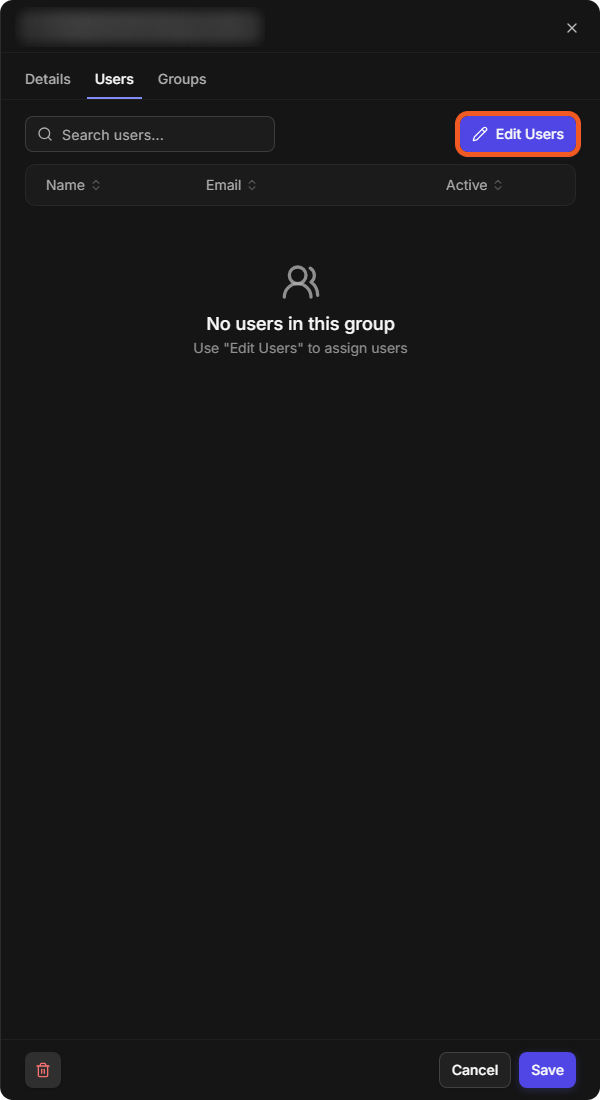
Once a site has been created, add users to it to enable its use: select the site, open its Users tab and select Edit Users. The site's Groups tab lists the groups the site is assigned to; assign a site to a group from the User Groups page. Office Hours for SLA can be configured once the site exists.
For every field of a site, see Organization Management.
Distributed Multi-Tenancy
Distributed multi-tenancy is applicable for organizations with operations spanning multiple countries. While only a minority of organizations require this setup, distributed multi-tenancy is an approach to ensure compliance with regional data regulations.
For example, a master tenant could oversee sub-tenants in the US, Europe, and Asia-Pacific, each complying with their region's data regulations.
-20241127-222425.png?cb=026dc846da3a9d1a81adb93f2246eea2)
READER NOTE
-
Distributed multi-tenancy is not enabled by default. Contact D3 for further information.
-
The associations between the master instance and tenant instances are configured by D3.