Custom Views
LAST UPDATED: JULY 25, 2025
Custom views offer a tailored perspective into event, incident, pending task, artifacts and playbook error data by allowing users to define how information is grouped, sorted, and filtered within a table.
-20250429-011332.png?inst-v=42f6df80-df0f-4ec4-af2e-6f907a55cc8f)
-20250429-011254.png?inst-v=42f6df80-df0f-4ec4-af2e-6f907a55cc8f)
Each custom view acts as a saved configuration of the table's presentation—optimized to highlight the most relevant data for a specific role, workflow, or investigative need.
-20250507-223556.png?inst-v=42f6df80-df0f-4ec4-af2e-6f907a55cc8f)
Try Creating a Simple Custom View.
Accessing Custom Views
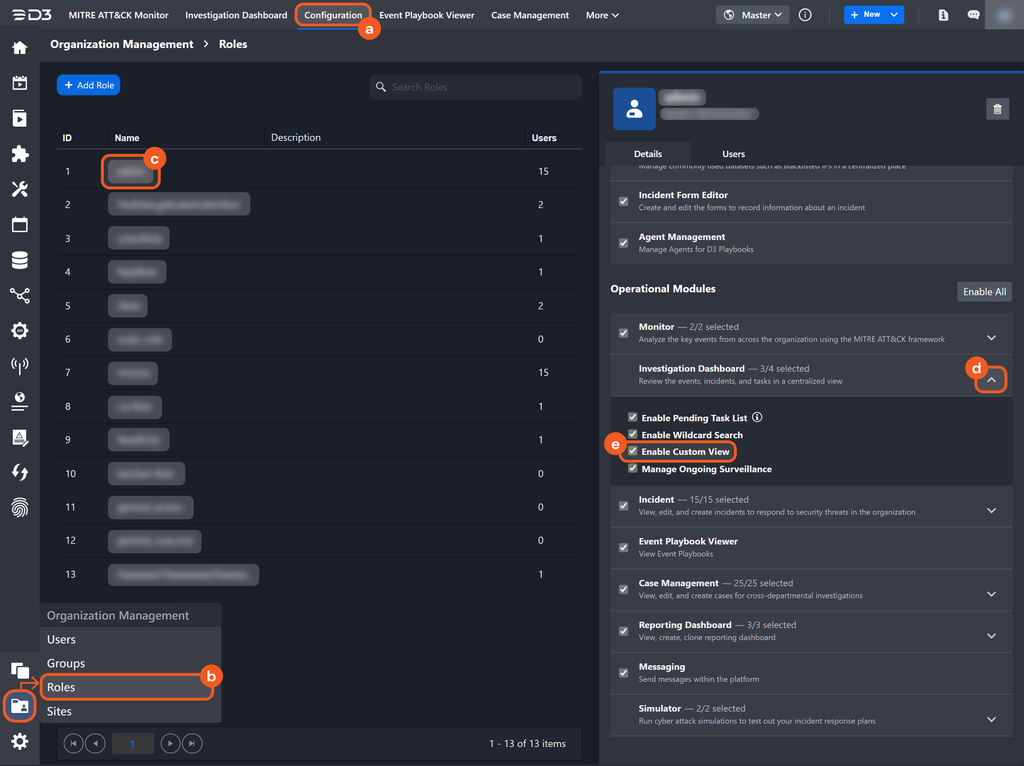
The Enable Custom View role token is required for a user to create and view custom views.
Enable this token by selecting the checkbox at: Configuration > Organization Management > Roles > [Role] > Operational Modules > Investigation Dashboard > Enable Custom View.
Editing and Deleting Custom Views
To edit or delete a custom view, click on the  icon.
icon.
-20250428-221501.png?inst-v=42f6df80-df0f-4ec4-af2e-6f907a55cc8f)
Clicking on the Edit View option will reopen the Edit View popover.
Clicking on the Remove View option will open a popover, prompting the user to confirm and delete the selected custom view.

READER NOTE
Only the owner can delete their custom view—no one else has permission.
If a user did not create the custom view, only the View Details option will be available.
-20250428-233153.png?inst-v=42f6df80-df0f-4ec4-af2e-6f907a55cc8f)
If an owner edits or deletes their custom view, users with viewing access will be notified.
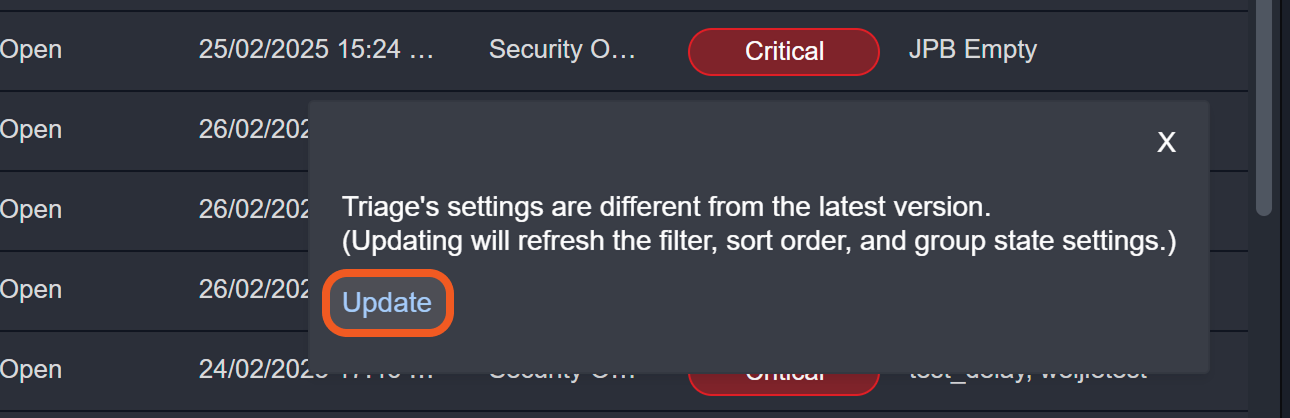
Clicking the Update button will synchronize the view (if edited) or remove it (if deleted).
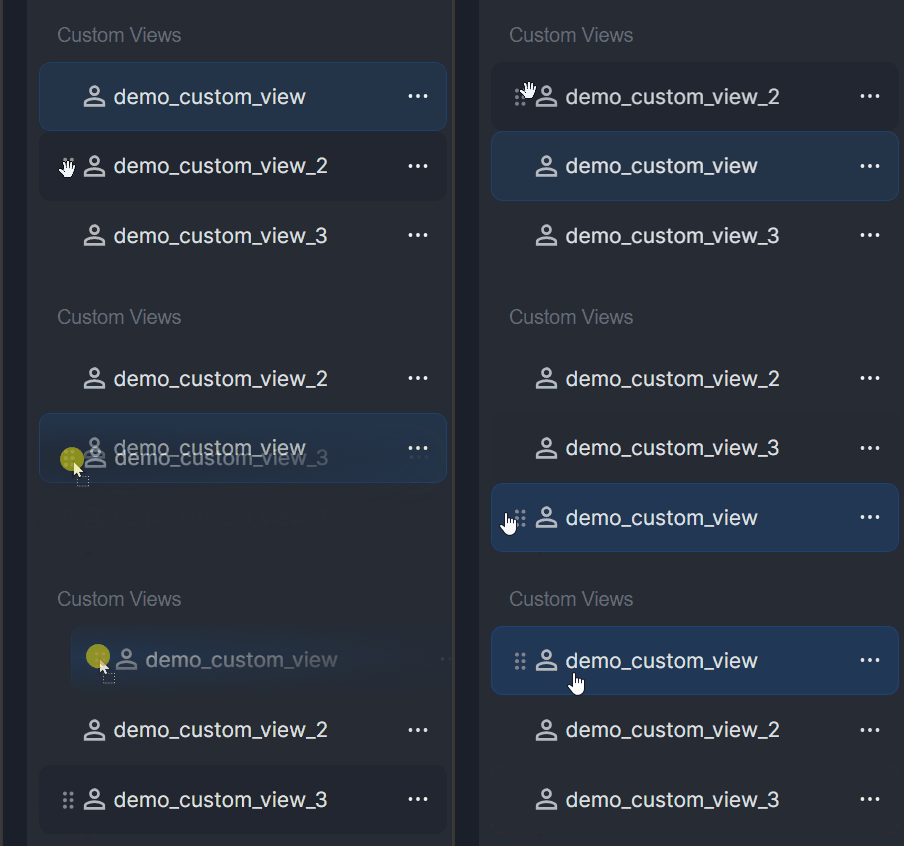
Hover over a custom view item, then drag the  icon (grab handle) to adjust its order.